
Using The Advanced Filters Panel
The “Advanced Filters” LeadTables feature has been a labor of love for me — it was a big PitA to build, but it’s what I wanted to be able to do with the tool from day 1, so it’s reallllly exciting for me to be able to share with you because of the power it unlocks.
At a glance…
- Basic Filters are great for quick & simple filtering. They’re the default. They only support “AND” filtering logic.
- Advanced Filters are a lot more powerful. You can use “AND” and “OR” filtering logic, nested groups, and drag-and-drop reordering.
Filter Mode is saved on a per-view basis, so it’s no problem to have some Basic Filter Saved Views & some Advanced ones.
How To Use The Advanced Filter Mode
You can enable the Advanced Filtering mode in the Action Bar. When you do, it’ll change the normal “Filters” tool panel into the special/magic/coveted/fabled Advanced Filters tool panel (wow!).

From there, you can apply your filters, save your views, etc. as normal.
If you switch back to Basic Filtering mode, we’ll try our best to convert your current filter model back to a Basic one, and if it’s not possible, we’ll show you a warning first.

When To Use The Advanced Filter Mode
If you ever want to create a complex definition of “what a good lead is,” you might find yourself saying something like:
- “I either want them to get at least X website visitors per month OR have between Y-Z employees OR have at least N social media followers”
This would be impossible with Basic filters. But with advanced filters, it’s a breeze!
You could even get fancier and stack it with other “AND” or “OR” conditions, if you wanted to.
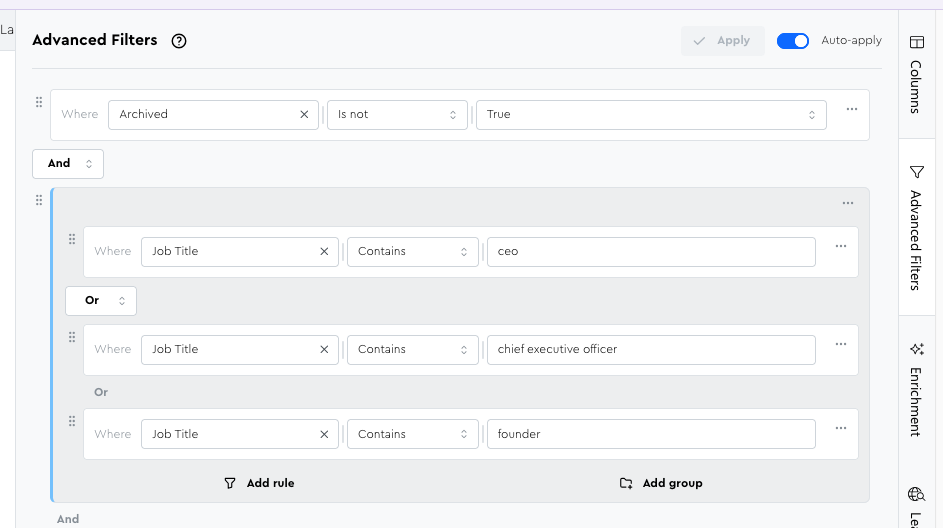
The filter stack below shows a filter setup where I’d be finding contacts who have one of my desired CEO job titles AND work for a company that’s a good ICP fit.
How Grouping Works
If you play with the Advanced Filters, you may notice that when you set something to “AND” or “OR”, your choice applies to all filter conditions below it, and you can’t change them:

But what about when you want to mix and match?
→ That’s where groups come in.
Scroll up and look at my “CEOs of perfect fit companies” filter stack and you’ll see it in action:
- Condition 1: Not archived
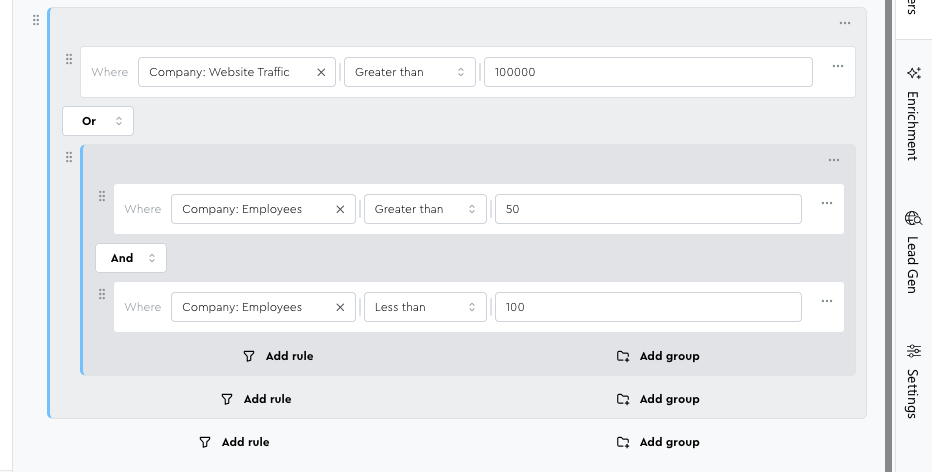
ANDCondition 2 (Group): Any of the CEO job titles (OR)ANDCondition 3 (Group): Either TrafficORdesired employee range (sub-grouped withAND)
How Nested Grouping / Sub-Grouping Works
Nested grouping is where it gets really powerful.
e.g. that second screenshot from above where there’s an OR group with a nested AND.
It’s saying: “The company either needs at least 100k website traffic OR has to be ( > 50 AND < 100 ) employees.”
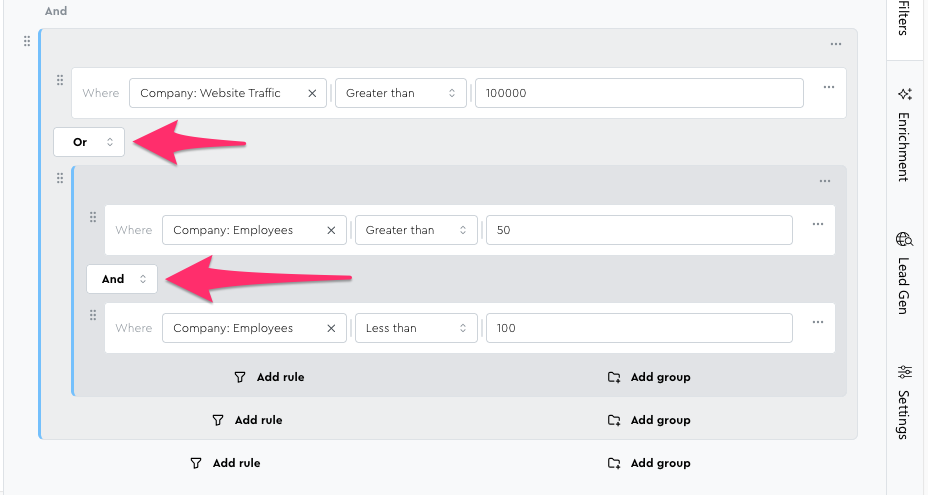
Make sense? I hope so 😅
Pro Tips
- You can infinitely nest groups
- Drag rules & groups to reorder them
- You can drag groups and filters into & out of groups
- Use the
⋯ menuon any rule or group to duplicate or delete it - Nested groups can be “dissolved” in the
⋯ menuto un-nest its children and delete the group - Press Enter to apply filters instantly
- Disable filter auto-applying if you want to make a lot of changes without seeing the table rows change as you go