
Example: “Google Search Trash Filter” Compound Filter With Liquid
In this video, I walk you through an example of the power of using Liquid in formulas to create “compound filters.”
The Problem:
Suppose I get a bunch of Financial Advisor leads from the LeadTables “Google Search Lead Finder” Data Module and want to blacklist a bunch of keywords to filter out the trash leads for cheap.
At the time of writing, LeadTables limits the “does not contain” filters to only a couple per column, so that’s out as a possibility.
Enter: the “compound filter formula.”
The Result:
I used LiquidGPT to help me generate a nifty “compound filter formula” that outputs a simple Survived Google Trash Filter? status like this:
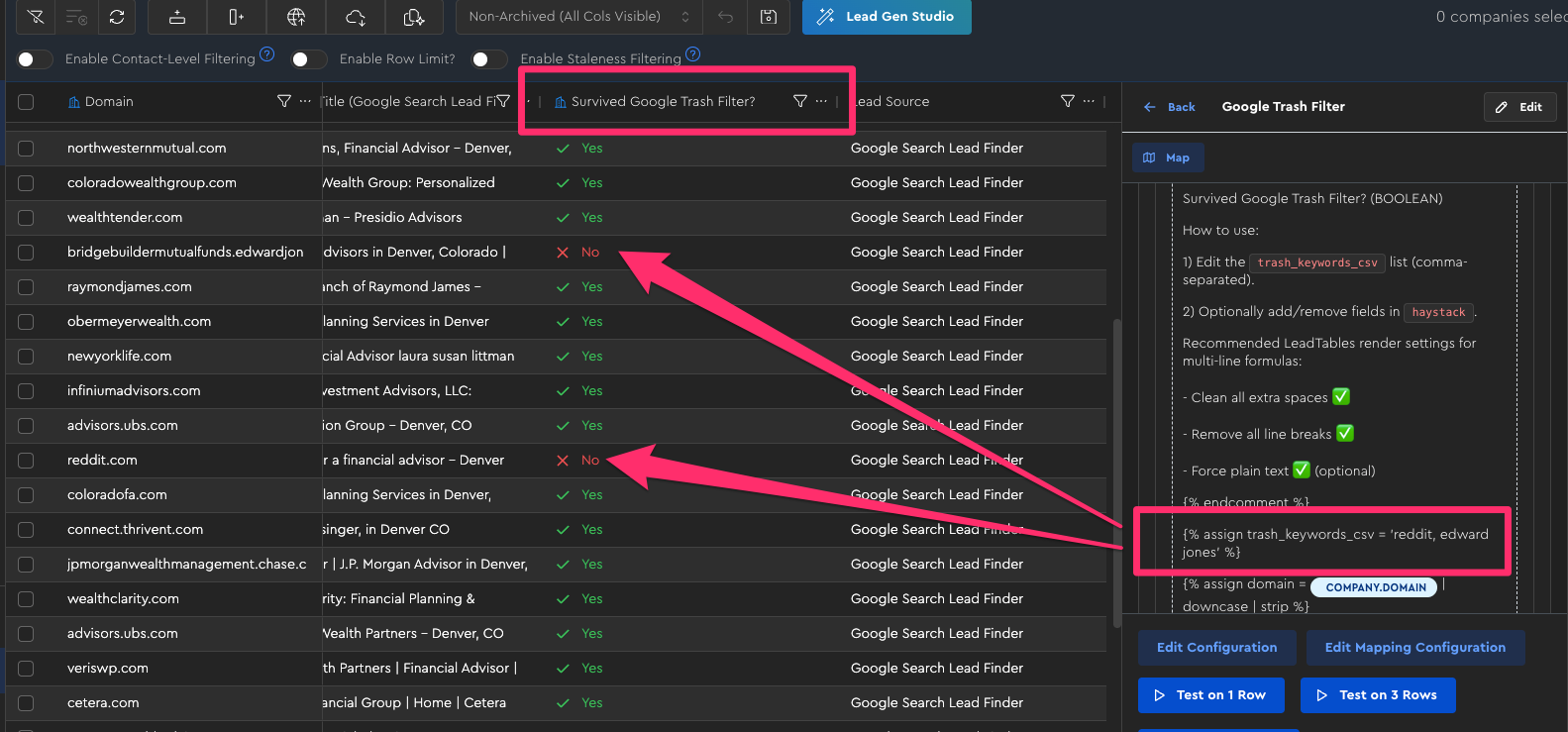
Now, when running subsequent – more expensive – enrichment steps, I can first exclude all the “No”s from the view, and thus save a lot of money on enrichment.
The Process:
Here was the process I went through…
- Generated leads on Google with the LeadTables “Google Search Lead Finder” Data Module
- Hid all the columns from view that I didn’t need; only kept the domain and the Google output cols (title, description, and emphasized keywords)
- Copied out my column context for the LLM, like I show here
- Pulled up LiquidGPT
- Chose the “✨ Get Started With Column Context” conversation starter
- Fed in the copied-out LLM context
- Described what I wanted, and got a formula to try
- Copied that in to a new “Formula” Data Module in LeadTables
- Went back and forth with ChatGPT a couple times to clarify functionality
- Tested it, and it worked great on the first try! 🎉
If you want to spy on my formula and the literal chat I had with ChatGPT, you can view the chat conversation here.