
2 Ways To Download Leads From a Table
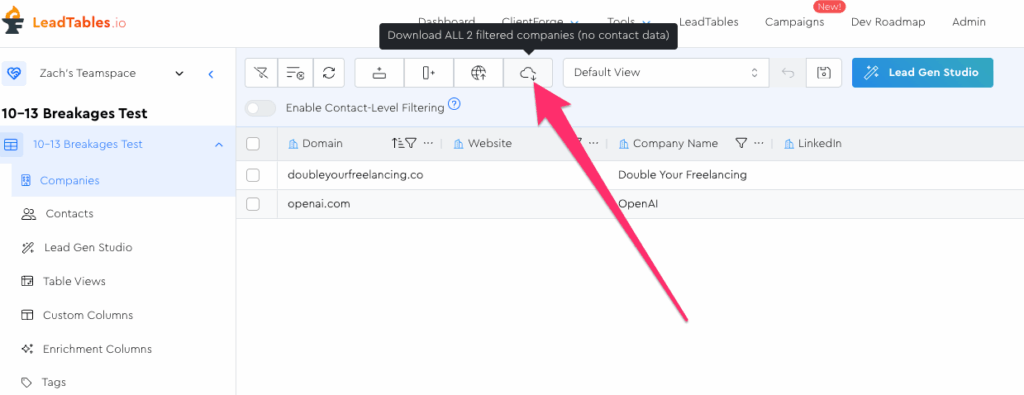
To download all leads in a given LeadTable, you have 2 options:
- Download all
- Download selected
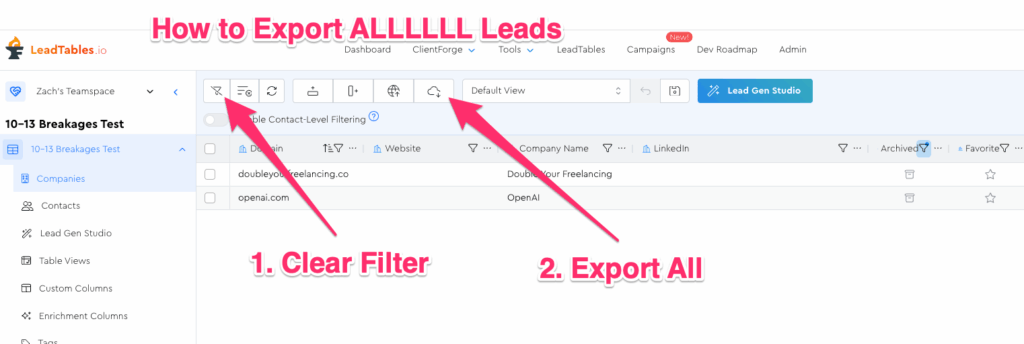
Note that both options only download leads matching the current filter set, so if you want to download “actually alllllll” of the leads (e.g. including archived ones that are hidden by default, etc.), be sure to clear all your filters first.
As mentioned in the previous lesson, you should NOT use either of these 2 styles of downloading for sending campaigns to.
Downloading Companies vs. Contacts vs. Both
When you download from the Companies page, it does not include contact data.
However, when you download from the Contacts page, the rows do include their parent companies’ data too.
So if you want to have contact and company info all in one export, download from the Contacts page.
Just keep in mind that for companies with multiple contacts, those companies’ data will essentially be in your export multiple times, since each contact gets its own row.
How to decide: It depends on what you’re doing. If you’re doing enrichment (most common), simply ask yourself what entity you’re enriching: contacts? Or companies?
For example, if you’re running leads through an email verifier, you’d need contact data (emails), and so you’d export from the Contacts page.
But if you’re scraping website traffic or social media followers or something, you’re enriching company-level information, so you’d export from the Companies page.
Downloading All Leads In A LeadTable
Simply use this option:
And as mentioned above, make sure you clear filters first if you want to export literally all leads including currently-hidden ones:
Downloading Specific Leads
To download specific leads, simply check them off in your LeadTable and then you can use this Action Bar action:
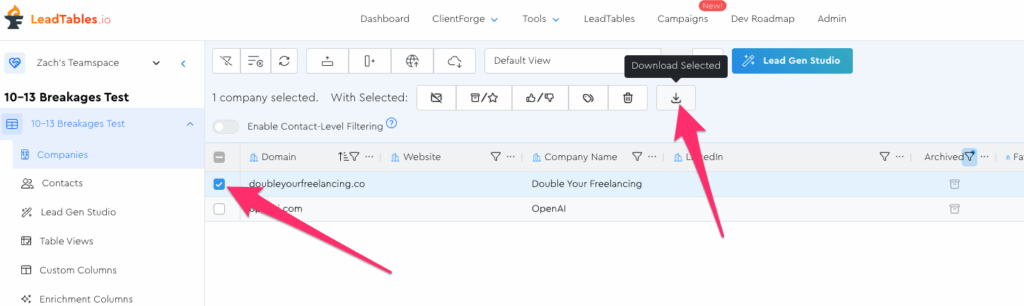
If you do the “select all” checkbox prior to doing that, it’s effectively the same end result as the “download all” button.
The “Download Options” Modal
When you click to download, you’ll see a modal like this:
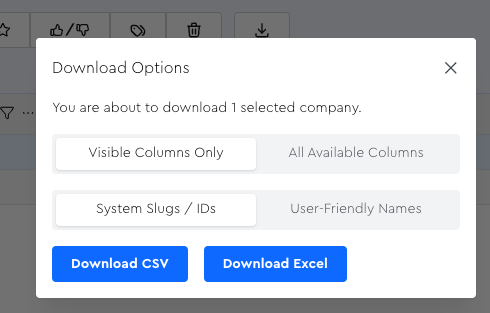
The default options are generally best if you’re downloading for enrichment, but if you’re making a backup, be sure you toggle to “All Available Columns.”
RE “system slugs vs friendly names,” a slug looks like: first_name whereas the friendly name is whatever the column shows in the LeadTables UI for you when browsing the table. (e.g. First Name)
Tips:
- For enrichment, I often like to have Saved Views that are very very simple (sometimes even just domain) so that I can easily run that export without having to weed through a bunch of columns.
- For Campaign Exports, I like to have a view that’s comprised only of the columns I’m using in my cold emails, so that I don’t have to weed through a bunch of mapping faff in the sending platform. Views that you save in your Contacts page will be usable in your Campaign Leads page later.
- For data backups, excel files are generally best at preserving special characters and such without getting corrupted, vs. CSVs. For extra security & peace of mind, you can always export both!
- For enrichment or Campaign Exports, you should basically always use slugs over friendly names.