
Adding Contacts To A Campaign
Throughout the course, you’ve [hopefully] seen me alluding to the fact that, when you want to export your leads to send cold emails to, you should not do it from the LeadTables views, and should instead do it from within your campaigns.
This is where we’ll finally start learning how to do that. 🙂 But before we can export from leads from campaigns, we first need to add them to the campaign, so that’s what we’ll cover here.
Let’s get started by navigating to the “Throwaway Experimental Testing Grounds” table we’ve been using throughout the training, and then into the Contacts page for it.
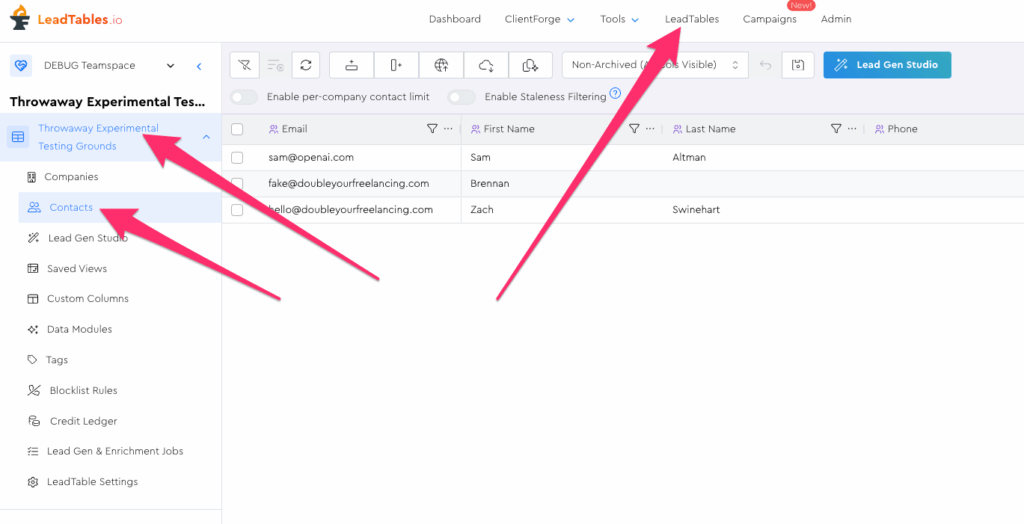
Now, we can add our first contact to a campaign.
Given that Sam Altman is a cat owner, we should probably add him to the cat owners campaign, eh?
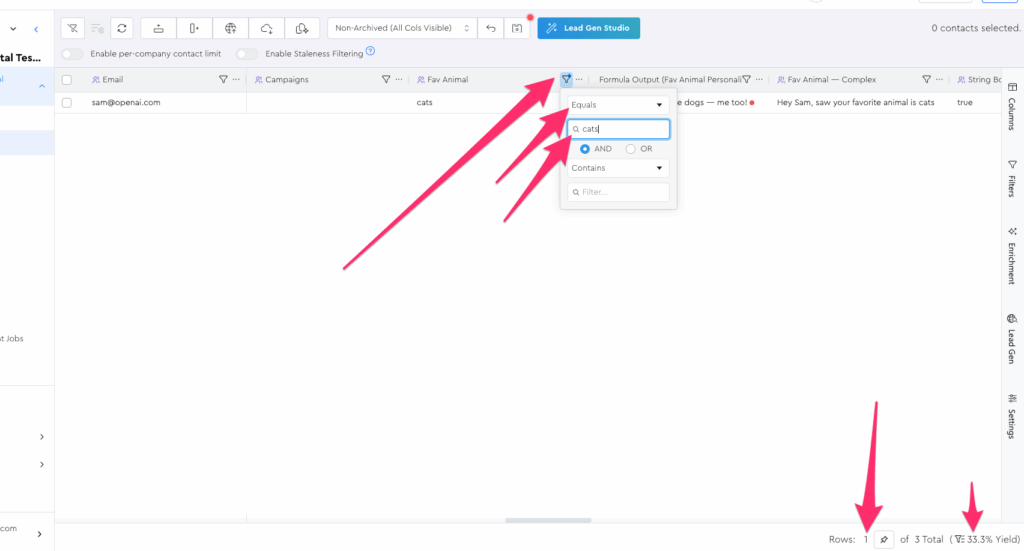
Let’s start by filtering our contacts grid to only show contacts whose fav animal is “cats.” You should just see Sam showing.
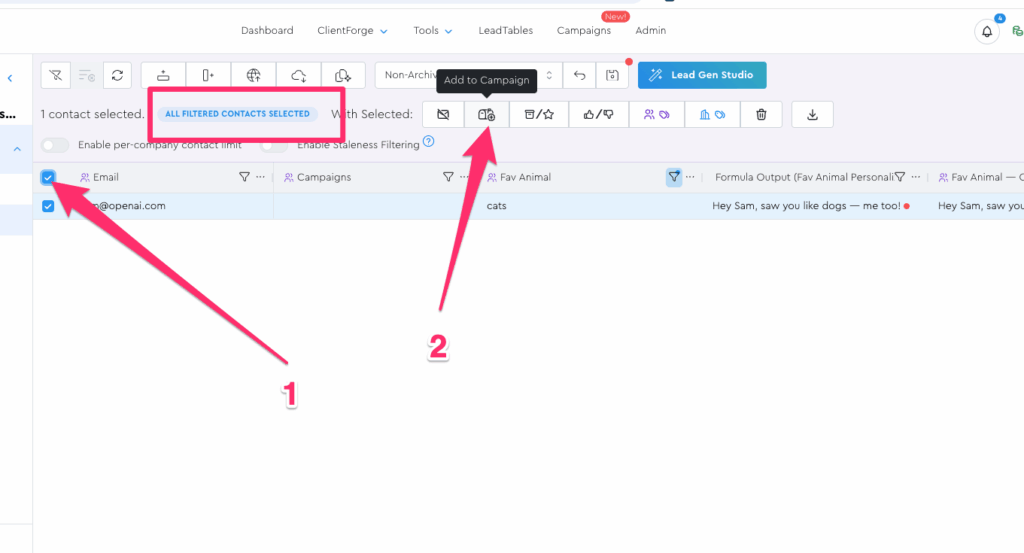
Now click the “select all” checkbox like you learned in the “Selecting Rows For Actions” lesson and the “Add to Campaign” action in the action bar.
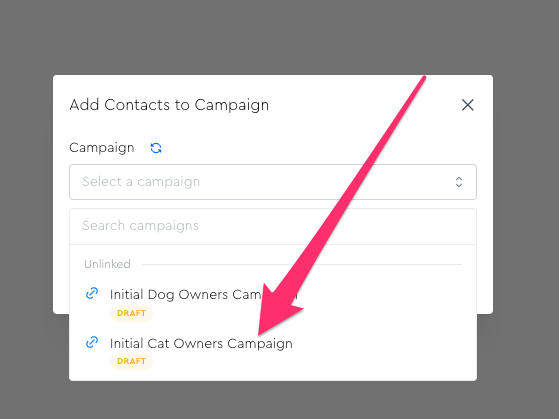
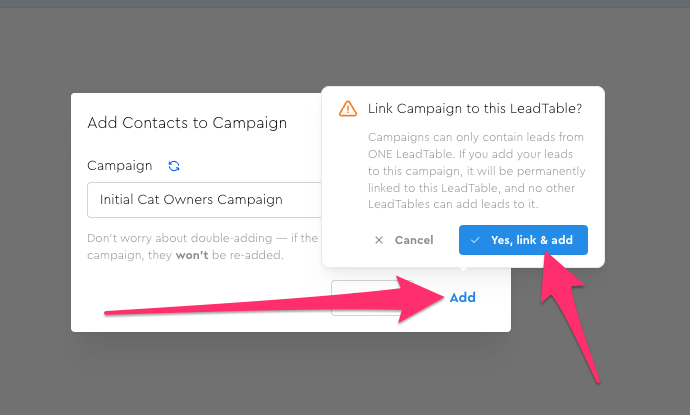
In the modal, choose the “Initial Cat Owners Campaign”
Then click the add button and confirm your decision:
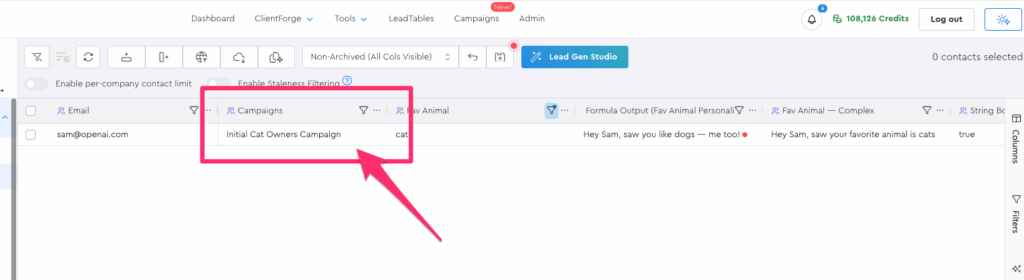
If all went well, you’ll now see that this contact got updated in the grid as being a member of that campaign:
And additionally, you should now see a Campaigns dropdown in this LeadTable’s sidebar with this campaign in it:
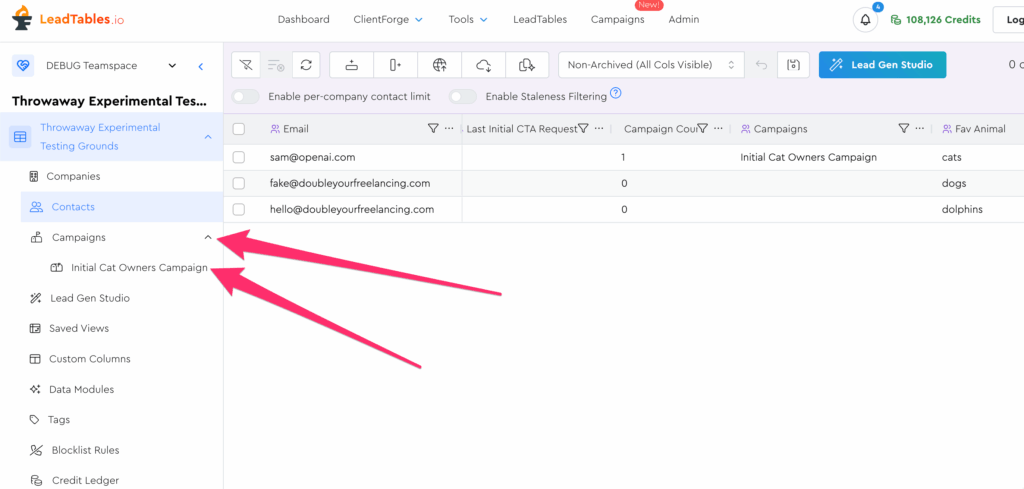
Now that we have this association made, it’s really easy to navigate back and forth between the Campaign and the LeadTable. Let’s click to the Campaign now from the sidebar.
You’ll notice that it takes you to the Campaign Contacts page, as you can tell by the various visual clues:
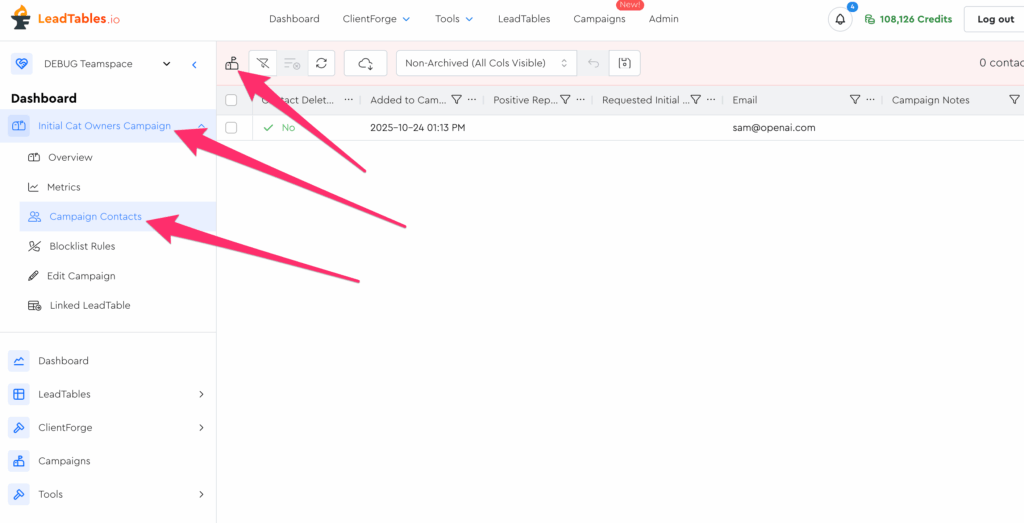
This “Campaign Contacts” page is your master page for marking interactions like positive replies and lead magnet requests, as well as unsubscribes etc. while your campaign’s running. (More on this in an upcoming lesson)
It’s also where you’ll export your leads for sending your campaign to. (More on this in a different upcoming lesson)
For now, I just want you comfy navigating between a LeadTable and its Campaigns.
So let’s navigate back to the Campaign’s linked LeadTable from its sidebar:
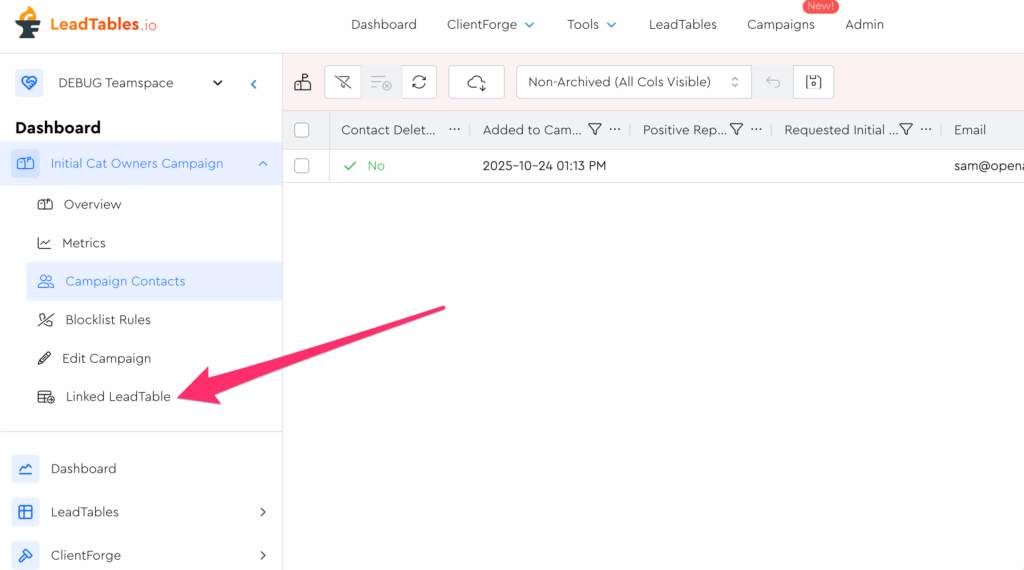
You should be taken back to the Contacts view of the LeadTable associated with this campaign.
NB: Given that a Campaign can only belong to one LeadTable, that’s why the campaign nav doesn’t have a “LeadTables” dropdown.
Whereas the LeadTable Contacts page DOES have one, because a LeadTable’s leads can be in various campaigns.
Now that you know how to add contacts to campaigns, we can stop here and pick up in the next lesson.