
How To Browse The Lead Gen Studio
In this section of the course, we’ll get our hands dirty and “learn by doing” with a simple “Formula” Data Module.
(Formulas are cheap to run and powerful, and are the backbone of any strong enrichment strategy, so they’re a great place to learn)
To browse the Lead Gen Studio, you have a few ways to get there:
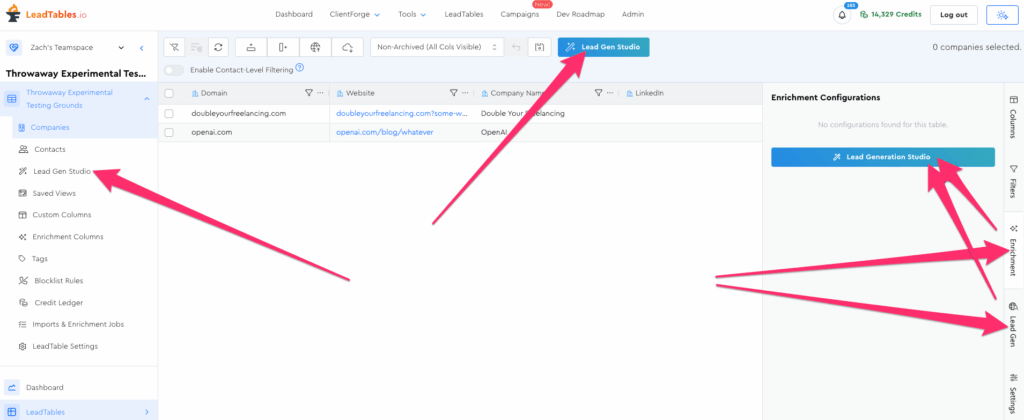
Once you’re in, you’ll see a grid of the various data modules available to you for this LeadTables entity that’s chosen at the top. (It auto-selects based on your current LeadTables Entity view type if you do it from the popup Lead Gen Studio View vs. the standalone page)
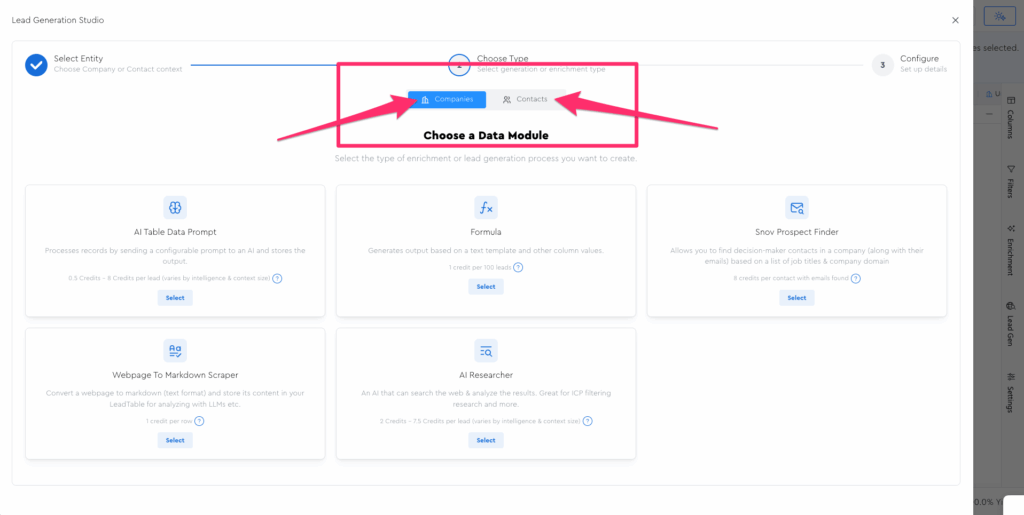
Here’s an example of the contacts view:
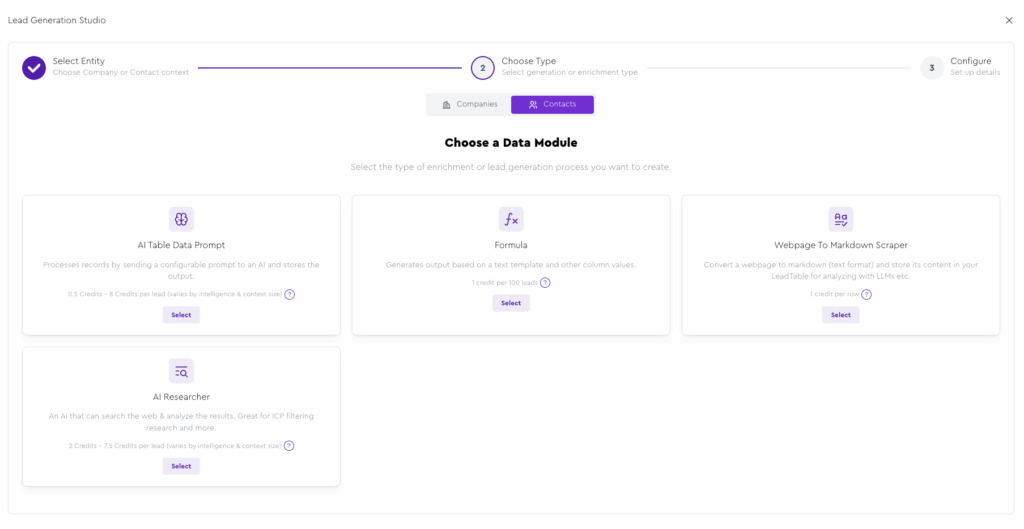
NB: As I add more data modules, the UI will change and improve — long-term I’ll want to add a search, tags, etc.
Implementation Step: Add A Formula Data Module
For our practice, let’s first navigate to the “Throwaway Experimental Testing Grounds” LeadTable we made back in the “LeadTables Fundamentals” section of this course.
(Or create it, if you don’t have it yet)
Then, open up the Lead Gen Studio from the Companies page:
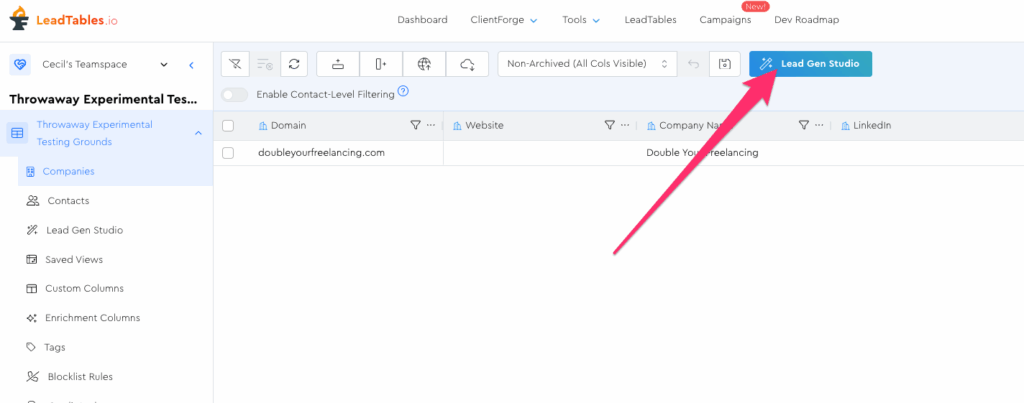
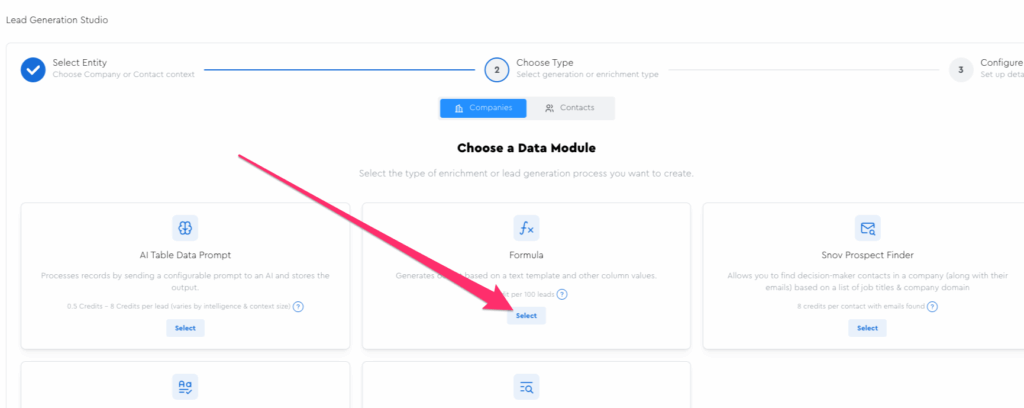
Then, find the “Formula” Data Module in the Company view (blue theme) and click its “Select” button.
In the next lesson, we’ll configure it. 🙂