
Liquid Basics
Let’s get our feet wet with a couple practice liquid formulas. (We’ll tackle the ones we alluded to in the previous lesson.)
To start, go into your “Throwaway Experimental Testing Grounds” table that we created in the “Importing Your Own Leads” module.
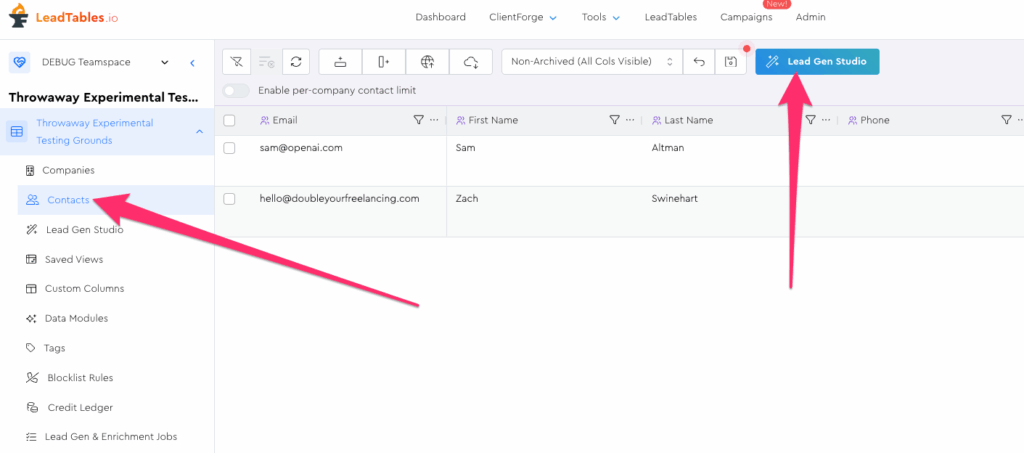
This time though, let’s go into the Contacts table within it, and add a new formula in the studio:
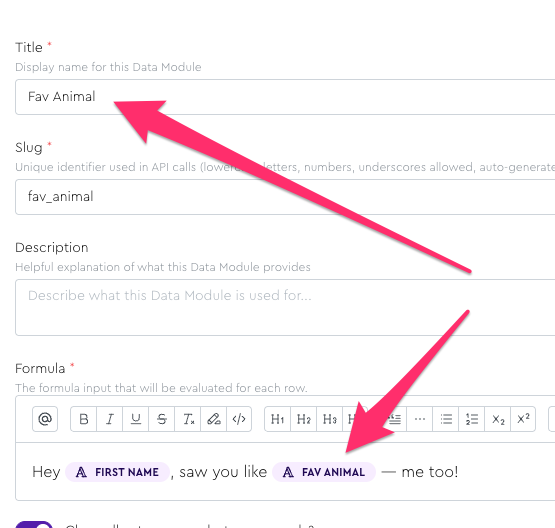
Call it “Fav Animal” and set it up like this:
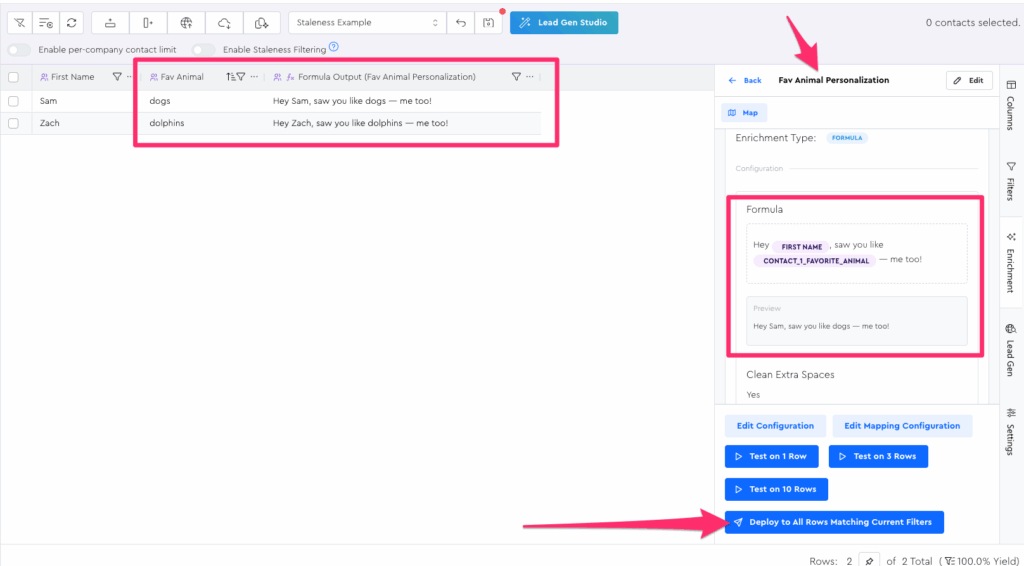
Zoom through the mappings and finalization steps and save the formula to be taken to it on your grid. If you now run it for your leads, it should render out like the preview:
Now let’s do one that’s a little more complex. (We’ll get more into the “how/why this works” in the coming lessons; for now just go through the motions and follow along even if you don’t really understand what you’re doing 😅)
Open up your Lead Gen Studio popup again and choose Formula again, to create a whole new formula.
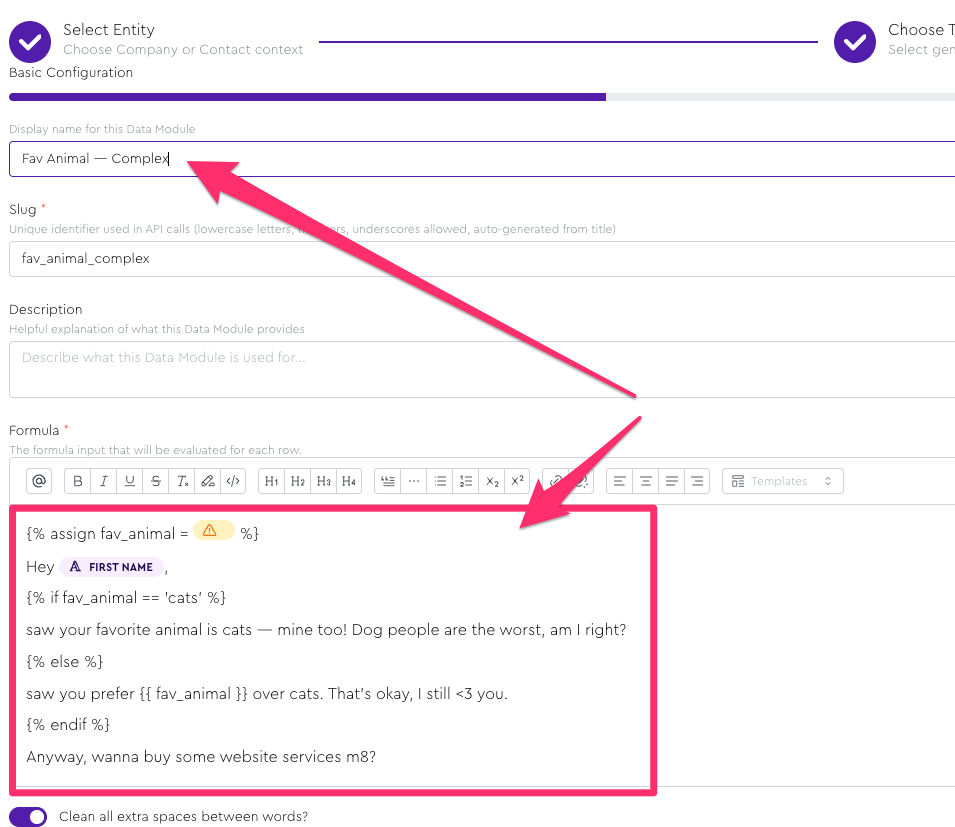
This time, set the name to “Fav Animal — Complex” and set the formula to the snippet of code below (Do ⌘ + shift + v / ctrl + shift + v when pasting to preserve line breaks):
{% assign fav_animal = [[coluuid:12345]] %}

Hey [[contact:first_name]],

{% if fav_animal == 'cats' %}

saw your favorite animal is cats — mine too! Dog people are the worst, am I right?

{% else %}

saw you prefer {{ fav_animal }} over cats. That's okay, I still <3 you.

{% endif %}

Anyway, wanna buy some website services m8?
It should render like the screenshot below, with that first line having a yellow error chip due to its column ID just being “12345” and thus not found:
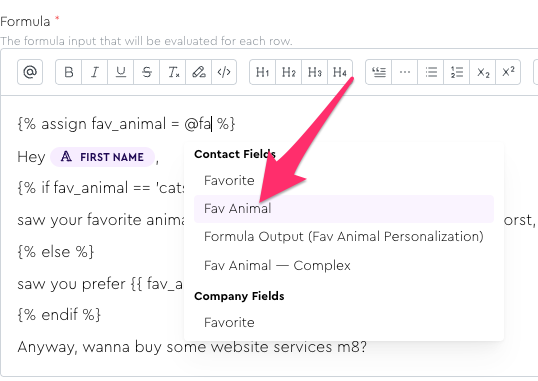
Delete the yellow error chip and type the @ symbol and replace it with your actual “Favorite Animal” source field:
If you did it correctly, it should look alllllmost perfect in the preview box:
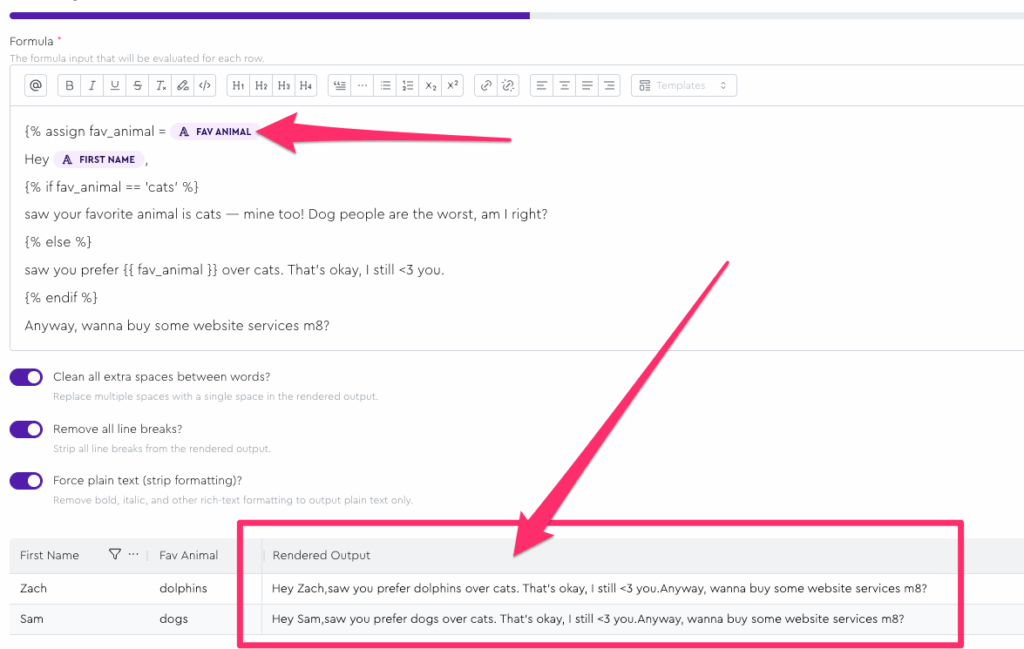
The only glitch is that there’s no space between the comma and the word “saw”:
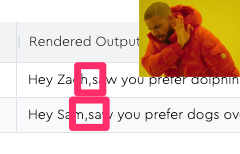
This is due to LeadTables’ auto-line-break-cleaning feature.
In this case, it’s stripping your line breaks, but there’s not a space typed after your “Hey [[contact:first_name]],” line, so there’s no space rendered.
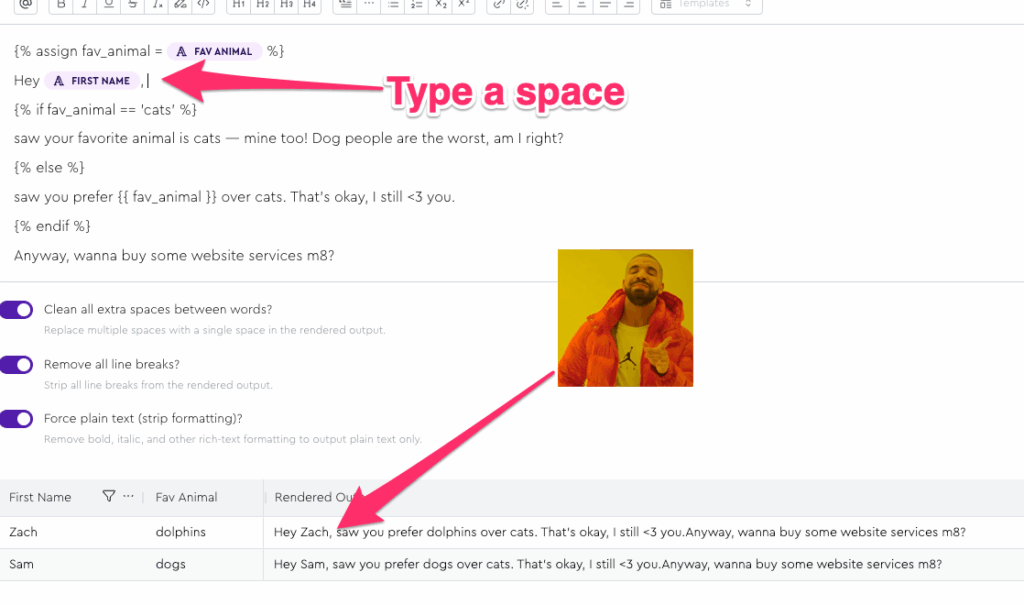
Simply type a space after “Hey [[contact:first_name]], “ and it should look good:
(FYI, the reason I built these liquid cleaning features is that most liquid-using tools end up with a million extra spaces if you have multi-line output and essentially force you to put everything in a single ugly-ass line if you want the spacing to look good. 🤮)
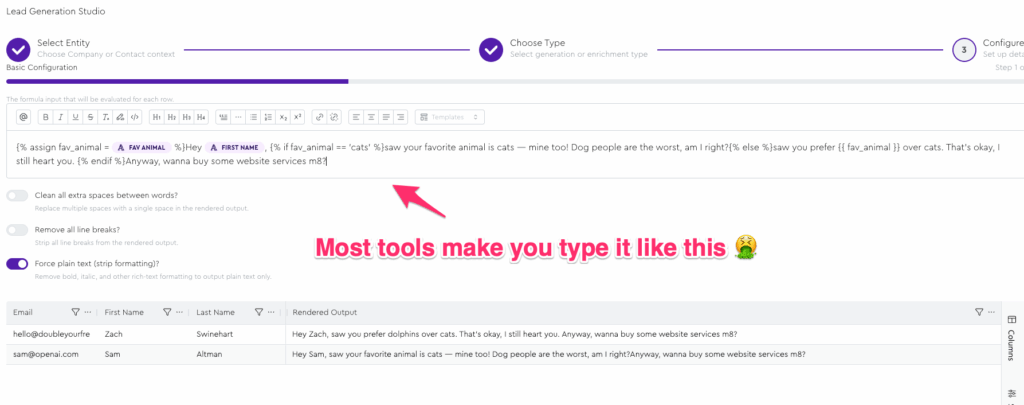
Depending on your own personal-and-perhaps-wrong proclivities, you may think there is a second glitch at play here, which is the suggestion that cats are better than dogs.
If this is the case for you, know that it’s not a glitch and it’s actually just the stone cold truth, and that you are simply wrong and that your whole life up to this point has been a lie, but that it’s okay because you can now merge this knowledge in to your newly-updated worldview and move on with the tutorial and live happily ever after.
JK. I don’t actually care if you like dogs more than cats — you do you.
Anyway…
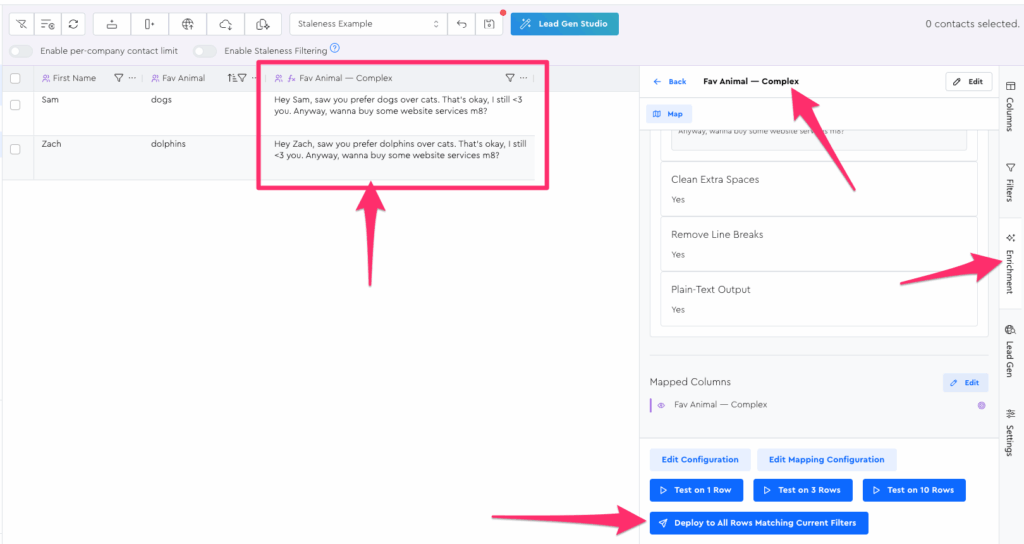
Zoom through your mapping and finalization again to add this one, and then deploy it to all your leads on your grid and it should look correct:
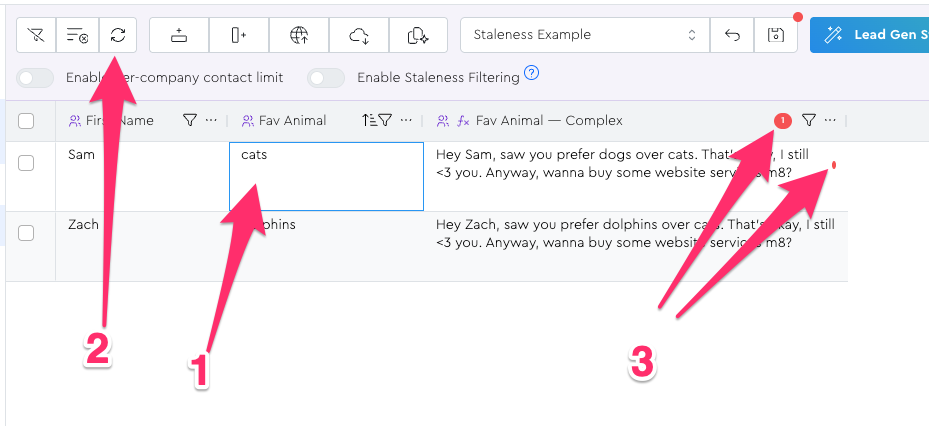
If you want to solidify your knowledge about “staleness,” you can edit Sam’s favorite animal to be “cats” and click your refresh Action Bar button, and you should see their formula marked stale because the render has diverged from reality:
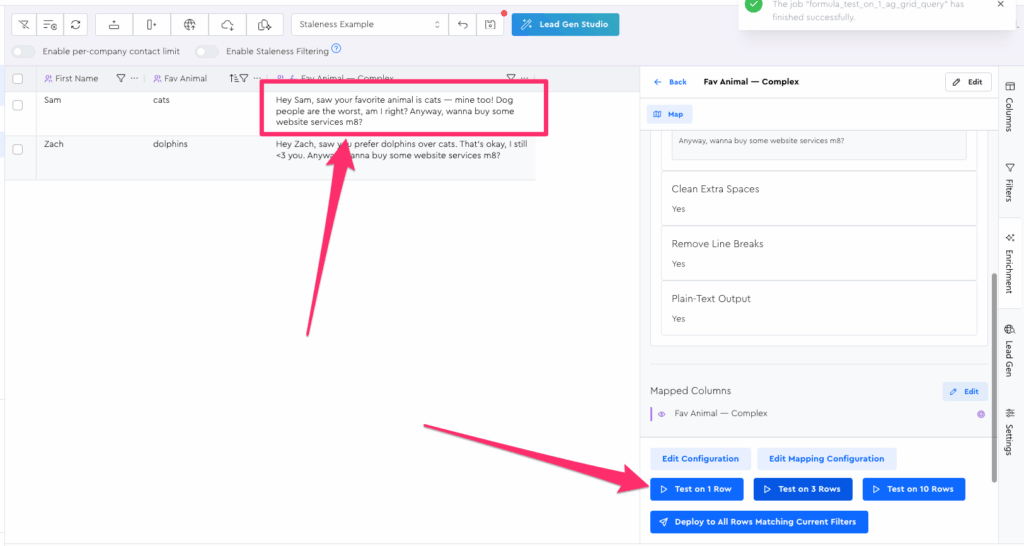
But then if you re-run their formula, you’ll see the output looking correct, and if you click the refresh button, you’ll see the staleness indicators gone:
(This “manual refresh to clear staleness” thing is really annoying for me as I make these lessons so I’ll probably fix that soon to auto-refresh when you do certain key actions that could change staleness.)
So, now you have the uber-basics of Liquid syntax, in that you know how to inject variables in LeadTables, and you’ve at least touched a somewhat complex formula.
Let’s next look at how you can make formulas like this with AI so that you can do kewl shizz without having to become a Liquid coding wizard.