
Your First AI Formula
We’re going to do a short practice exercise so you can experience how AI Data Modules work in LeadTables, and then we’ll do deeper dives in the “Specific Data Module Tutorials” section at the end of the course.
Basic Setup
Let’s pull up the same testing table we’ve been using for everything else, and go to the Contacts page for it.
We’ll get some core data set up before adding our AI Data Module.
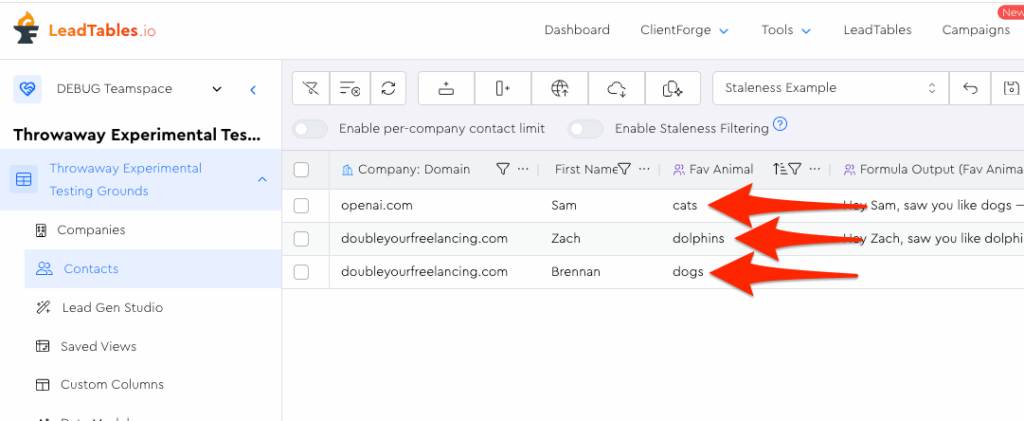
First, let’s add a third contact manually, and set their favorite animal to “dogs” after adding.
Also make sure one of the other contacts is “cats” and the other is “dolphins”:
Before moving on, confirm you have 3 contacts, each of which has a first name, and with “Fav Animal” respectively set to…
- cats
- dogs
- dolphins
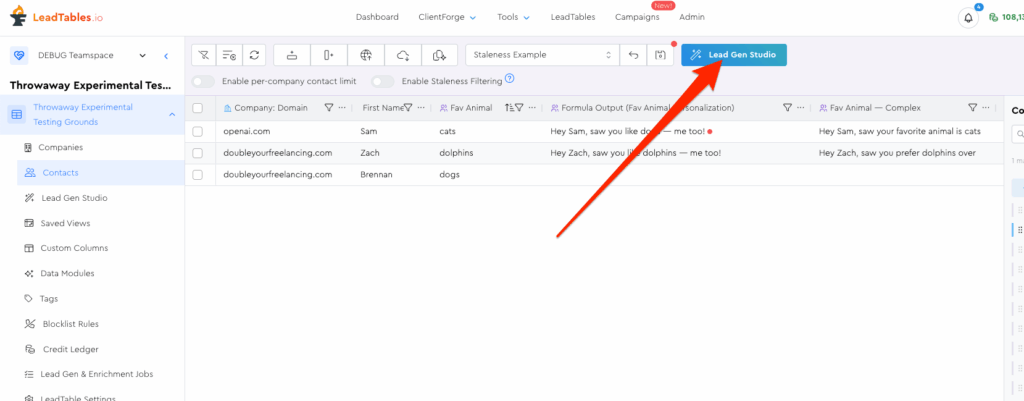
Then, click the lead gen studio popup:
Creating The AI Formula Data Module
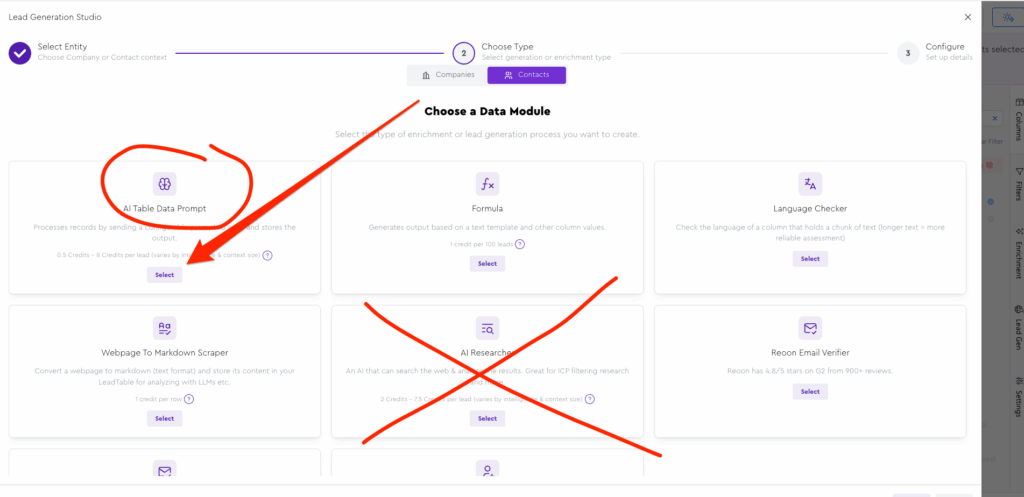
From the Lead Gen Studio wizard, confirm that you’re in the purple “Contacts” mode. Then choose the “AI Table Data Prompt” module (NOT the researcher):
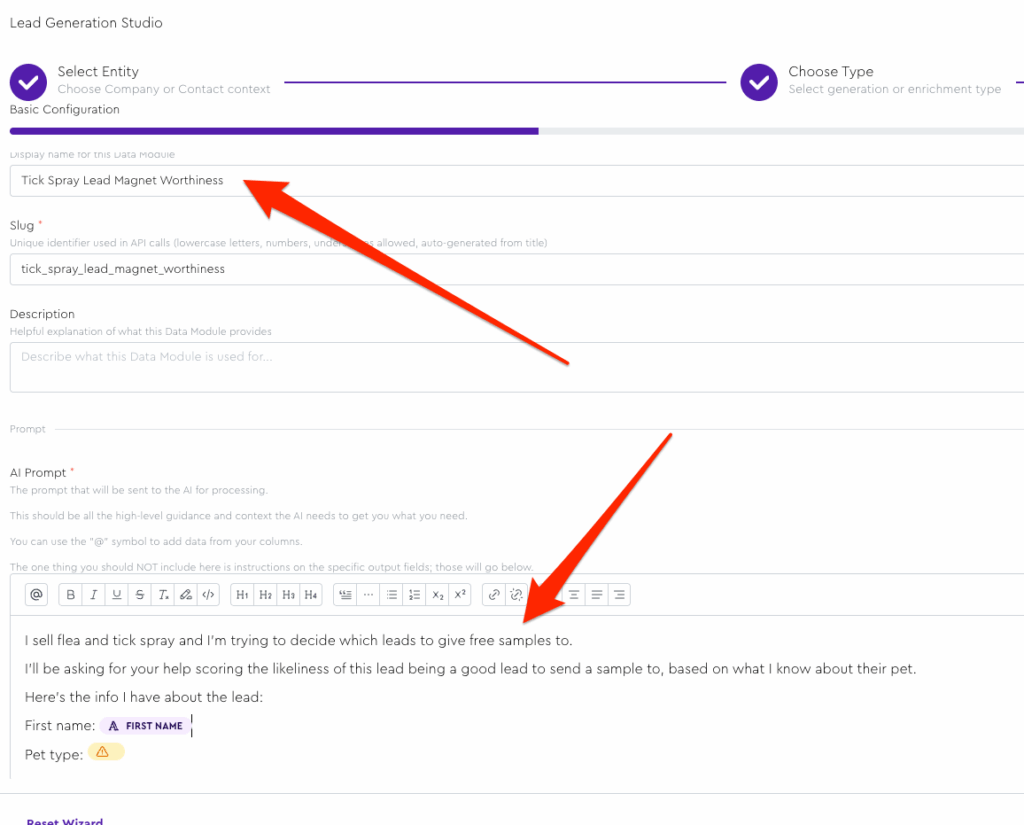
Name it “Tick Spray Lead Magnet Worthiness” and paste this as the AI Prompt (Do ⌘ + shift + v / ctrl + shift + v when pasting to preserve line breaks):
I sell flea and tick spray and I'm trying to decide which leads to give free samples to.

I'll be asking for your help scoring the likeliness of this lead being a good lead to send a sample to, based on what I know about their pet.

Here's the info I have about the lead:

First name: [[contact:first_name]]

Pet type: [[coluuid:12345]]
You should see something like the screenshot below, with the “Pet Type” chip yellow and errored out (which is to be expected because we just typed its ID as “12345”) and everything else looking good:
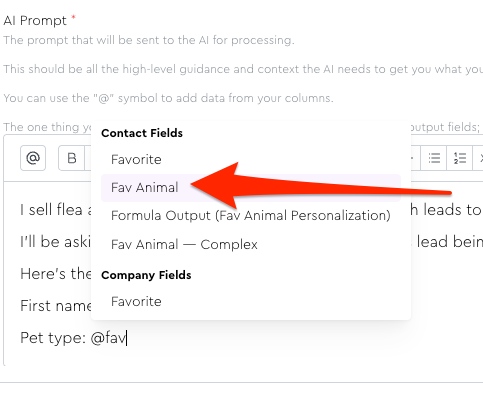
Replace the errored “Pet Type” chip with your actual “Favorite Animal” field:
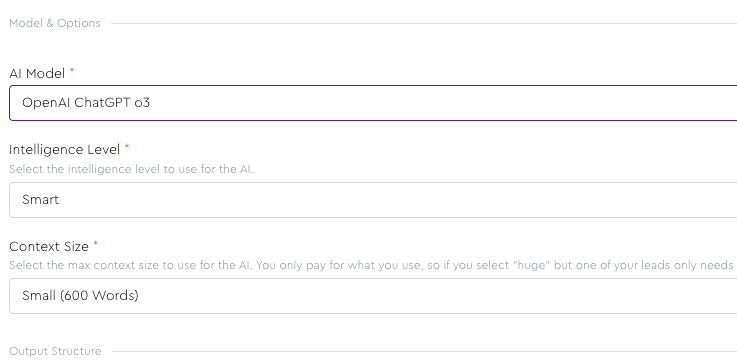
We’re going to be doing a somewhat complex lead scoring field that requires some proper reasoning capability, so normally I’d like to use a “smart” model for this, like o3.
But smart models are more expensive than basic ones, so choose whatever you want for the practice exercise.
(We’re only running it for a few leads so the price difference will be literal pennies, FYI)
Keep the context size set to “Small.”
Now the fun part that makes LeadTables way more awesome for this kind of thing than rolling your own automations: the output fields.
We’ll cover those in the next lesson.