
How To Import Fresh Company Leads
For this lesson, let’s get our hands dirty with a real import!
If you download the example spreadsheet from the resources section of this page, you’ll see that it has the following columns:
- domain
- business_name
- year_founded
- podcast_episode_count
- contact_1_first_name
- contact_1_last_name
- contact_1_email
- contact_1_job_title
- contact_1_favorite_animal
- contact_2_first_name
- contact_2_last_name
- contact_2_email
- contact_2_job_title
- contact_2_favorite_animal
To start, we will import the company data from there.
Now, knowing what you do about the division between companies and contacts, which fields from there seem company-specific to you?
If you said…
- domain
- business_name
- year_founded
- podcast_episode_count
…You were right 🙂
How To Upload The Companies
Go to the LeadTables section of the site.
Create a new “Throwaway Experimental Testing Grounds” table if you don’t have one already

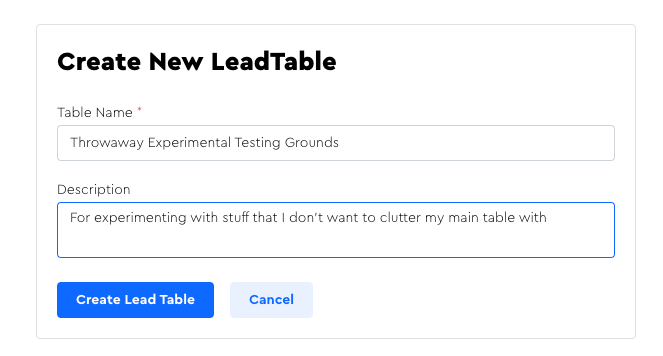
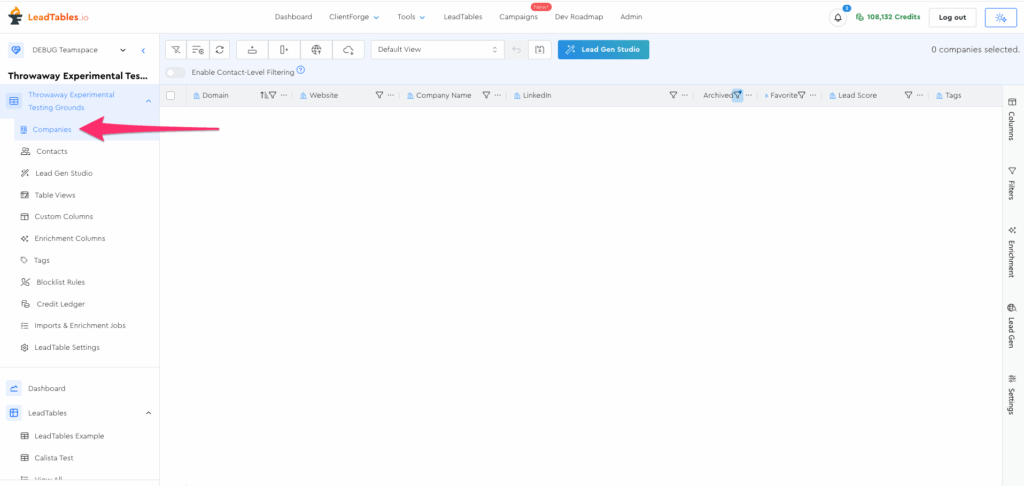
Click into it; you’ll be on the companies view
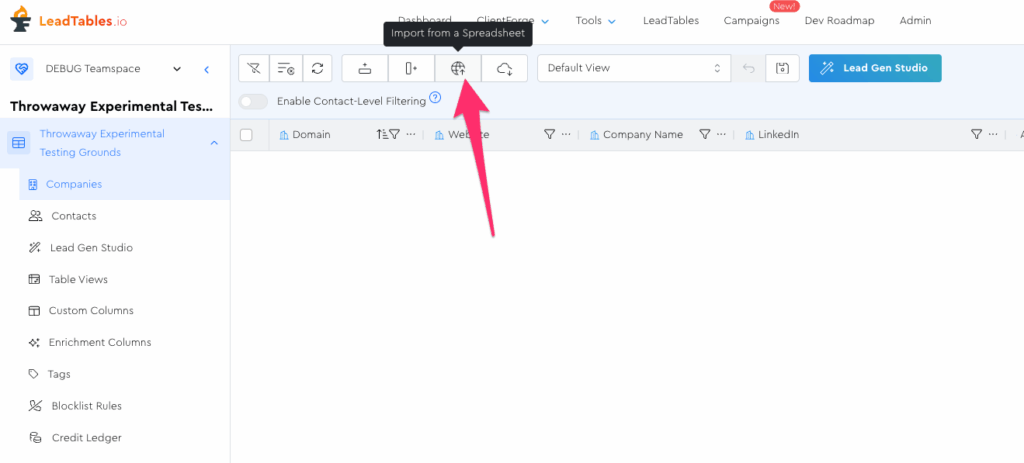
Click the upload icon in the action bar
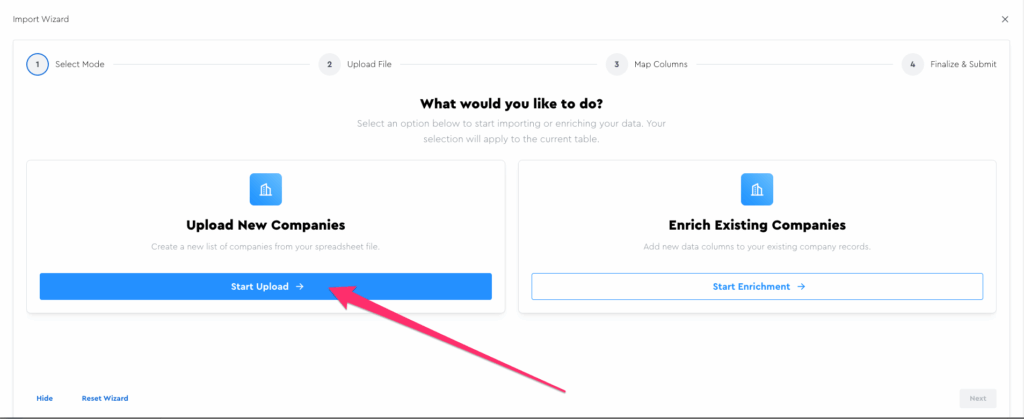
Given that we’re uploading fresh companies vs. enriching existing ones, we’ll go into upload mode
Upload your testing spreadsheet on the upload page and you’ll be taken to the mapping page, which looks like this:
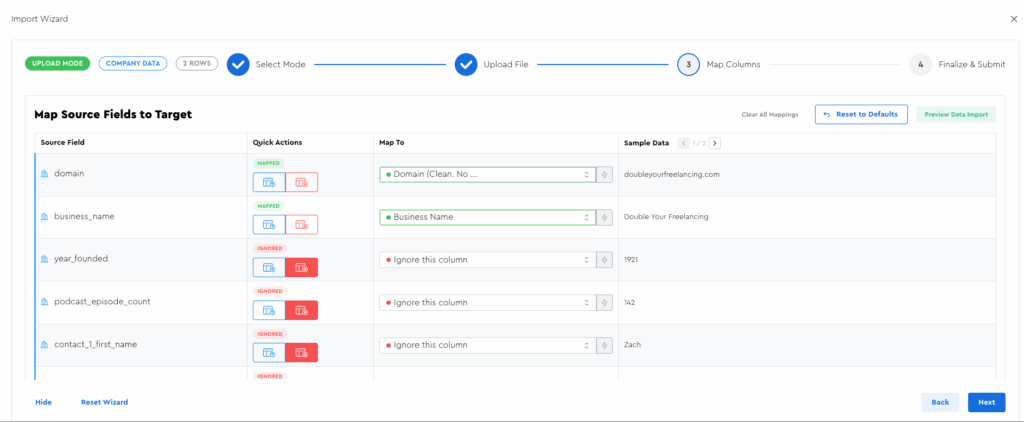
The mapper tries to intelligently guess at what columns from your sheet belong to what columns in your table.
(That’s what the green “mapped” ones are)
BUT for situations like this where there’s a lot of company & contact data blended together, it’s important to review them to make sure it didn’t make any mistakes.
Let’s pause right here for now and pick this up in the next lesson, where we’ll talk about how this column mapper works.