
Finalizing & Viewing Your Campaign’s Metrics
Whenever you mark an interaction for a lead, LeadTables keeps track and uses it to calculate and display your campaign metrics to you.
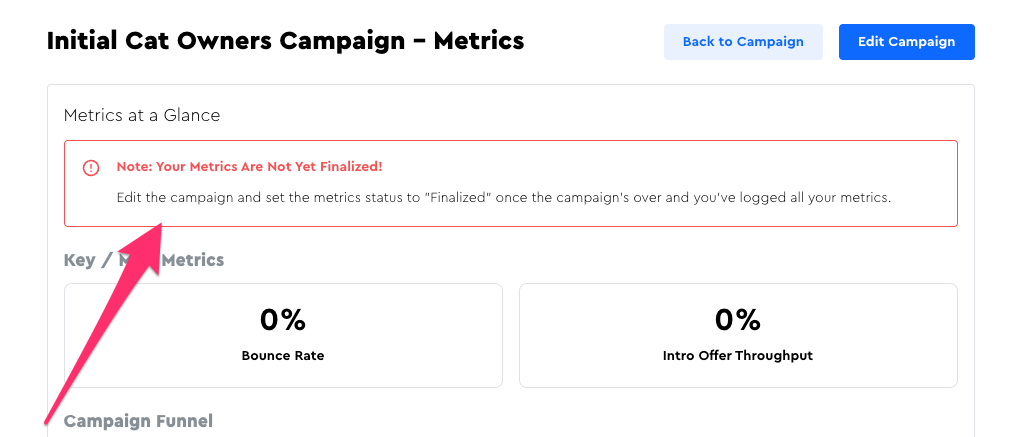
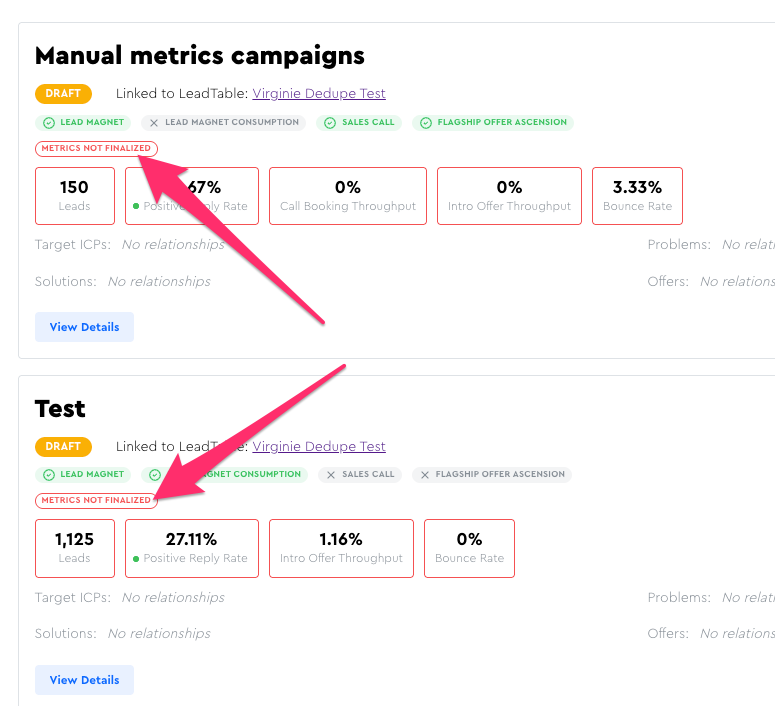
But because these interactions happen over time and you might see your metrics prior to your campaign being over – and prior to you going in and updating all the interactions – it’s important that you know at a glance when the metrics you’re seeing are not yet finalized.
I’ve tried to make this super obvious for you:
How To Finalize Your Metrics
When you’re ready to finalize your metrics, your process looks like this:
- Mark all interactions that happened in your campaign — or log the bulk counts, if you’re going that route
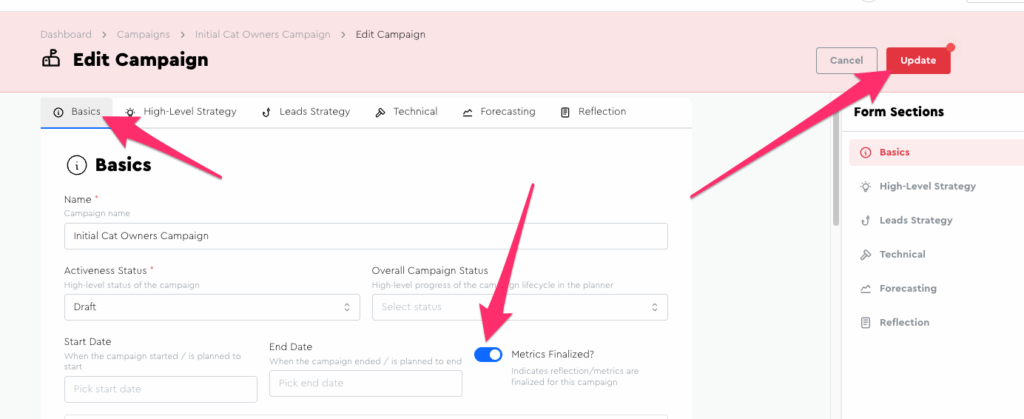
- Edit the campaign and mark its metrics as finalized
To do #2, just edit the campaign and toggle the switch in the “Basics” tab, then click the “Update” button:
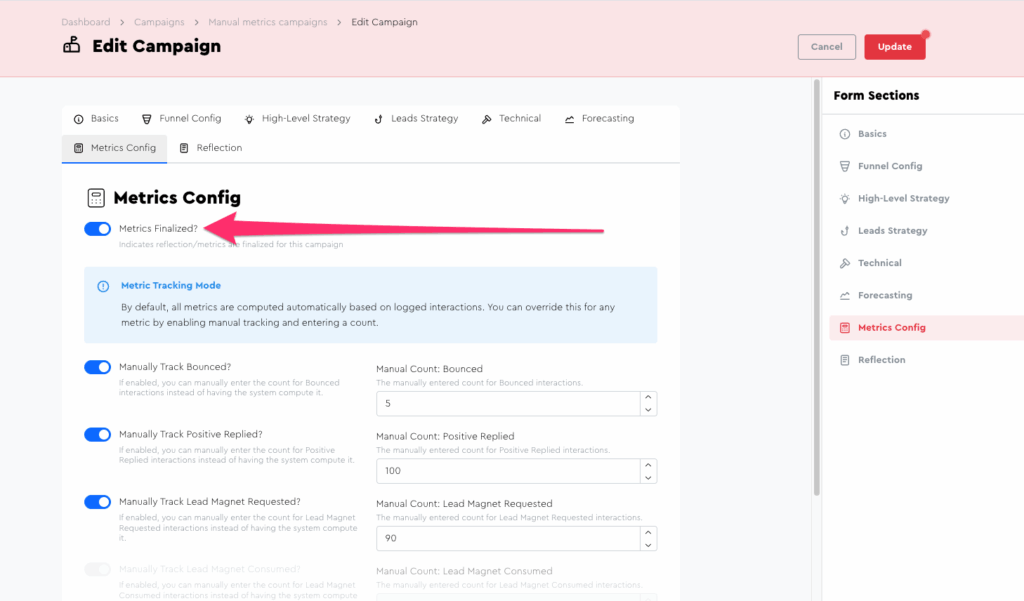
Or you can click the same button in the Metrics Config tab (the two buttons are kept in sync, so it doesn’t matter which you use):
Once you’ve done that, you’ll no longer see the “metrics not finalized” warning messages.
Where To View Your Metrics
To view a campaign’s metrics, simply navigate into the Campaign and then click to the “Metrics” page in the sidebar.
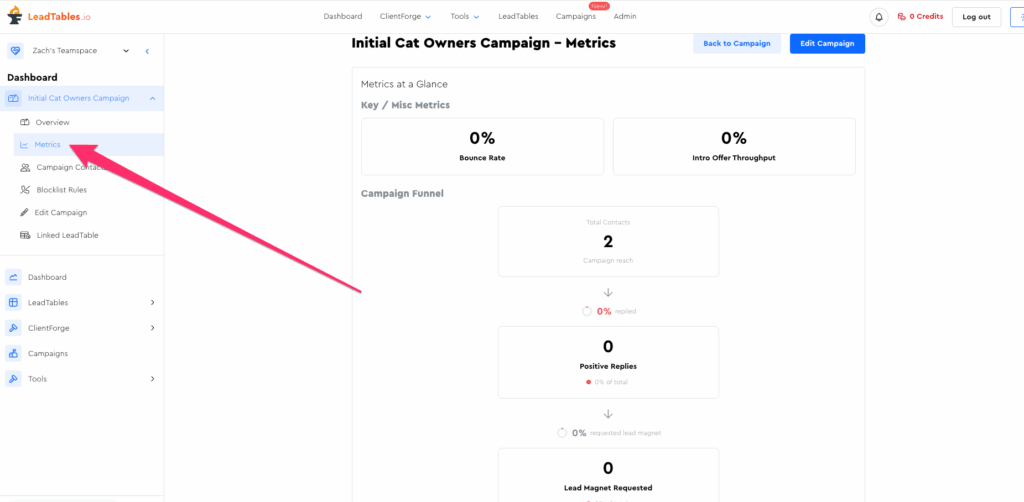
From there, you’ll be able to see all of your phase-to-phase conversion rates, as well as their conversion rates against the total, which can be useful for getting a holistic zoomed-out picture of your funnel.