
How “Data Staleness” Works
If you’re used to Google Sheets or Microsoft Excel, you’re used to creating a formula and having it automatically compute whenever you’re viewing it.
Where this becomes a problem – and it’s why google sheets usually falls apart for lists with over ~50,000 leads – is that it’s very inefficient to sort and filter on these kinds of “computed values” on the database side.
For blazing-fast table-viewing-and-filtering speeds, we need to compute the result of the formula and “bake the value in” to the table before letting you filter on it.
That’s why you have to run the enrichment operations for formulas — it flags my servers to calculate the output of the formula and literally “bake it in” to the database.
Where Things Get Weird
What this “baking-in” process means though is that if you change the definition of the formula, all of those already-baked-in values are now “stale.”
For example…
- You create a formula of “Hey [[contact:first_name]]”
- You run it for all your leads, now they show like “Hey Zach,” “Hey Sam,” etc.
- You change the formula to “Hey [[contact:first_name]] [[contact:last_name]]”
- All your leads still show “Hey Zach” etc. until you run it again to “bake in” the new value.
- These leads that still show the old value are now marked “stale” to help you know they need to have the formula re-run for them.
Currently, there are 2 “staleness triggers” that exist:
- Parent config changing in an “invalidating way” (e.g. renaming the parent won’t do it, but editing a formula would)
- Column dependency value changing (e.g. if you have the “hey firstname” formula but you edit the person’s First Name field, that formula output now doesn’t reflect reality for that specific lead.)
Let’s look at examples of each…
Parent Config Staleness Trigger
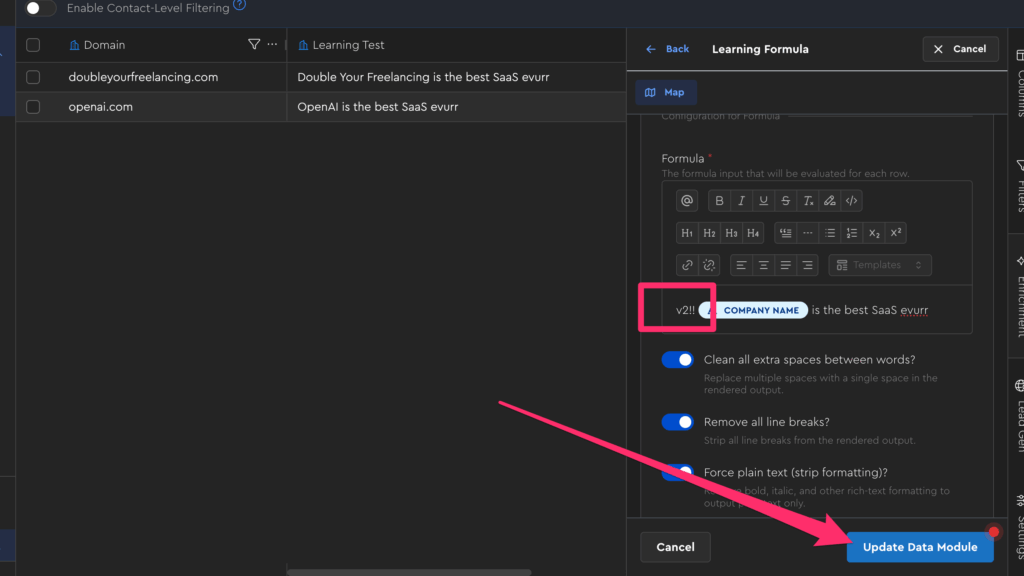
At the time of writing, staleness tracking and filtering is only rudimentary, but you can still see it in action by editing your “Learning Formula”’s config in the testing table to a different formula (e.g. put “v2” in the formula box) and saving it:
Now, if you refresh your LeadTable, you’ll see indicators on the stale rows, as well as a counter on the parent:
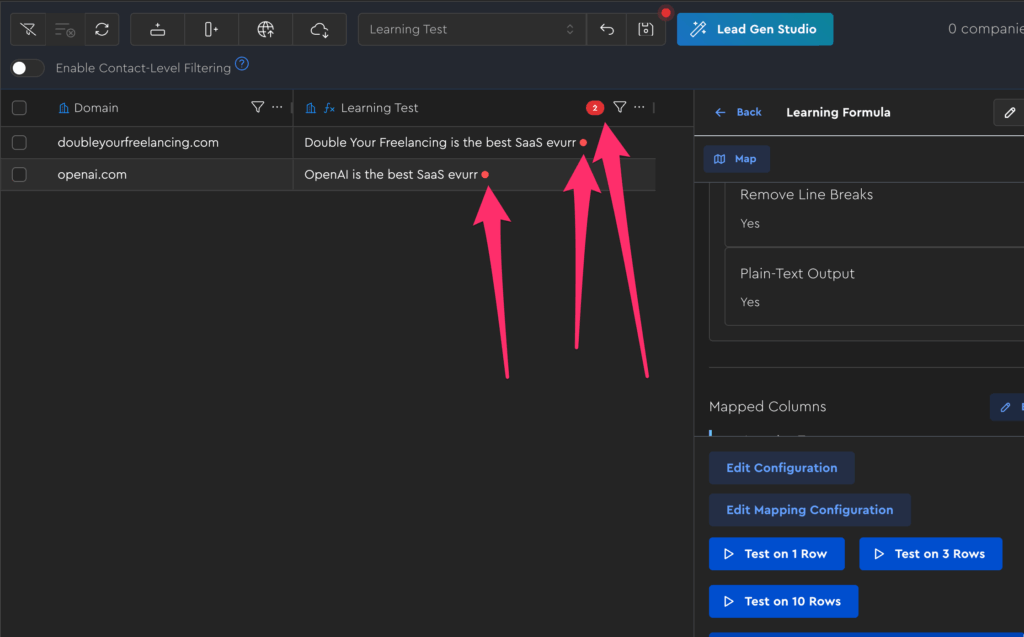
Note that at the time of writing, these staleness counters wouldn’t show without you either manually clicking the table’s refresh button or leaving the page and coming back.
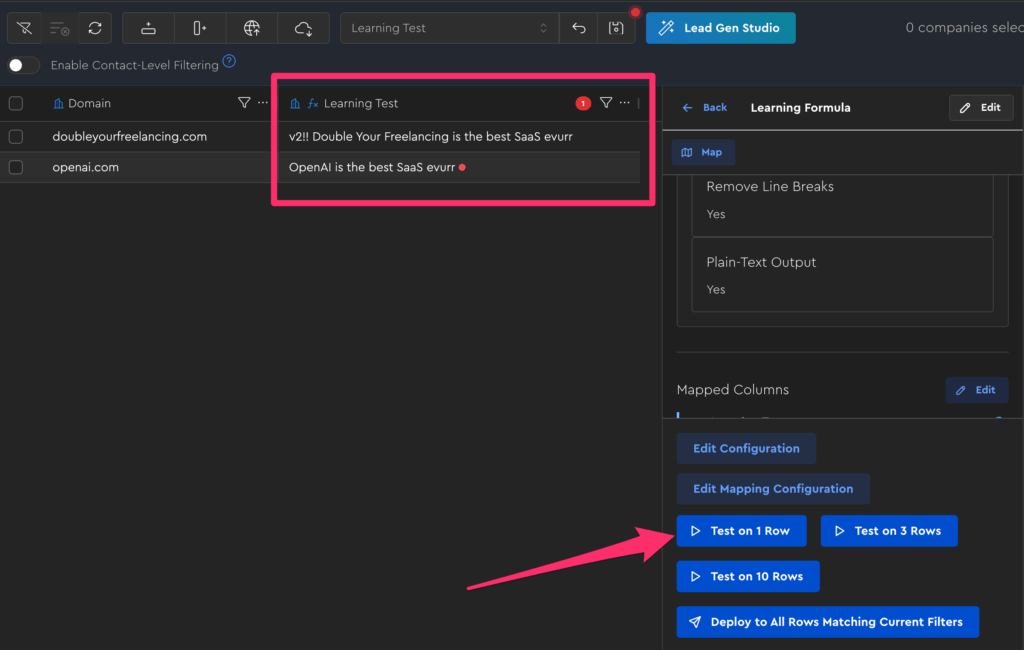
Now, run your formula on 1 row only; if you click refresh when it’s done, you’ll see the count updated on the parent and the indicator gone for the one you just ran:
Column Dependency Staleness Trigger
Suppose I have the following formula:
“Hey [[contact:first_name]], saw you like [[coluuid:12345]] — me too!”
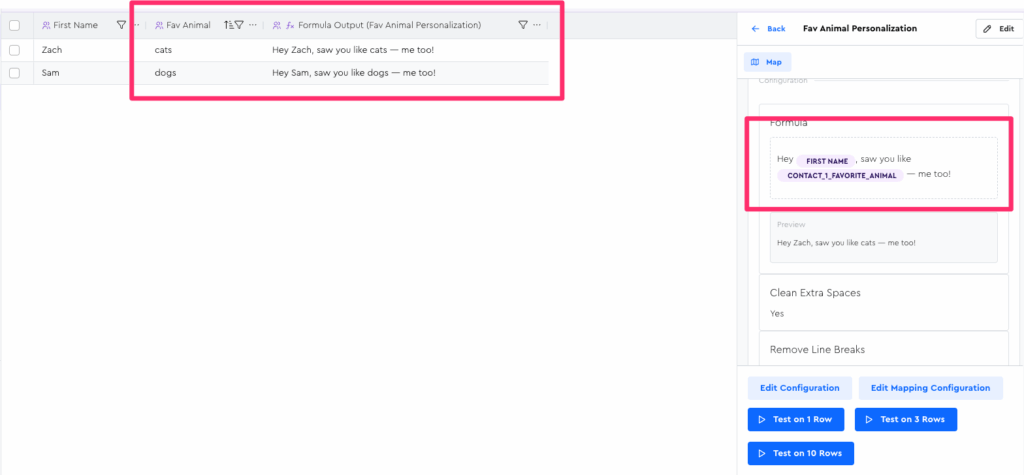
And suppose that the output of that “Fav Animal” field is based on some kind of scraping that you do regularly. (Don’t ask me where you’d find their fav animal scraping, haha)
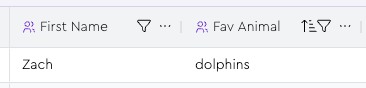
And suppose that today, your scraper shows that Zach’s favorite animal is now “dolphins” instead of “cats”:
Without staleness tracking, this would be a problem, because now your personalization diverges from reality:
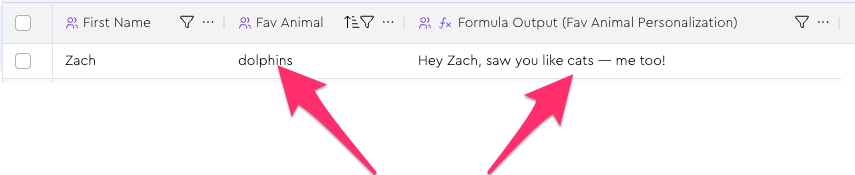
Fortunately, the staleness tracking indicators help you spot issues like this:

Try It Out Yourself!
If you go into your “Throwaway Experimental Testing Grounds” LeadTable and look at the Learning Formula we created, you can see that it already has a dependency on the Business Name field:
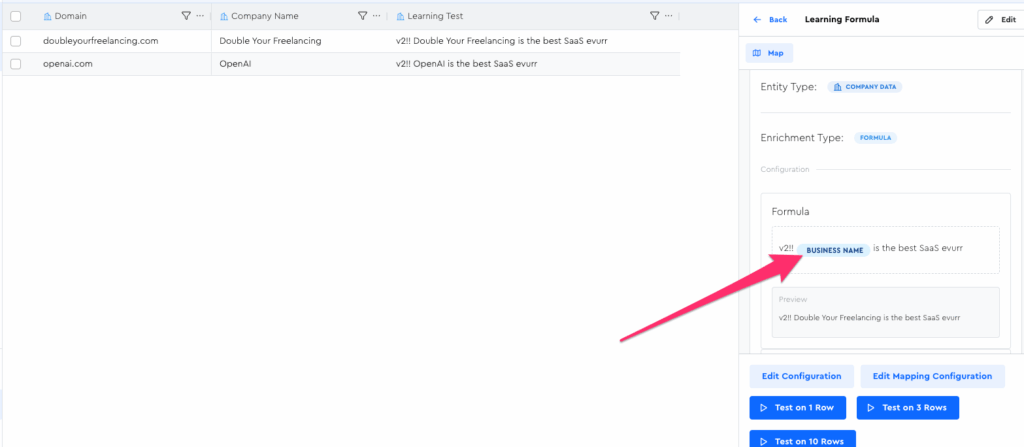
So to test field dependency invalidation, simply…
1 — Run the formula on all your leads and refresh to confirm none show stale
2 — Edit the business name for your first lead and click refresh to confirm it now shows stale
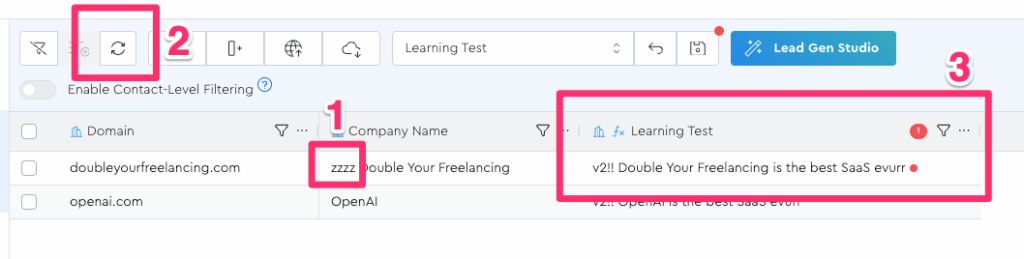
Nifty, eh?
With this “staleness tracking” feature, it helps ease some – but not all! – of the burden of ensuring all of your data dependencies look good before you finalize your leads lists for campaigns.