
The “AI Table Data Prompt” LeadTables Data Module
The “AI Table Data Prompt” Data Module is a flexible, “build-your-own” AI enrichment tool.
It lets you ask the AI questions about each row in your table and save the answers back as real columns you can filter, sort, and use downstream.
It also supports Liquid syntax for extra power.
How It Works:
- You set up what you want the AI to do:
- Start with your prompt (you can reference data from the row, like company name, website, industry, etc.).
- Define what fields you want back (for example:
ICP Fit,Industry Category,Extracted Testimonial Text, etc.).
- You choose how big of a run you want:
- Test it on a few rows first to make sure the results look right.
- Then deploy it across all rows that match your current table filters.
- The module writes results back into your table:
- Each output becomes a column, so you can immediately filter/sort by it (or use it in workflows).
Why It’s Awesome:
- It turns “AI answers” into real table columns, not just notes.
- It’s great for ICP filtering, scoring, categorization, and sales research at scale.
- It’s easy to iterate: test on a handful of rows, refine, then roll it out.
- It brings you qualitative analysis at scale: in the past, if you wanted to “look for things on your leads’ homepages,” you’d either need to hire a virtual assistant to do it or build complicated automations to try to handle it. Now it’s a breeze.
- It gives you access to structured data: most automations people build with AI have to dump the output into just one column, as parsing output into multiple columns is unreliable because the models often ignore your formatting instructions. This Data Module avoids those woes and allows you to have one system prompt that outputs several different columns of data, to accomplish many “micro enrichment tasks” all for the price of just one execution.
Output Fields:
This module’s outputs are whatever you define in the Output Structure.
For each output you define, the module will (by default) create:
your_key(text|number|boolean) — The value you want saved back into the table (ex:icp_fit_score,industry_category,testimonial_text, etc.).
Optionally (if you enable “include response explanation” for that output):
your_key_explanation(text) — A short explanation for why the AI answered the way it did (useful for auditing and trust).
Data Quality Considerations:
- AI output is not guaranteed to be correct. It’s best used for triage, prioritization, and first-pass filtering.
- AI output is only as good as your prompt, context, scope, and model choice. Best results come from a small, focused scope, a well-tested prompt, and sufficient context for the model to reach the conclusion it needs to. (Paired with a sufficiently-smart model to succeed!)
- Results are only as good as the data you provide in the prompt. If the row is missing key context, the answer may be vague or wrong.
- For high-stakes decisions, treat AI outputs as signals and verify critical rows (especially when you first deploy a new prompt).
Current Data Provider:
Data is currently coming solely from OpenAI but I plan to integrate with Anthropic and more in the future.
Configuration:
In the module config UI, you’ll typically set:
AI Prompt— What you want the AI to do for each row. Don’t forget to inject variables for any content you want it to analyze! (e.g. a markdown-scraped homepage)Output Structure— The fields you want the AI to return (and what type each field should be).AI Model / Intelligence Level / Context Size— Controls quality + cost.
Misc Tips:
Pairs Well With The “Webpage To Markdown Scraper” Data Module
One of my favorite ways to use this Data Module is to first scrape the lead’s homepage to markdown, then feed that in as context to the prompt (which you can see below).
I Love The “1/4/7/10” Scoring System
For example, I have a Freelancer Lead Scorer Data Module for lead gen at DYF.
Basically, I feed it in a Freelancer’s homepage and have it analyze to see if this person is indeed a freelancer and also seems to “have their shit together.”
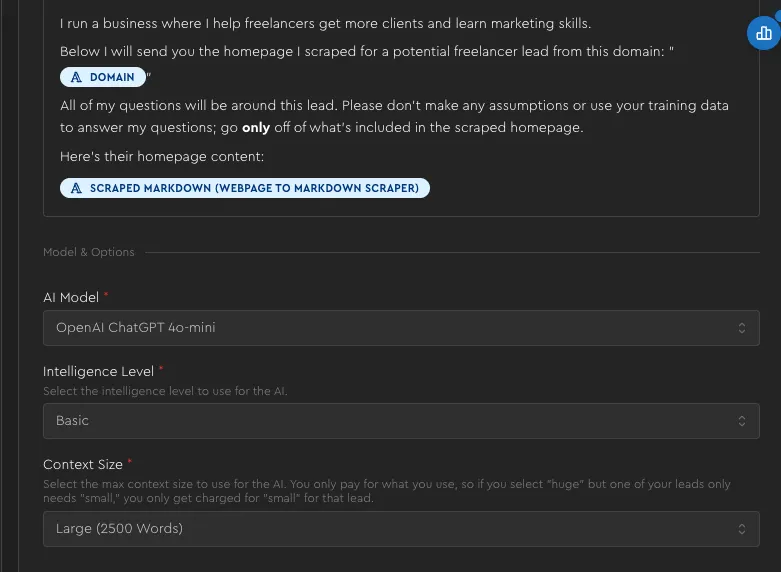
System instructions are:
I run a business where I help freelancers get more clients and learn marketing skills.

Below I will send you the homepage I scraped for a potential freelancer lead from this domain: "[[company:domain]]"

All of my questions will be around this lead. Please don't make any assumptions or use your training data to answer my questions; go only off of what's included in the scraped homepage.

Here's their homepage content:

[[coluuid:b8c1970e-7d1e-4da3-a449-f21ba8ca3a50]]
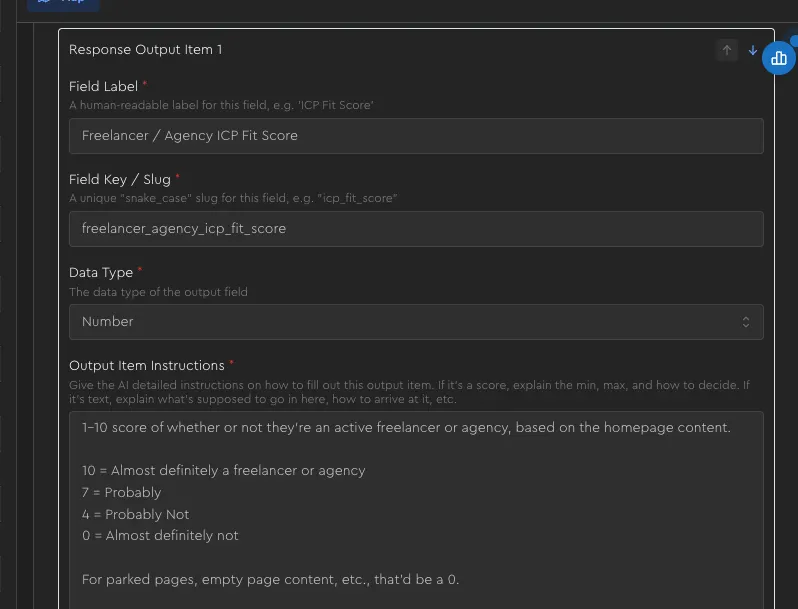
One of the outputs for that is Freelancer / Agency ICP Fit Score:
1-10 score of whether or not they're an active freelancer or agency, based on the homepage content.

10 = Almost definitely a freelancer or agency
7 = Probably
4 = Probably Not
0 = Almost definitely not

For parked pages, empty page content, etc., that'd be a 0.
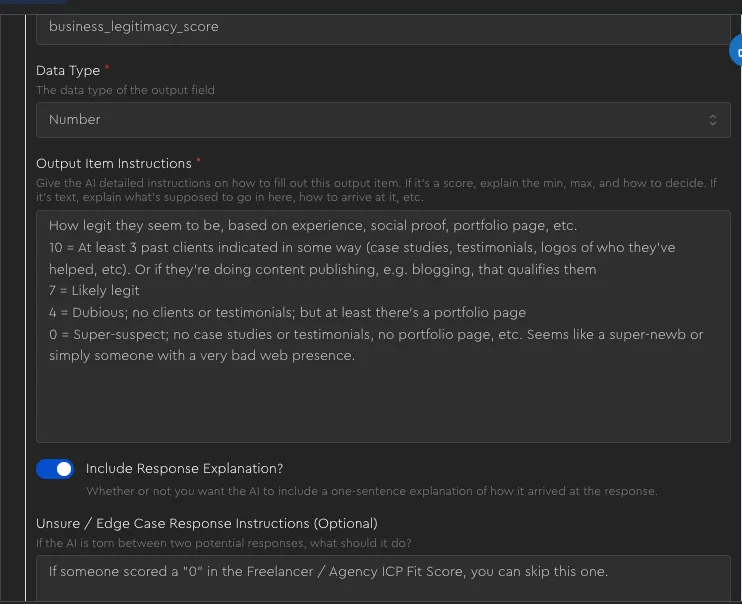
(And I DO have the Include Response Explanation? ✅ Enabled, btw)
Another one is Business Legitimacy Score .
How legit they seem to be, based on experience, social proof, portfolio page, etc.

10 = At least 3 past clients indicated in some way (case studies, testimonials, logos of who they've helped, etc). Or if they're doing content publishing, e.g. blogging, that qualifies them

7 = Likely legit

4 = Dubious; no clients or testimonials; but at least there's a portfolio page

0 = Super-suspect; no case studies or testimonials, no portfolio page, etc. Seems like a super-newb or simply someone with a very bad web presence.
The config above gets me some VERY USEFUL output:
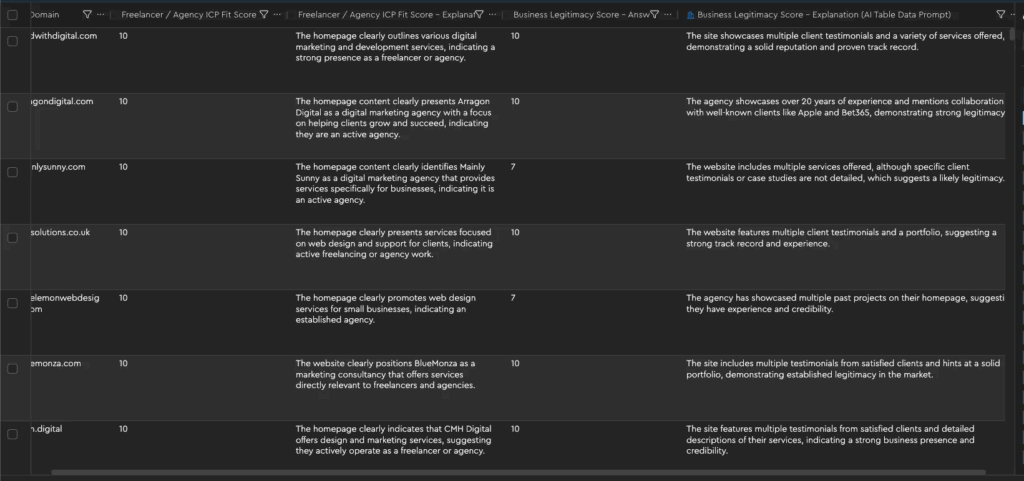
I’ll often filter by “7+” when spinning up a new campaign, and then if I want to “scrape the bottom of the barrel” a little more in subsequent campaigns, I’ll go for all the 4s I skipped the first time around.