
LiquidGPT: Getting ChatGPT’s Help With Liquid Formulas
Now that you know the basics of Liquid, we’ll cover how you can stop using your human fingers for writing your Liquid code (using human fingers for implementation work is so 2023*) and instead outsource all that to an AI.
Enter: LiquidGPT
A pre-trained ChatGPT model I built for you that empowers you to chop those useless fingers of yours off† and simply dictate the formula ideas you have to ChatGPT and have them written for you.
Asterisks:
— * Still use your human brain for strategy, orchestration, and review though
— † Don’t chop your fingers off.
How To Use LiquidGPT
If you’re a ChatGPT user, you can load up the model directly from within the GPTs directory; it’s in there as “LeadTables Liquid Assistant”:
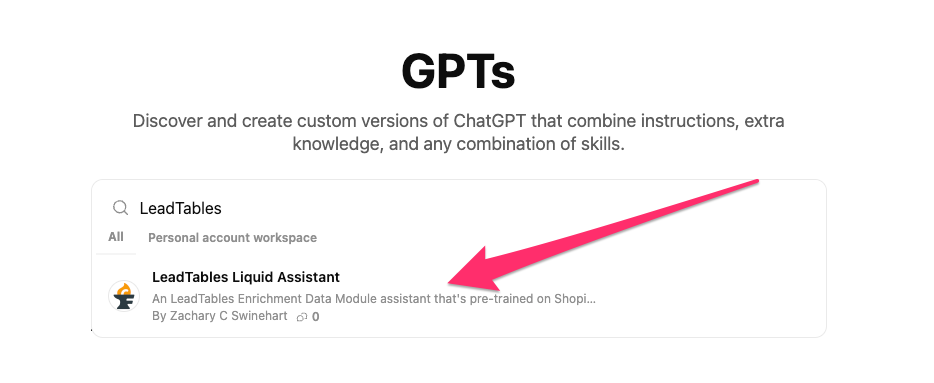
Or just click this link to go to it directly: https://chatgpt.com/g/g-68f61b426ac48191bd0949324e4d9bc4-leadtables-liquid-assistant
(NB: If you’re not a ChatGPT user, or if you’re a fancy nerd like me and like to train your own models/agents, you can use the “LLM Training Context” from the resources on this page to train your own. The liquid context comes from Context7 and the liquid_type_coercion_tips come from my brain)
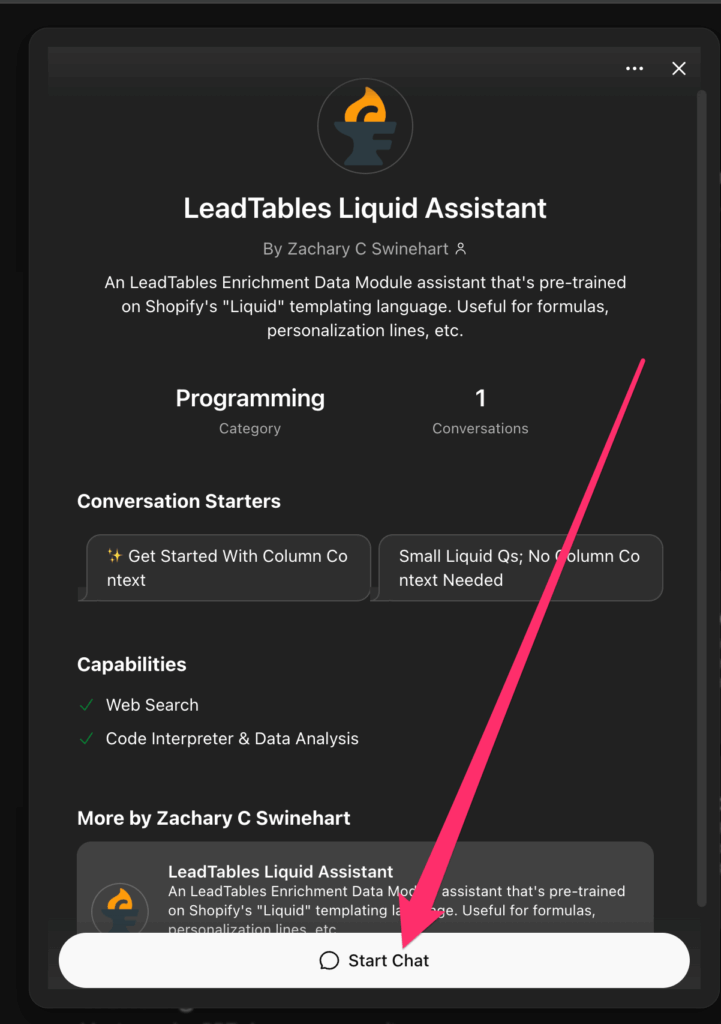
Once you have the LiquidGPT pulled up, you can click the “Start Chat” button to get going.
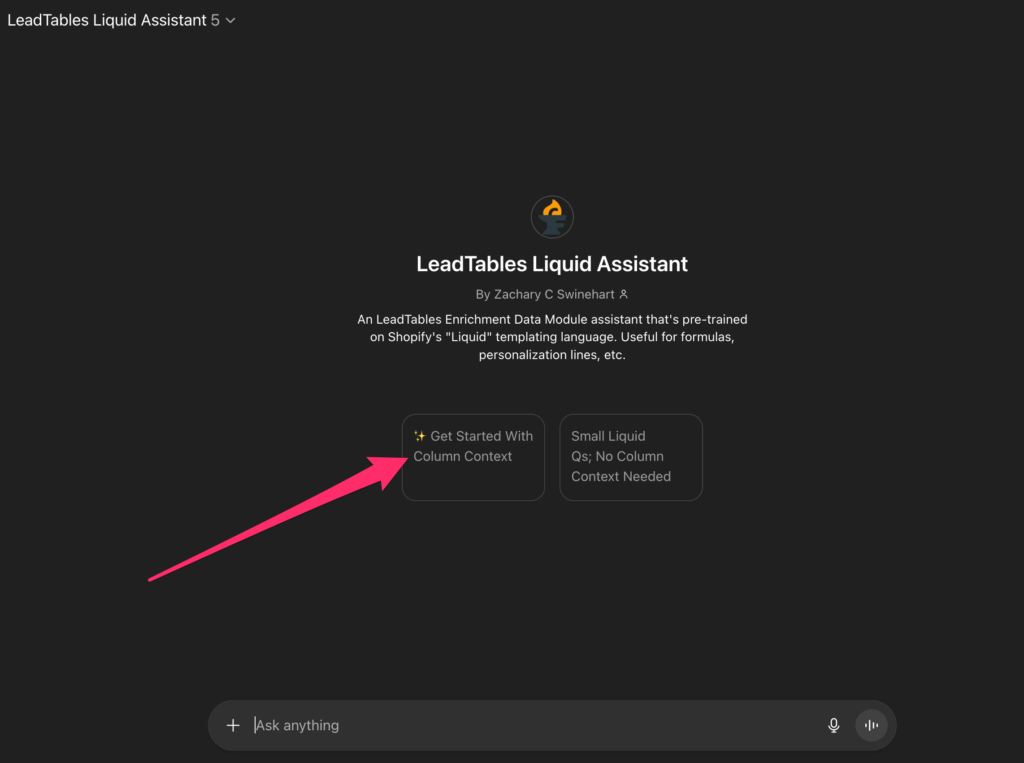
Once you’re in there, you can click the “✨ Get Started With Column Context” starting prompt to get going:
Chap will give you an SOP to follow to give him the context he wants — assuming HE followed MY instructions for giving YOU instructions, anyway — which we’ll do now.
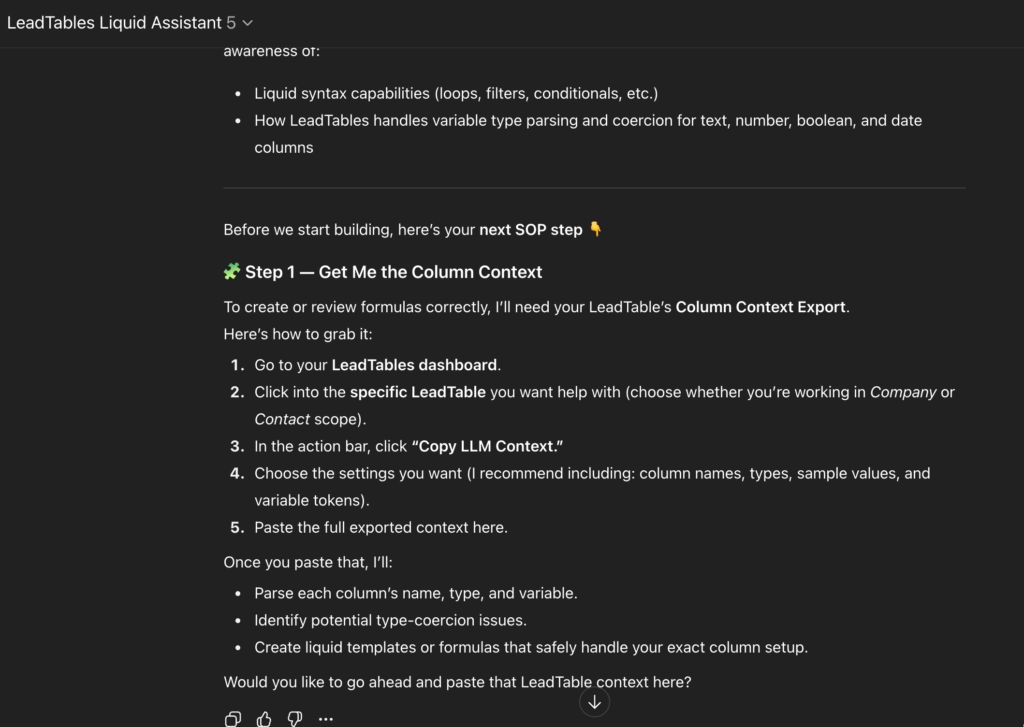
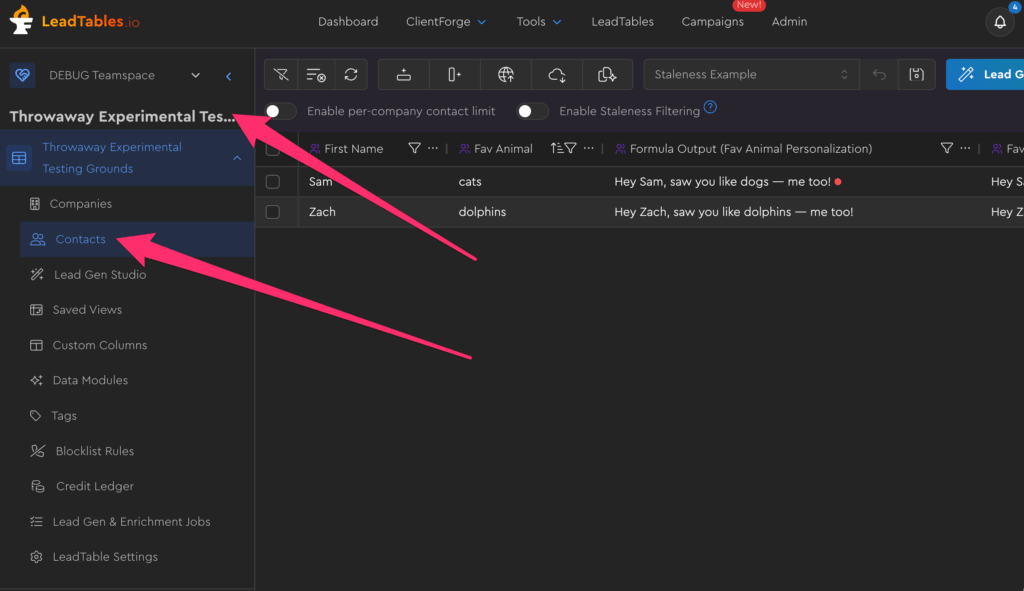
So let’s do those things! Go into the testing grounds LeadTable we’ve been using, and go into the Contacts page for it:
Then click this button in the Action Bar to open the LLM context copier:
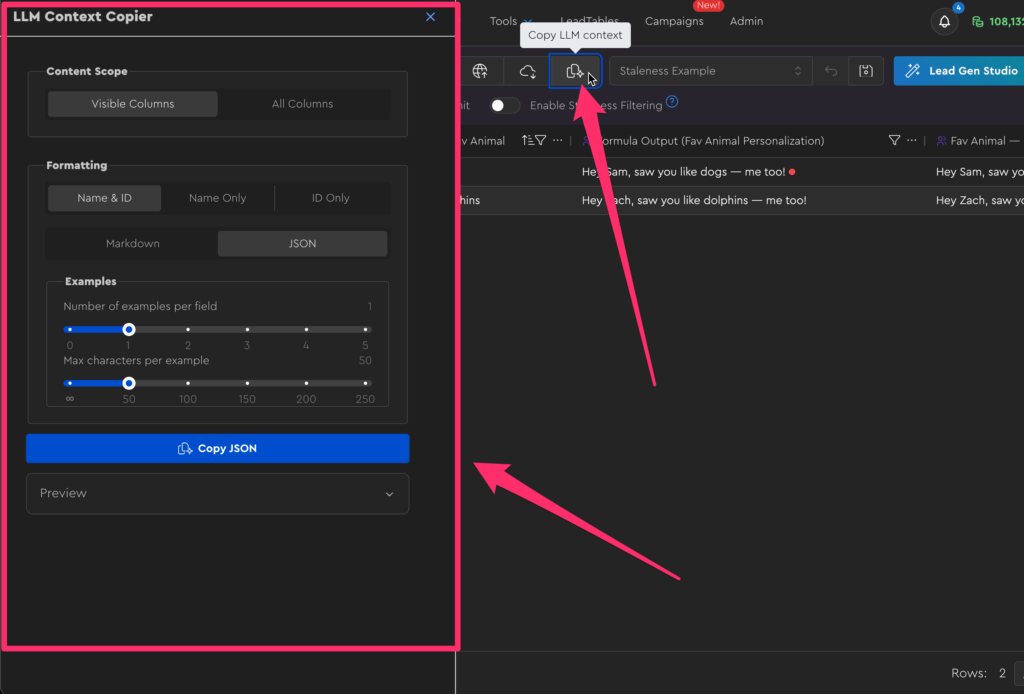
If you expand the Preview accordion at the bottom, you can see what’s going to get sent to the LLM when you copy it out — you can copy just the visible columns if you’re doing something that only needs visible columns, or copy out all columns to do more complex stuff, but at the cost of potentially diluted / bloated context due to the larger context size. Feel free to play with the options to see how they affect things.
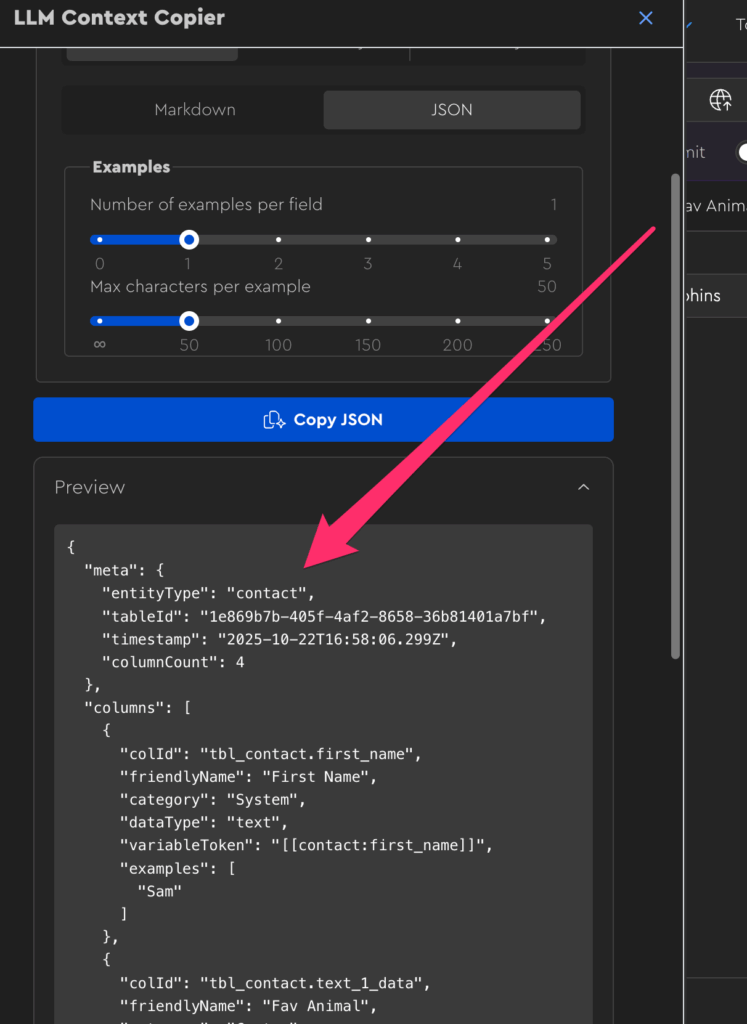
To start, let’s grab…
- All columns
- JSON
- 1 example per field
- 50 max characters per example
…and then click the “copy” button and paste all dat juicy juicy context into your ChatGPT chat:
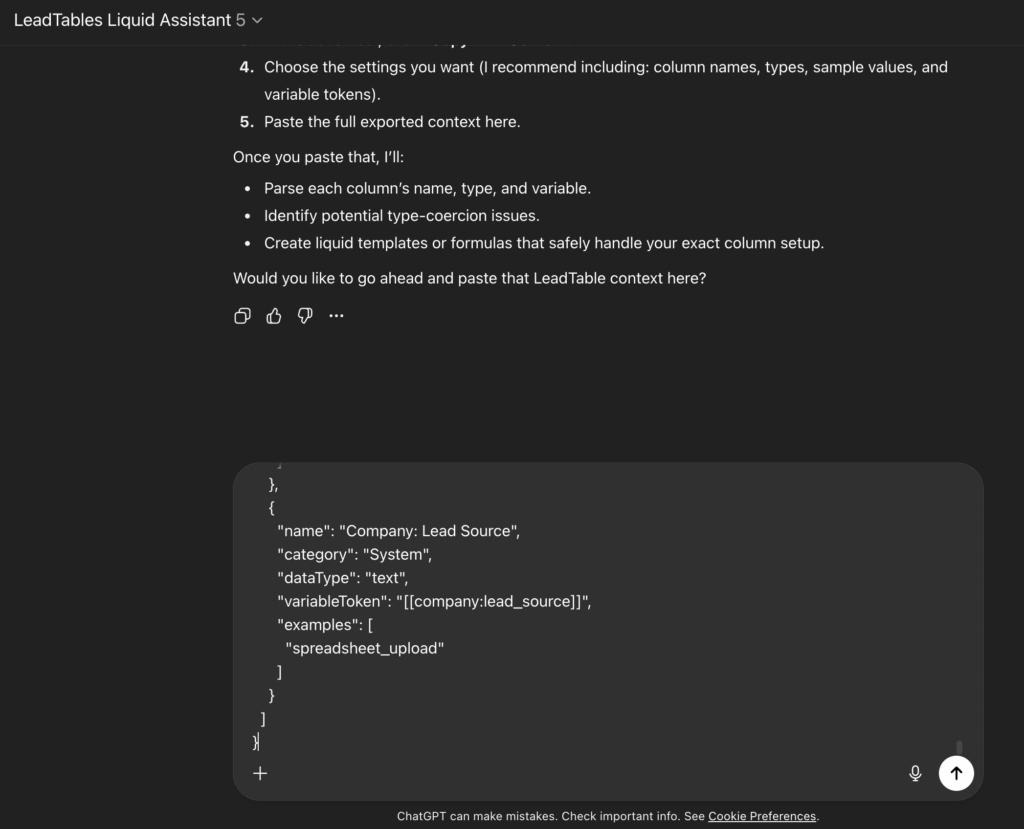
If you just send that context and nothing else, Chap will likely spew out some long-winded crap at you with a lot of info you may not be looking for in this moment:
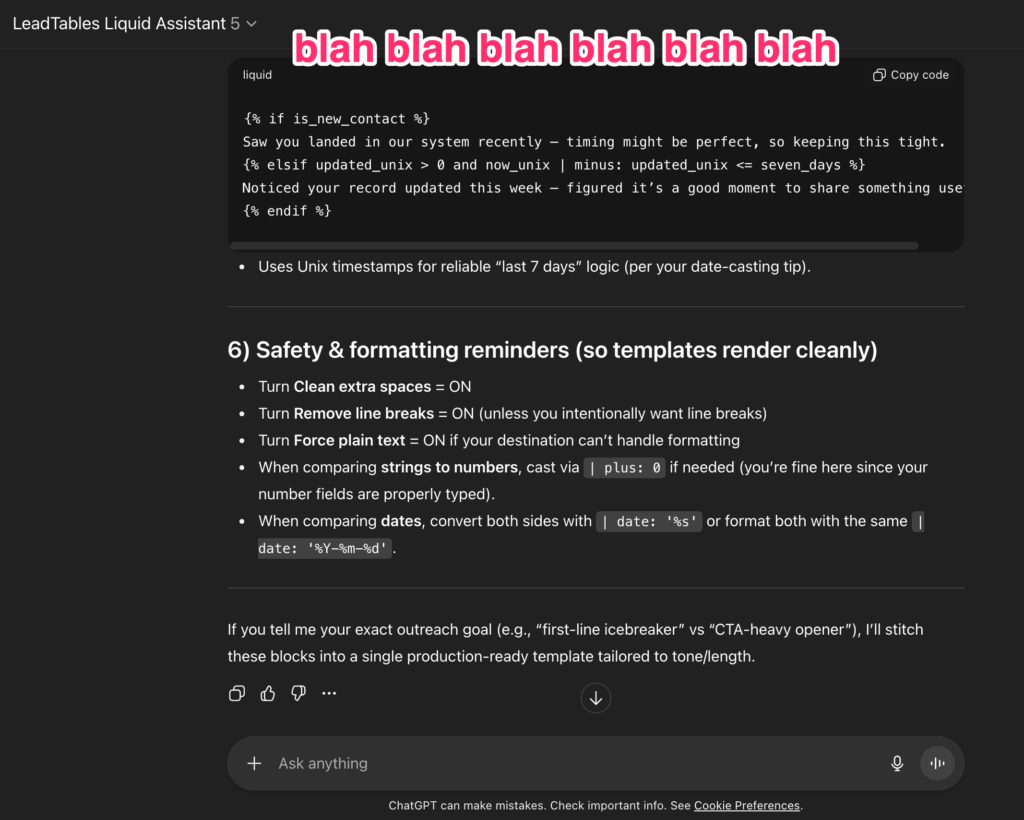
Something I often do to get around this is sending a message like…
I'm going to paste all that column context; please review and let me know when ready for my prompt. No need for any analysis or anything; just review and let me know when ready.

«paste here»

Are you ready for my prompt?
If you do something like that, you’ll hopefully get a short “acknowledgement-style response” like:
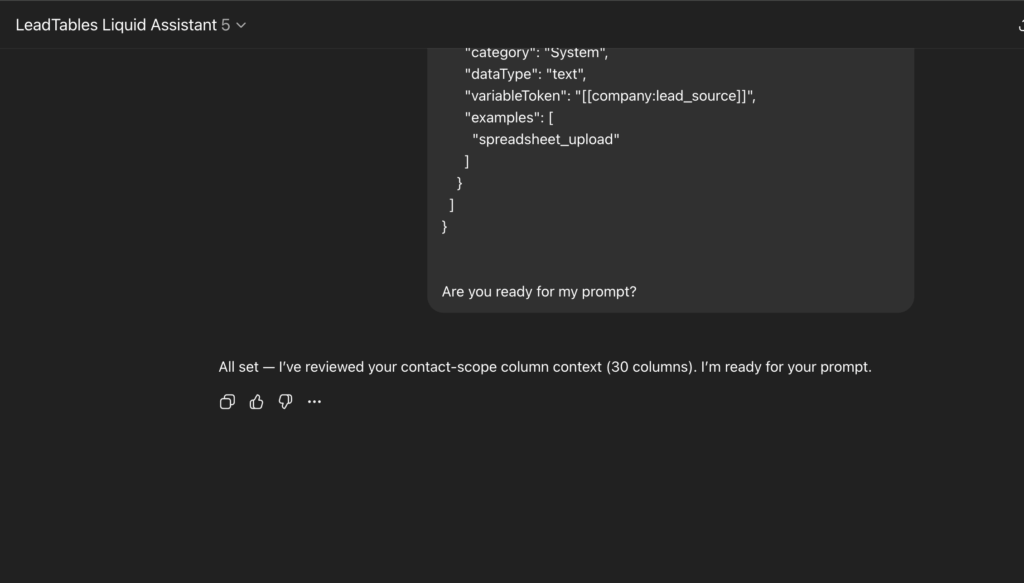
Now we’re ready to fly high on the digital wings of AI. Let’s give ‘er a whirl!
You can just send a silly prompt like the one below for practice, or make up one of your own to put this thing through its paces.
Now please write me a personalization line oriented around their number of podcast episodes and their favorite animal. Maybe we do a conditional where if they have over 100 episodes, we compliment them and suggest their favorite animal was part of that success, and if they have under 100 (but still have some) we mention that their fav animal could help them do more, and if they don't have any at all, we suggest that they could enlist the help of that fav animal to make one or something?
For this exercise, just choose something relatively complex that…
- Leverages data you have in your table in custom columns
- Leverages multiple custom columns, ideally
- Does some kind of “conditional statement” (a.k.a. “if/else”), ideally
…Just so you can see what it’s capable of.
If Chap was feelin’ friendly, he probably gave you a copy-out-able code block like he did for me:
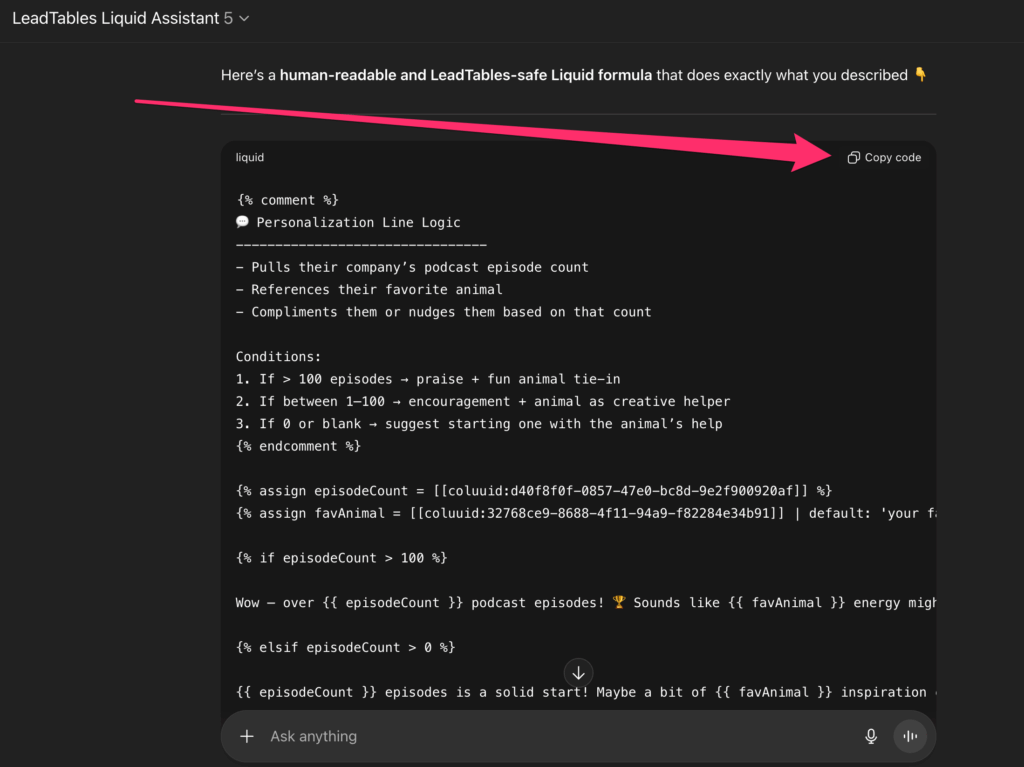
To test it, let’s open up the Lead Gen Studio (from within the contact table) and create a new formula. Let’s call it “Chap’s Fluffy Bullshit” and paste his code into it and see how the preview renders:
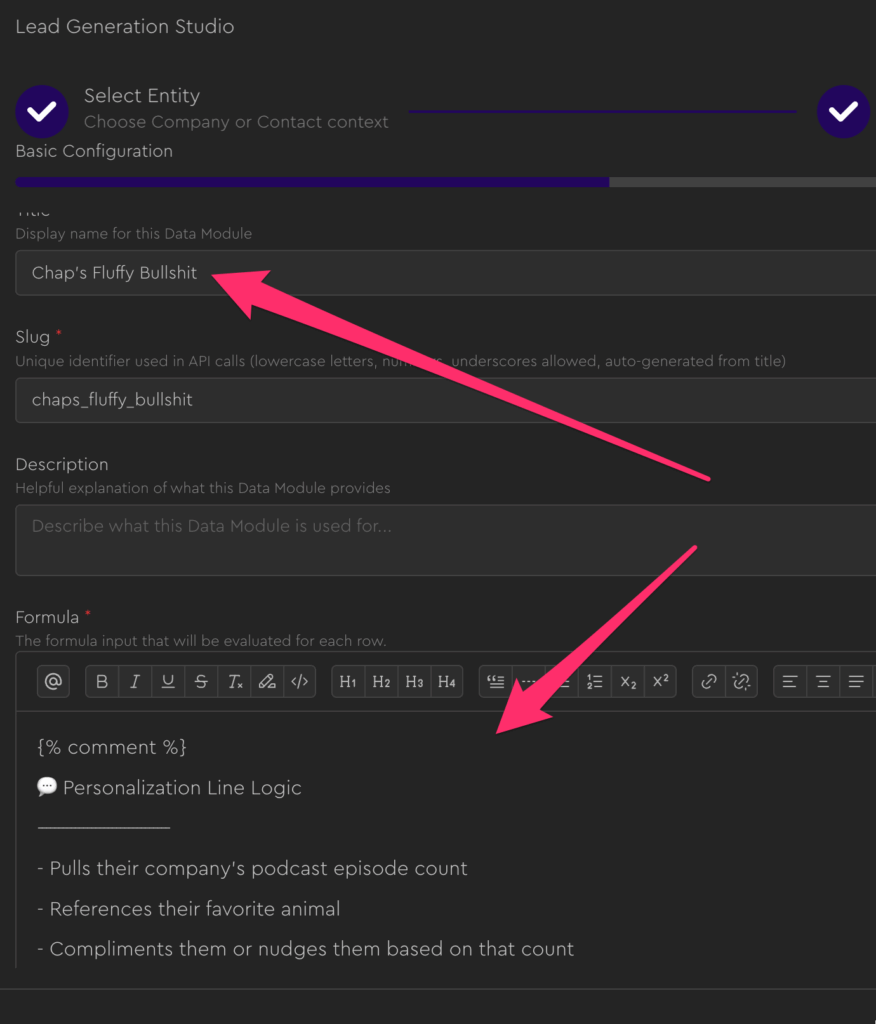
Note that when Chap gives you a “comment,” e.g. like this:
{% comment %}

This will NOT be rendered

{% endcomment %}
You are safe to copy it in the the Formula field without worrying about it rendering.
(“Comments” are dev lingo for “this is just a note and isn’t real code, do don’t try to render it or evaluate it.” Every code language has different syntax for them.)
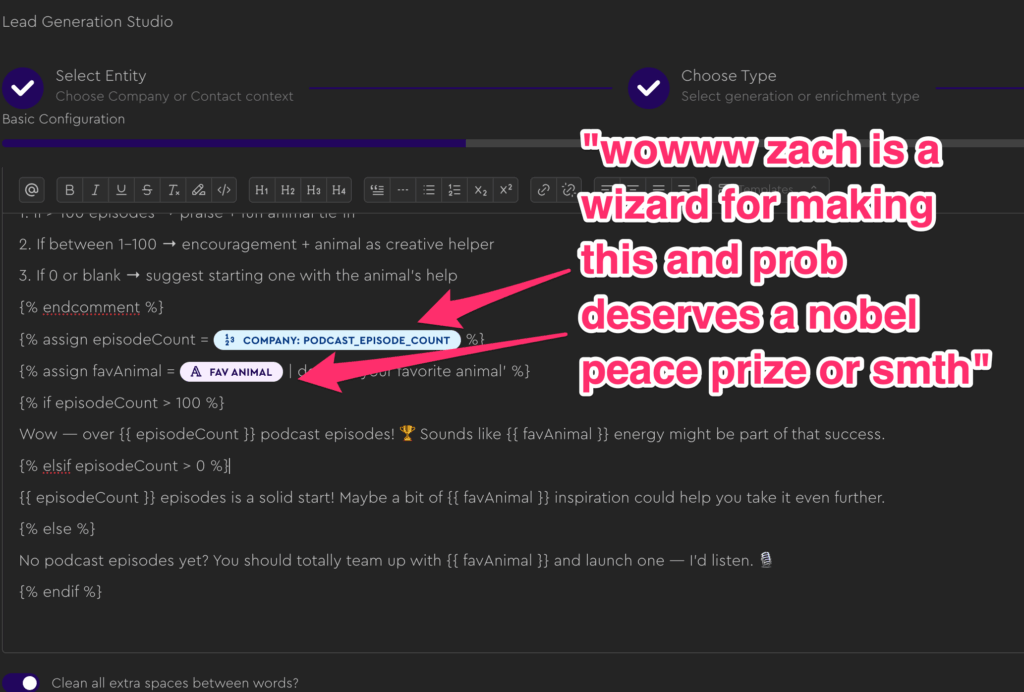
If all worked correctly, you’ll get a “magic moment” after pasting, when you see all your real variables from your LeadTable automagically rendered for you in the formula!
And if you check the preview, hopefully it all looks good down there too:
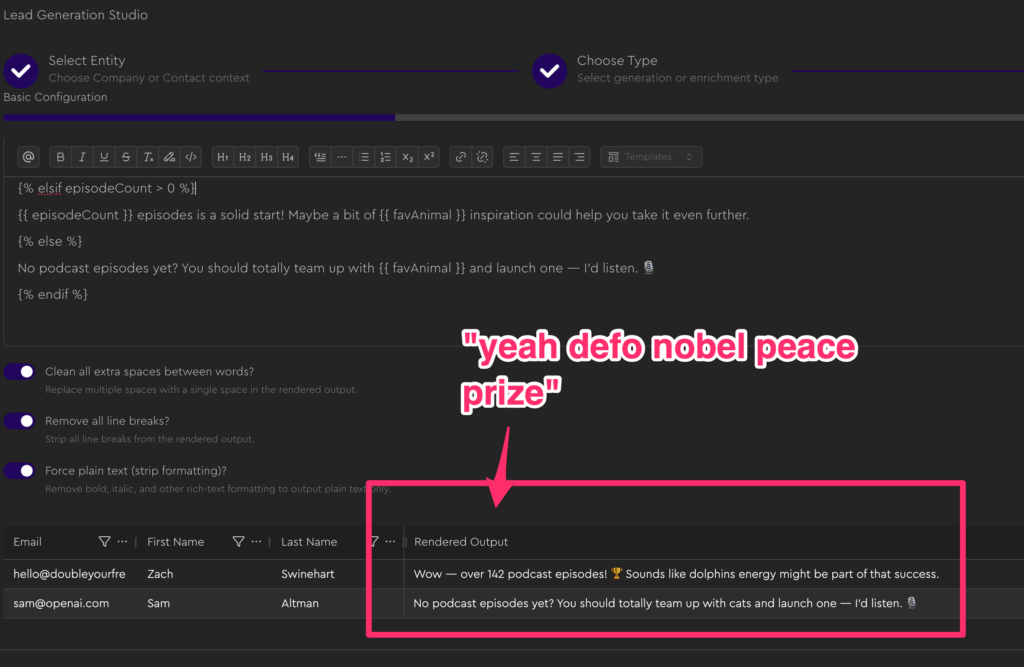
If something looks off, you can just ask Chap for help and refine.
Important Notes When Using ChatGPT For Stuff
Important Note #1: Don’t Ship AI-Generated Garbage
As I mentioned before, this training is focused on technical implementation, not strategy.
$200KF teaches how to do AI personalization well, whereas here we’re just focused on how to do it technically proficiently.
But here’s a lil tip 4 ya, on the house:
Don’t actually use personalization lines like the ones we just wrote in your real emails, because the ones we created in the example above are clearly AI-written garbage, lol.
The proper way to do it is to write a solid “themeplate” with your human fingers, and have the AI rewrite it to match your lead’s data. (If you’re in $200KF we cover this in the Campaigns module in the copywriting section)
This allows you to capitalize on the flexibility of AI without also getting the “eye-roll moment” that comes when someone can tell your email was written by AI.
Important Note #2: Simple Often = Better. And Be Sure To Test!
Complicated formulas like the one Chap made for me present risk factors with each if/else and each variable, so you’ll want to make sure you test it on a lot of leads before you ship it to all your leads.
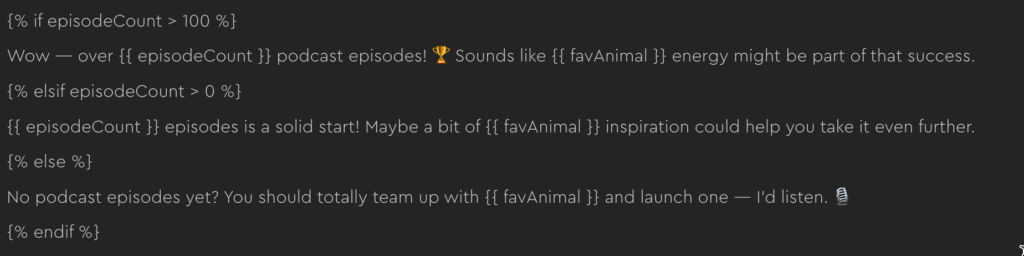
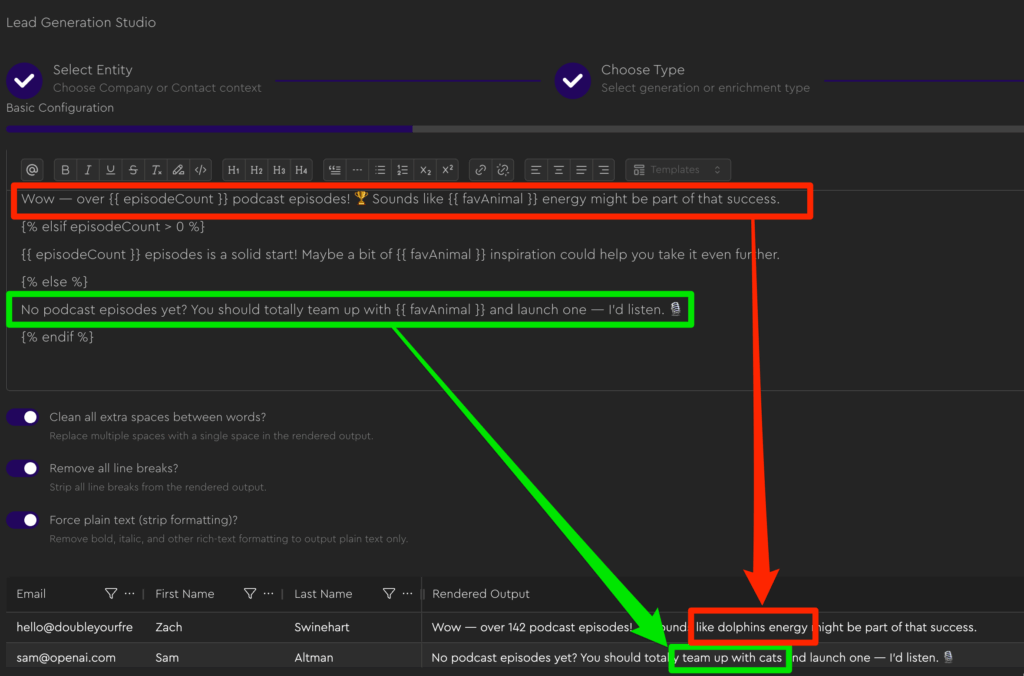
For example, you may have noticed the pluralization on the “dolphins” one looking weird (”dolphin energy” would have sounded more correct than “dolphins energy”). It’s important that you plan around these kinds of things when planning your formulas.
And it’s also worth remembering that “more complicated” doesn’t always mean “better converting,” and that it’s generally best to start simple.
Important Note #3: Be Mindful of Context Windows
I’m not an AI pro, so the below could be wrong, but it’s my understanding and experience and I wanted to share because it’s relevant here…
So, with LLMs, whenever you send a message, it also sends all previous messages in that conversation. Totally fresh, every time.
And when you run a very long chat, what happens is you will “reach the edge of the LLM’s context window,” and one of two things happen:
- The LLM simply “forgets” things that were said higher up in the conversation
- The LLM will try to summarize higher-up parts of the conversation to shrink the context window without losing everything
(You can find context window limits by looking up the model you’re using.)
The TL/DR is: the longer your chat gets, the worse the output gets.
Context limits aside, I’ve also noticed that output gets worse as the conversation goes on, because instead of having “pure context,” you have a lot of stuff in the chat that’s getting “factored in” to your replies that isn’t relevant for them.
And in the case of LiquidGPT, all my training data + your initial set of column data is actually quite a bit of baseline context.
For example, as of this moment, here’s how things stand for LiquidGPT…
- If you’re on ChatGPT, using GPT5, you get 128,000 token context https://platform.openai.com/docs/models/gpt-5-chat-latest
- Baseline token count for all the training data, system instructions, and all baseline table columns, will probably be about 15,000 tokens.
- Quality usually dips past the 70% context limit
- So that gives you ~75k good tokens to work with in your chat.
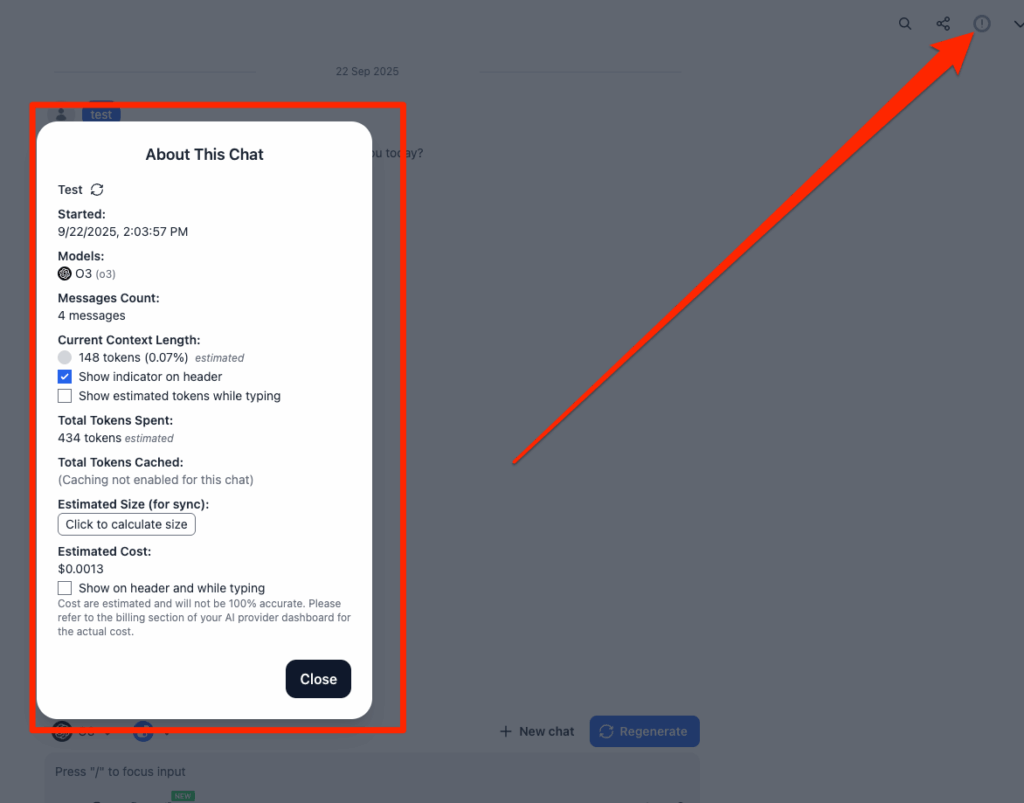
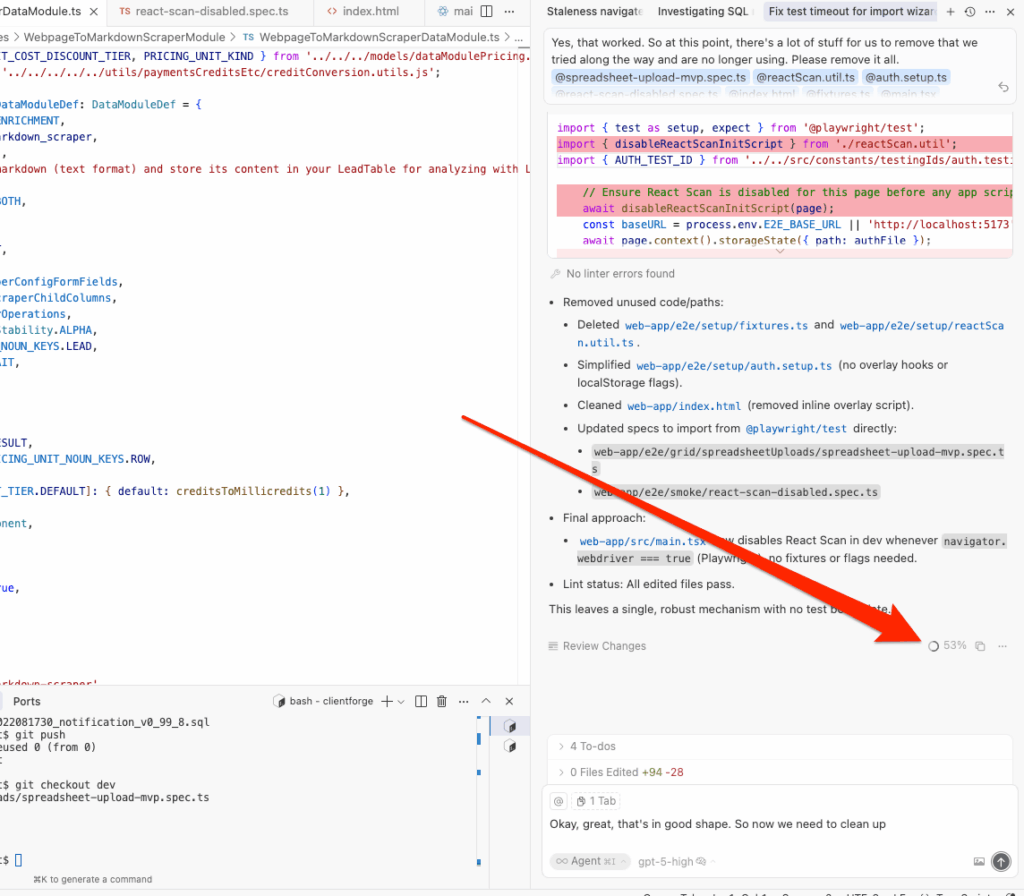
If you use a tool like TypingMind or Cursor, you can see context usage directly.
For example, this is in TypingMind:
This is in Cursor:
So what you can do to manage this get in the habit of branching into new chats early on, e.g. after sending your column context.
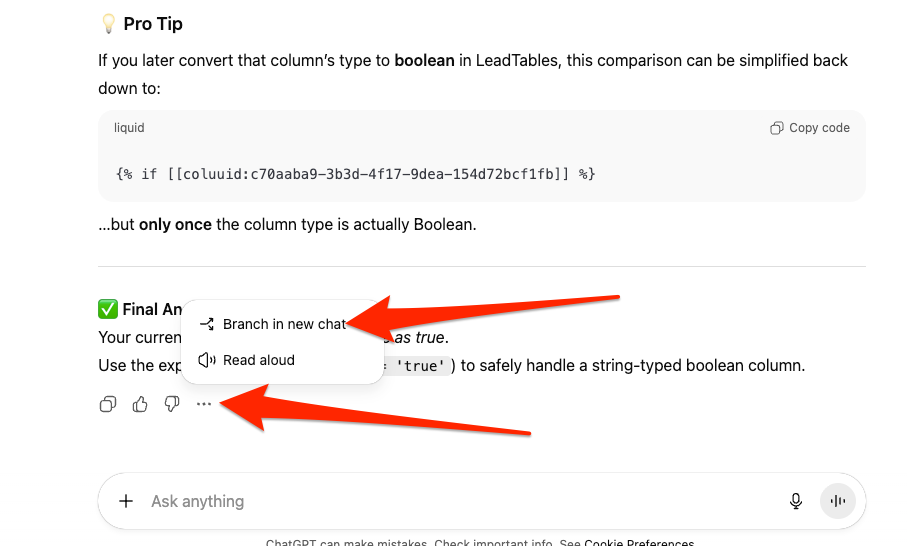
(One of my best time savers has been making “starter chats” that are pre-loaded with all the context I need for a given task, and branching fresh from it each time I need to do that kind of work)
You can of course also keep things simple and just start over fresh when the output starts to suck.
Tip: Use LiquidGPT As A “Syntax Formalizer” Moreso Than a “Personalization Creator”
Where most people seem to go wrong with AI is handing too much off to it, from what I’ve seen.
They hand off the entire strategy, the entire process, etc. and end up with something generic that anyone else with a ChatGPT subscription could have made the same way.
Where I think LiquidGPT is most useful is for the times where you know exactly what fields you want to use, and can write some “pseudo code” for it, but you don’t remember the exact Liquid syntax.
So your flow in these cases would be like…
- Write your pseudo code in LeadTables
- Send to Chap to make it actually Liquid
- Copy and paste back
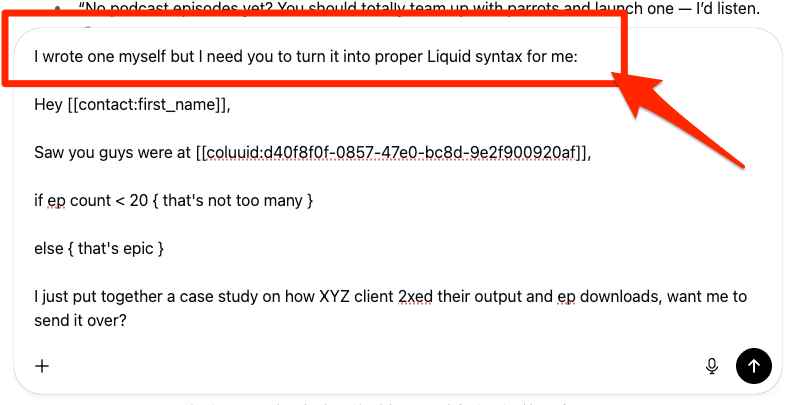
For example, if I write this, it’s not actually liquid, so it won’t parse:
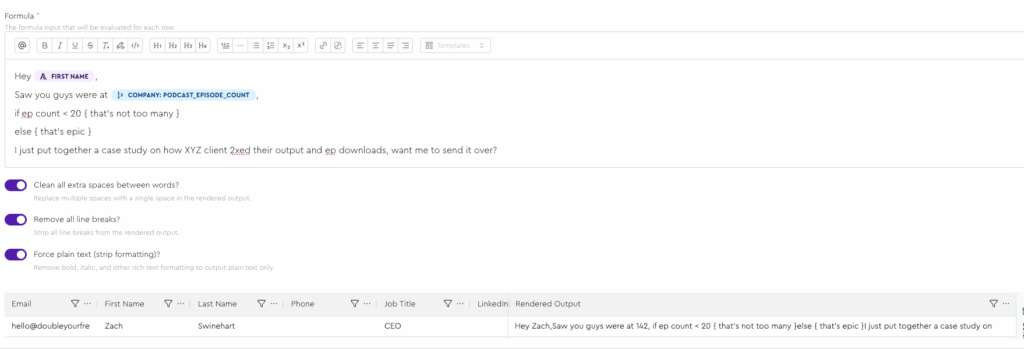
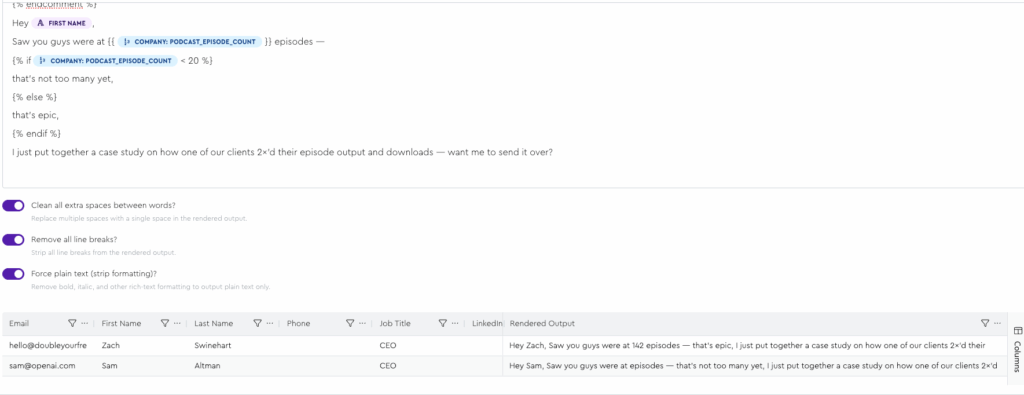
But I bet you Chap can make it real:
Awww yussss:
It can also be good for collaborating and getting new ideas.
But I would so so so so so caution you against letting it write & conceptualize your lines for you.