How Blocklists Work
One of the things I find kind of lame about the pricing model of popular cold email sending platforms like Smartlead and Instantly is that they gate access to their account-wide unsubscribe functionality.
(It bothers me because the natural result of this decision is more of their customers accidentally spamming people, which makes cold email get even more of a bad wrap and makes things harder for the rest of us.)
To counter this – and to help you not waste money enriching your unsubscribed leads – LeadTables has a “Blocklists” feature.
Blocklists are a nifty way for you to mark certain domains or emails as unsubscribed across your entire Teamspace.
You can use this to exclude…
- Past clients/customers
- Leads who’ve unsubscribed
- Friends
- Your mom
- etc.
It’s especially nifty for past clients/customers, because you can just bulk-paste your client roster to ensure you don’t accidentally cold email people who are already clients. 🙂
NB: You could also use Blocklists to exclude leads who’ve engaged heavily enough that you don’t want to cold email them ever again, but I’d personally be a bit wary of using Blocklists for that, because blocking someone is meant to be a “forever decision.” For excluding engaged leads, that would likely be better accomplished with tags or tracked Campaign Contact Interactions, so that you have the option to re-cold-email them in a year or two if you want to.
How To Get To The Blocklists Page
There are a few different ways to get to your Blocklists page.
Probably the easiest one is from the navbar footer arrow navigation thingy:
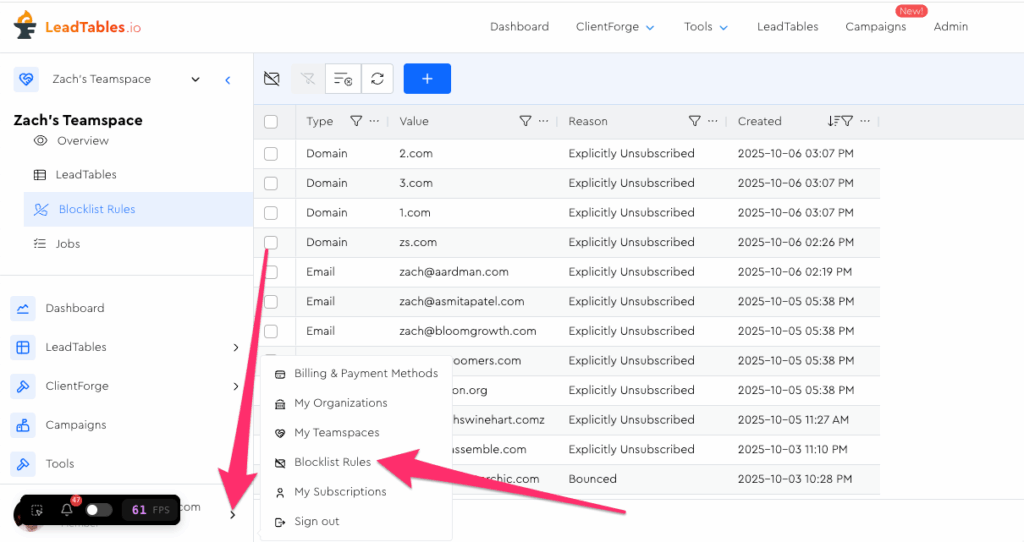
Other places you can find a link to it, in case I remove that one one day:
- Teamspace sidebar
- LeadTable sidebar
- Campaign sidebar
Blocklist Types
When you’re on the blocklist page, you’ll notice that there’s the “Type” column.
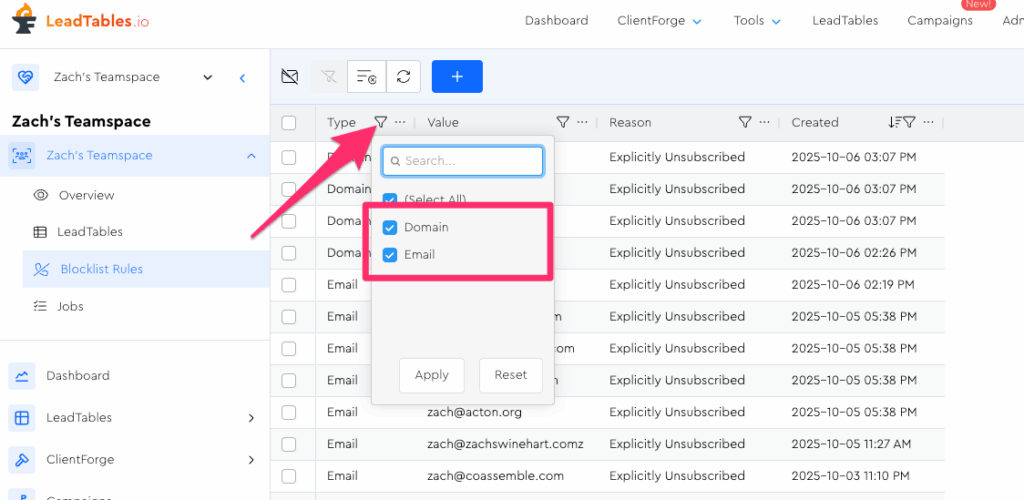
This indicates the “scope” of the block.
Note that domain-wide blocks are about the company a contact is associated with, NOT the email address extension.
So for example, if you add “gmail.com” as a domain-wide block, it will NOT unsubscribe all gmail addresses. It will only unsubscribe contacts associated with the “Gmail” company.
(And furthermore, it’ll exclude contacts regardless of whether or not their email is an “@gmail.com” address — it’s about the company domain, not the email.)
Here’s an example scenario. “🚫” means they’d be unsubscribed, and “✉️” means they’d still get emails.
- Block added:
- Domain-wide: gmail.com
- Company: DYF.com
- ✉️ Contact: zach@gmail.com
- Company: Gmail.com
- 🚫 Contact: zach@somethingthatsnotgmail.com
- 🚫 Contact: zmoney@whatever.com
- 🚫 Contact: zeek@gmail.com
(💡 NB: If you ever wanted to not email anyone with a gmail address, you could just filter them out with a “contains” filter on your email address column on the contacts grid; no need to use blocklists for that. Blocklists are specifically for non-pattern-based unsubscribes.)
NB #2: If you wanted zach@gmail.com to be blocked too in the example above, you’d need to either add a…
- Domain-wide block for DYF.com (which blocks emails to all other DYF leads too)
- Or an email-specific block for zach@gmail.com
How To Add Leads To Blocklists
There are 2 ways you can add leads to your blocklists.
- In bulk, on the Blocklists page, by typing or pasting them into the bulk-add box
- From within your LeadTables/Campaign Contact grids, by selecting the leads and choosing the Action Bar action
Let’s look at how to do each.
Adding In Bulk
On the blocklist page, simply click the big ole plus sign button:
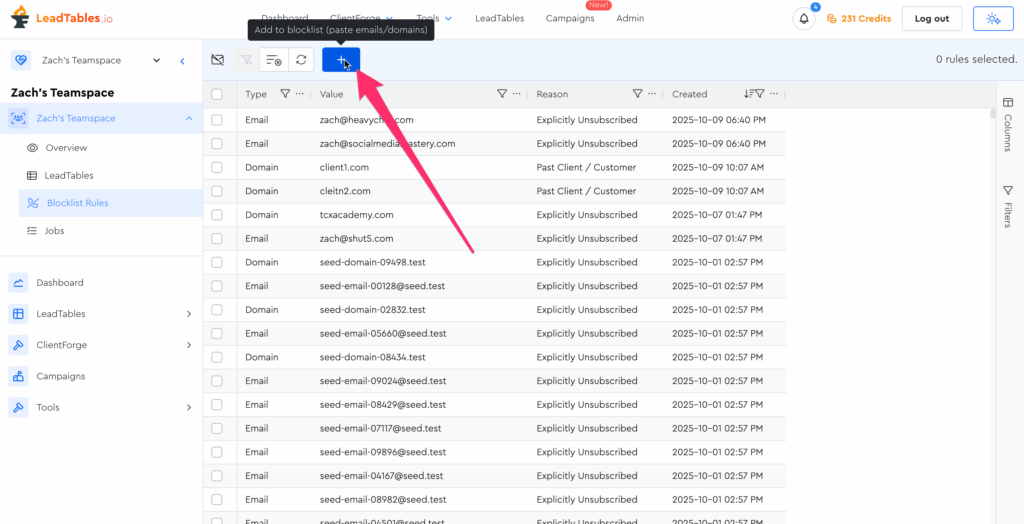
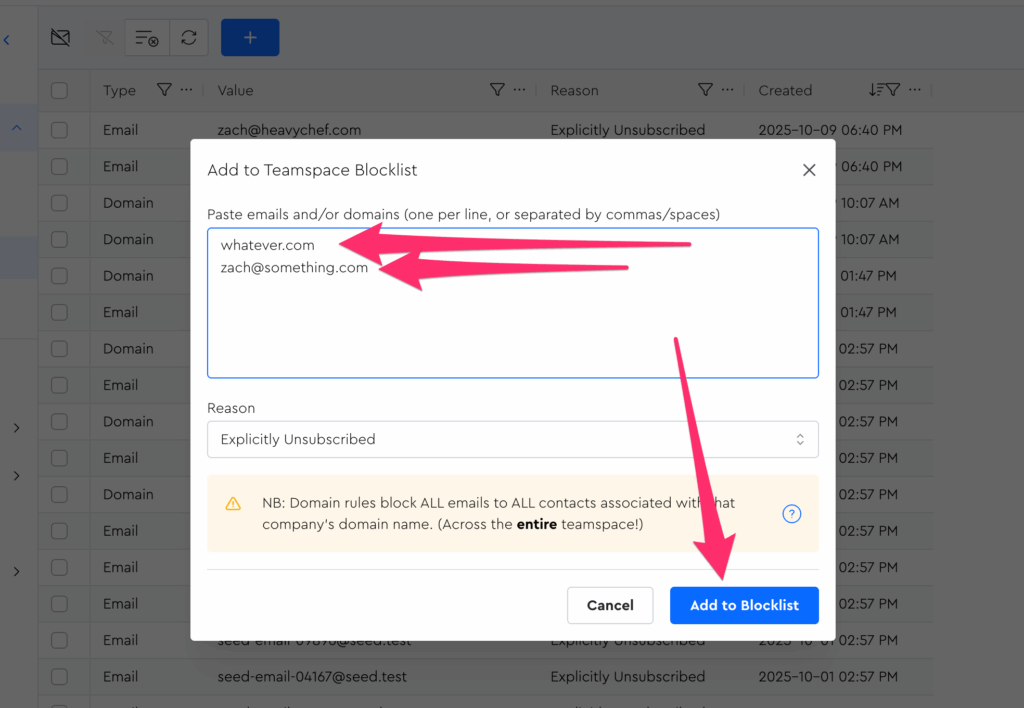
Type whatever you want (emails, domains, or a combination) separated by line breaks and then click the “Add To Blocklist” button:
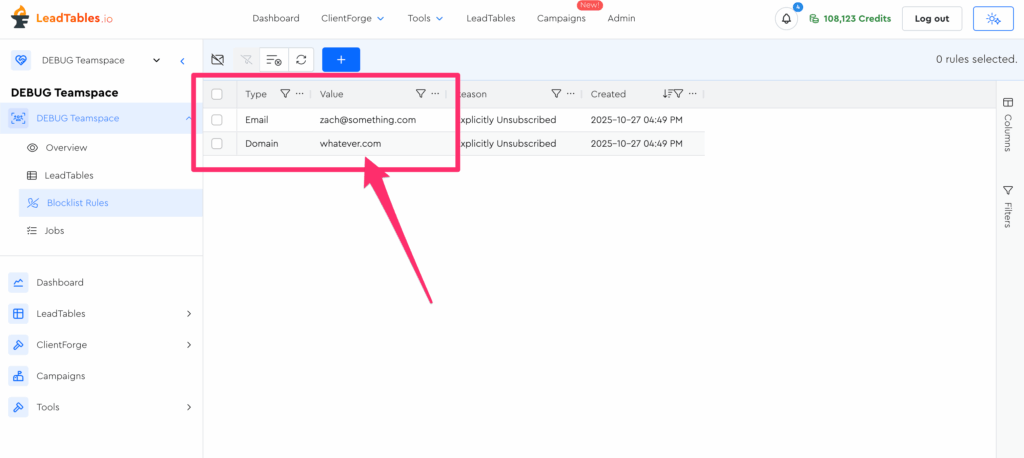
If all went well, you should see them in your blocklist now:
Using The Block Action
The other way to block leads is with the action bar action.
You can fire this off from the following places:
- Campaign Contacts Grid — Email or Domain-Wide Blocks
- LeadTable Contacts Grid — Email or Domain-Wide Blocks
- LeadTable Companies Grid — Domain-Wide Blocks Only
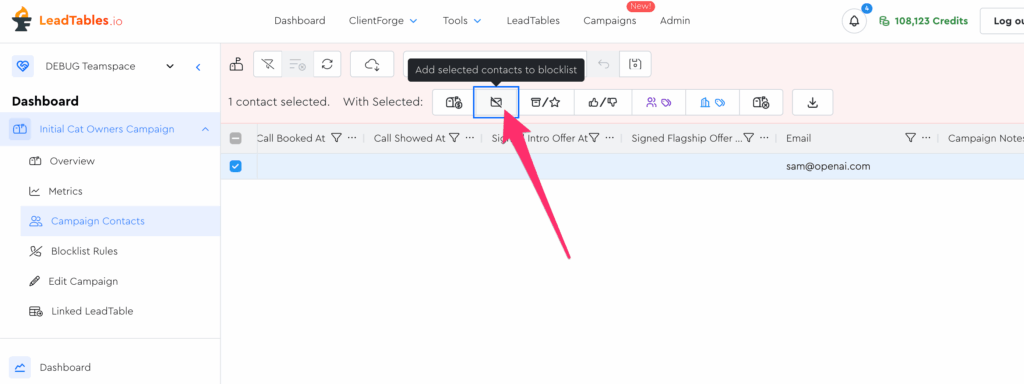
Just go into your grid, select your leads, and choose the “Add to blocklist” action:
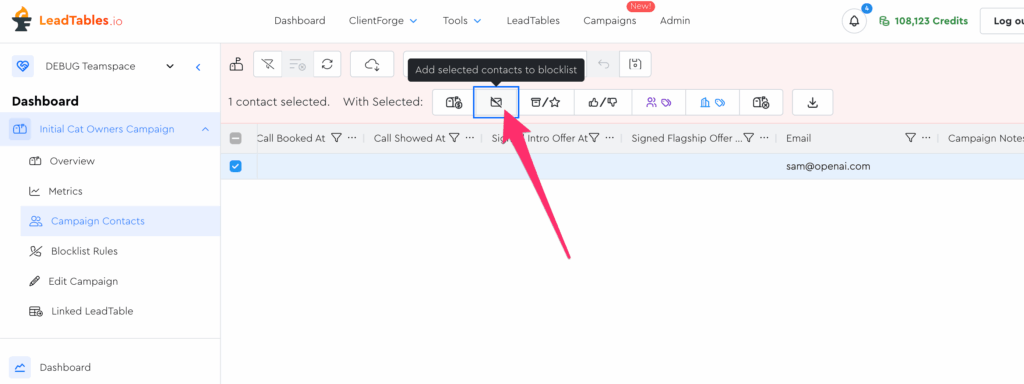
You should see a popup like this showing you what you’re about to block — you can select either specific-email-scoped or domain-wide-scoped.
How To See / Filter By Unsubscribed-ness
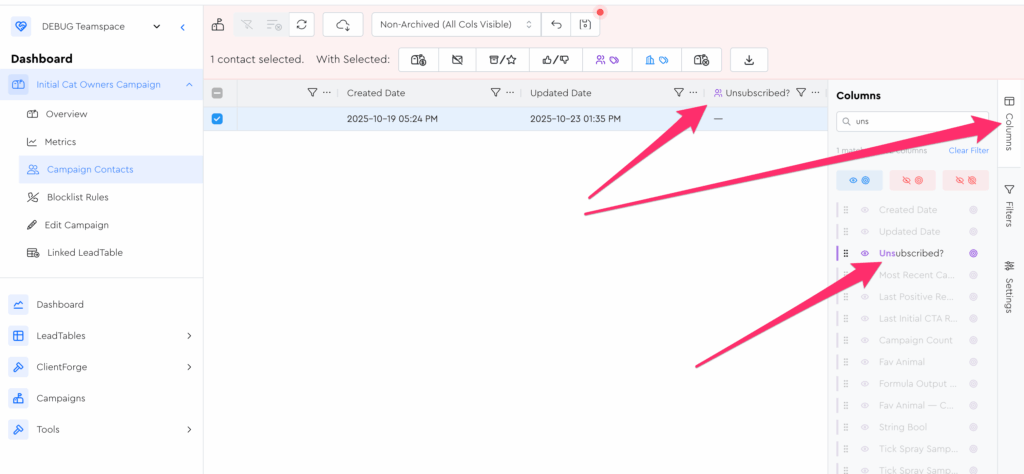
All 3 grids allow you to filter by unsubscribe status by using the “Unsubscribed?” column.
- On the LeadTable Contacts & Campaign Contacts grids, this will reflect the composite of both the company-wide unsubscribe status AND the email-specific unsubscribe status for a given lead (i.e. if either of the two are true for a lead, that lead will show as unsubscribed)
- On the LeadTable Companies grid, it only reflects domain-wide unsubscribe status.