
The Two Ways You Can Log Metrics For Your Campaign
Within LeadTables, there are 2 ways to get your campaign interaction data into the platform for displaying your conversion rate metrics:
- Logging specific interactions for specific leads
- Manually typing your interaction counts in bulk
Both have their pros and cons, which we’ll cover in a minute. First, let’s look at how to do each.
How To Mark Engagement
Bulk Count Logging
To log bulk counts, simply edit your campaign and go to the Metrics Config tab:
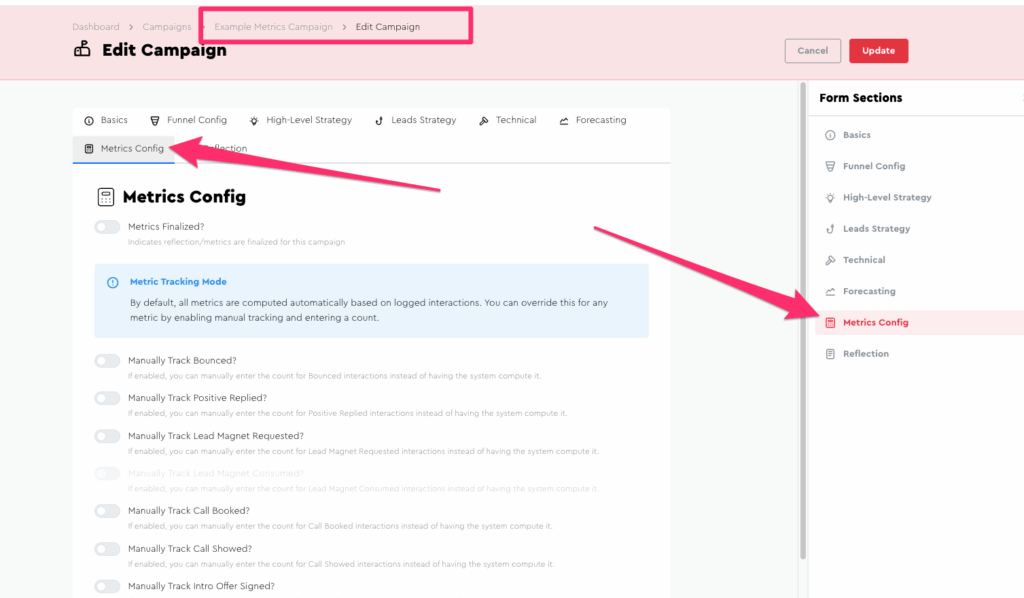
(NB: Notice how the “Lead Magnet Consumed” one is grayed out and un-clickable — that’s because that funnel step is disabled in your funnel config.)
For any metrics you want to manually track, you can click the toggle to enable the override, then type your number:
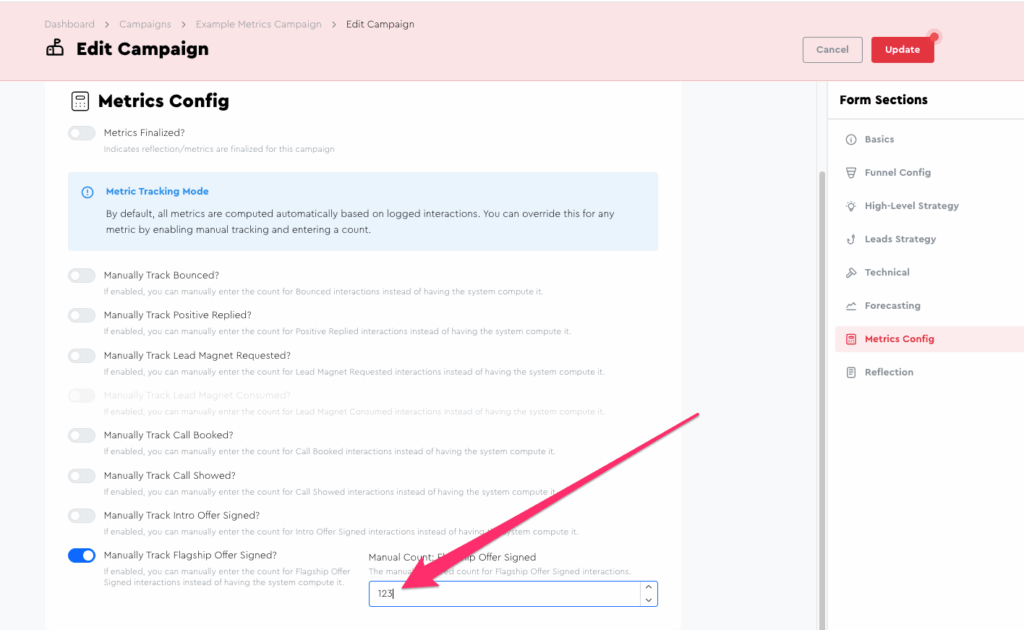
Now if you update the Campaign and go to the metrics page for it, you’ll see that override showing:
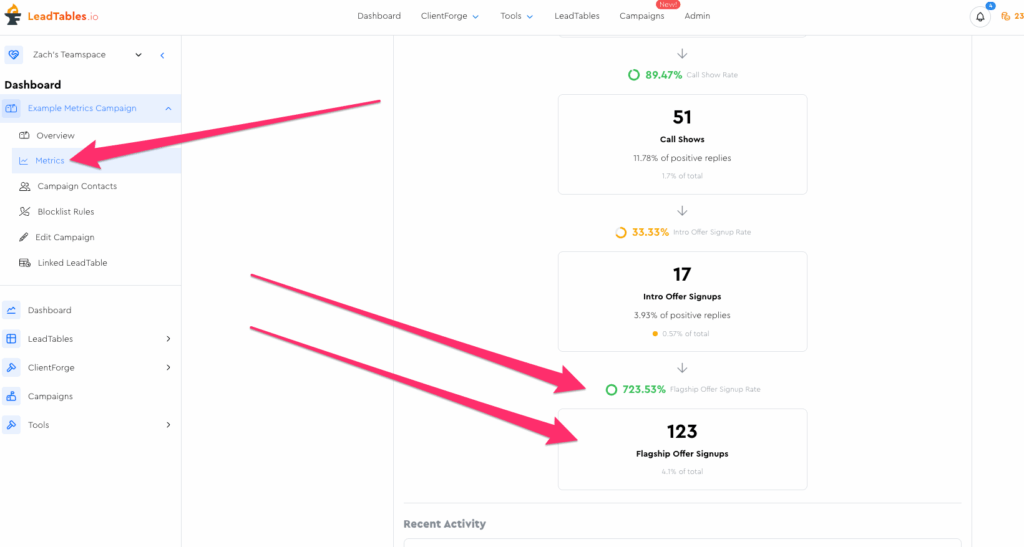
Note that enabled overrides will supersede manually-tracked interactions of the same type for the purposes of metric calculation & display.
So in other words, if you tracked interactions for 8 Flagship Offer Clients, but then went in and enabled the Flagship Offer override and typed 123 Flagship Offer Clients, the “123” is what would show on the metrics page.
But if you later disabled that override, it would go back to being logged-interaction-driven and show the “8” again:

Specific Interaction Logging
While your campaign is running, the primary place you’ll be “hanging out” will be in your Campaign Contacts page for that campaign.
To mark interactions, first pull up your Campaign Contacts page and select the leads you want to mark interactions for, then click the “Mark Interactions” button in the Action Bar:
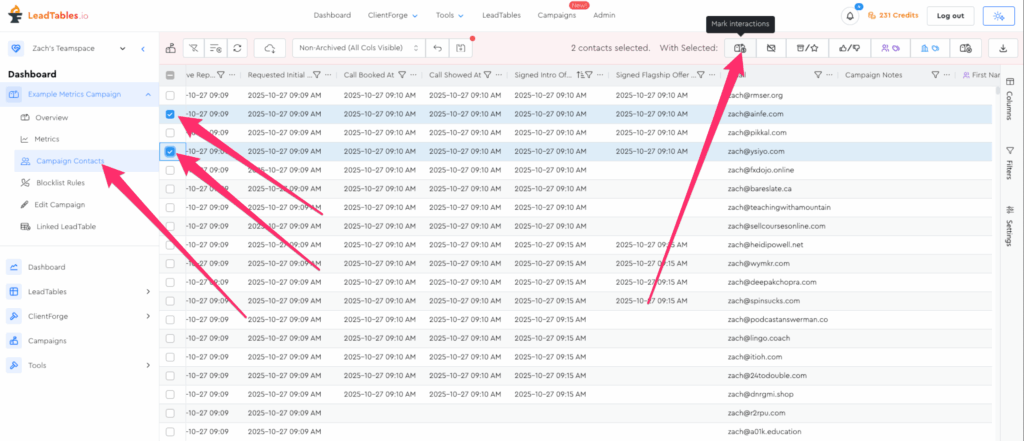
When you click that, you’ll see a modal like this:
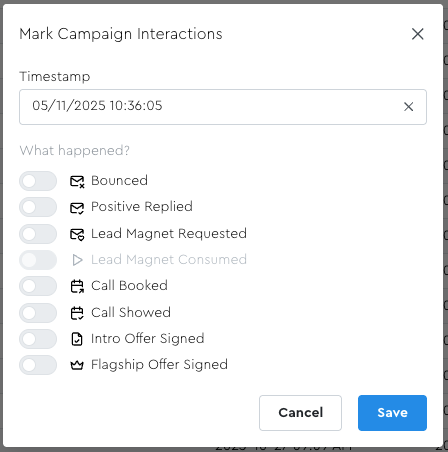
(NB: Notice how the “Lead Magnet Consumed” one is grayed out and un-clickable — that’s because that funnel step is disabled in your funnel config.)
To log one or more types of interactions, simply click the relevant toggles and then click save.
So, for example, if someone requests a lead magnet in the same message as their positive reply (which is common), you’d check them both off and then click “Save.”
And if you’re waiting to the very end of your campaign to mark interactions in bulk, you can essentially go “bottom of funnel up” when logging, i.e….
- First go in and check off all the relevant boxes for everyone who became clients and click “Save”
- Then do the same for people who came to calls but didn’t buy
- Then do the same for people who booked calls but didn’t show
- etc.
So for example if you don’t have a flagship offer in your funnel, and you had 5 people who became Intro Clients, you’d first select those 5 in the grid, then click the “Mark interactions” Action, then select all of these options and click “Save:”
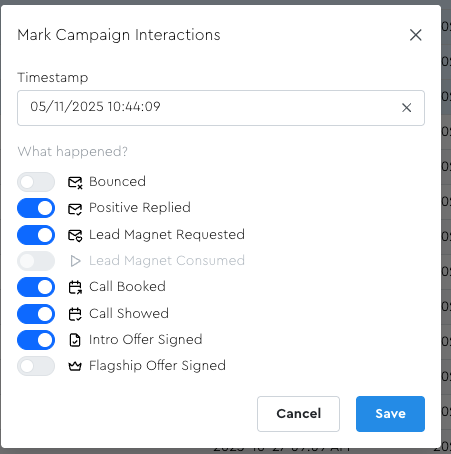
This way, you don’t need to mark all of those interactions separately.
NB: You Can Do Hybrid Tracking! It’s Not All-Or-Nothing!
Suppose you know you’re going to want to do special stuff for people who…
- Book calls
- Show to calls
- Become clients
…But your lead magnet is low touch + automated, and you expect a low Lead Magnet → Call Booking conversion rate, and don’t want to manually track all your positive replies and lead magnet requests since there will be thousands.
Fret not! The bulk-log overrides were built with this in mind! If you were to set up a funnel config like the screenshot below (you can either type 0s or leave blank) where you have Positive Replies, Bounces, and Lead Magnet Requests all set to override…

…You would see something like this when going to log interactions, to remind you that you plan to track those 3 in bulk at the end, and should probably not be tracking granular interactions for those:
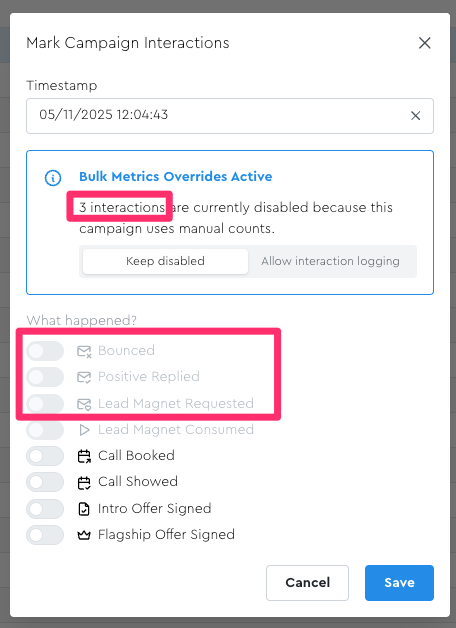
(The reason “Lead Magnet Consumed” is also disabled is because we have it disabled in our Funnel Config.)
If you wanted to log interactions for these even though you have the manual counts setting on, you could flick the switch to “Allow interaction logging” — just be aware you won’t see those interactions in your grid or metrics pages unless you disable the bulk overrides.
Once you’ve saved this, you’ll see the interactions in your grid, and can now do date filtering based on them.
NB: If you ever change your mind and switch back and forth between bulk/individual tracking, your previously-tracked interactions WILL be retained. The bulk-tracking acts like an “override” and doesn’t touch any of the interaction data you’ve already logged.
Pros & Cons
As you can imagine, these 2 routes each have their pros and cons.
Bulk Count Logging
- 👍 Fast and easy; just go in after your campaign’s done and type the total number in for each metric that you want to bulk-log
- 👎 BUT because the data isn’t attached to specific leads, you won’t be able to do any lead-level interaction-based filtering.
Specific Interaction Logging
- 👍 Allows you to see granular detail for specific leads for filtering your grids to do special things for high/low engagers
- 👎 BUT is a manual process; you have to manually mark the interactions for the relevant leads, which can feel cumbersome
Long-term, I’d like to add an API to LeadTables so that you can build Make/n8n/Zapier automations to handle the “specific interaction logging” for you, which will give you the best of both worlds.
BUT that will be a very very big project and is not on my immediate radar — that’s why I rolled out the Bulk Count Logging feature as a stop-gap so that you can at least get metrics into the platform in a non-cumbersome way if you’re running your outreach at scale.