
How To Handle Different Data Types In Your Liquid Snippets
The main thing you want to be aware of when working with liquid is differences in data types that lead to unexpected results.
I tried to train the LiquidGPT about all this, but LLMs sometimes forget, so it’s important for you to understand it too if you want to do wild stuff with your personalization lines & ICP filtering 🙂
Experimenting With Liquid
If you add a new Formula Data Module, you’ll see that I have some templates in there that are helpful for learning liquid — namely, the “Liquid Variable Evaluation Playground.”
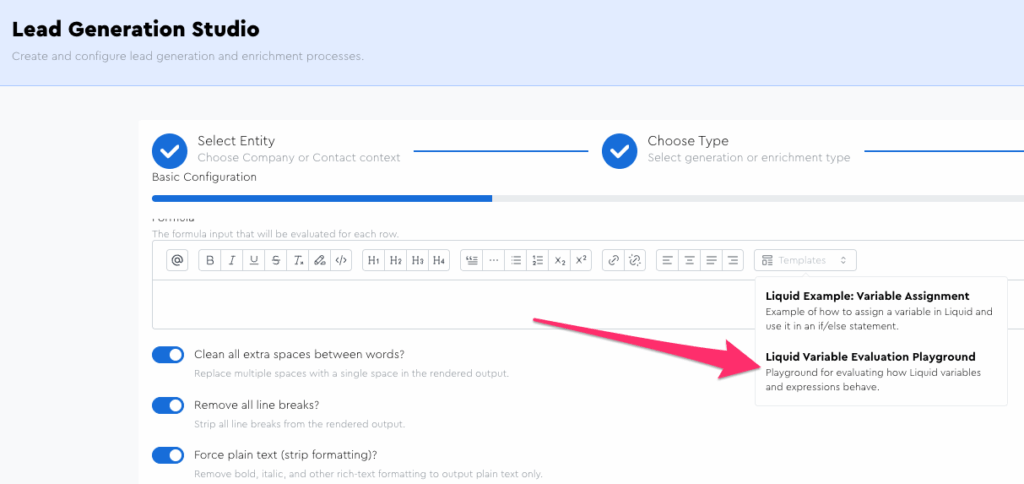
If you add this template, you can use it to test how different if/else conditions will render out based on different data types.
This is an important learning experience for you, because liquid evaluates “strings” (a.k.a. “text”) differently than numbers.
So if you have a number value of 0, that will perhaps evaluate differently in liquid formulas than if you have a string value of “0”.
If you have a boolean field that’s at true, it might evaluate differently than a text field set to "true"
etc.
How LeadTables Makes Variable Injection Simpler For You
When you map a column to its correct data type, like you learned in the “How The LeadTables Column Data Types Work” lesson, LeadTables will intelligently handle the variable typing for you so that you don’t have to worry about liquid variable type headaches.
So for example, if you had this liquid:

And a given row’s value for that field is set to 5, here’s the liquid that would get parsed…
1 — Number Data Type
If you set your column up like this:
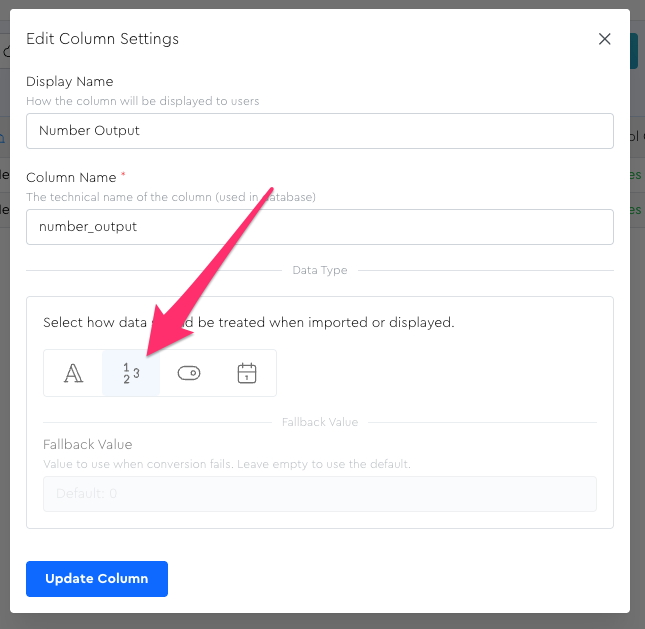
The liquid statement that would get evaluated would be:
{% if 5 > 4 %}
Which is good. That’s what you want.
2 — Text Data Type
However, if you’d actually set this up as a text field, it would get evaluated like:
{% if '5' > 4 %}
Which can behave unexpectedly because you’re comparing a string to a number.
If this happens to you, don’t fret, there are usually workarounds.
Preface Before The Workarounds: LiquidGPT Can Help!
I trained LiquidGPT on my own personal style and generalized Liquid best practices, so you can absolutely just ask it if certain things you’ve written are safe to use.
For example, let’s say I have:
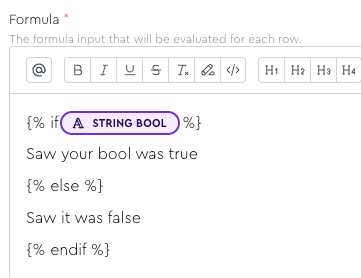
I could send this to Chap:
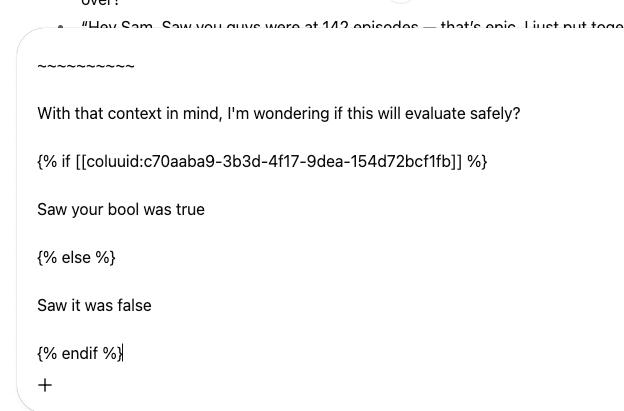
And he will help me see that no, this not safe code (thanks to the training data)
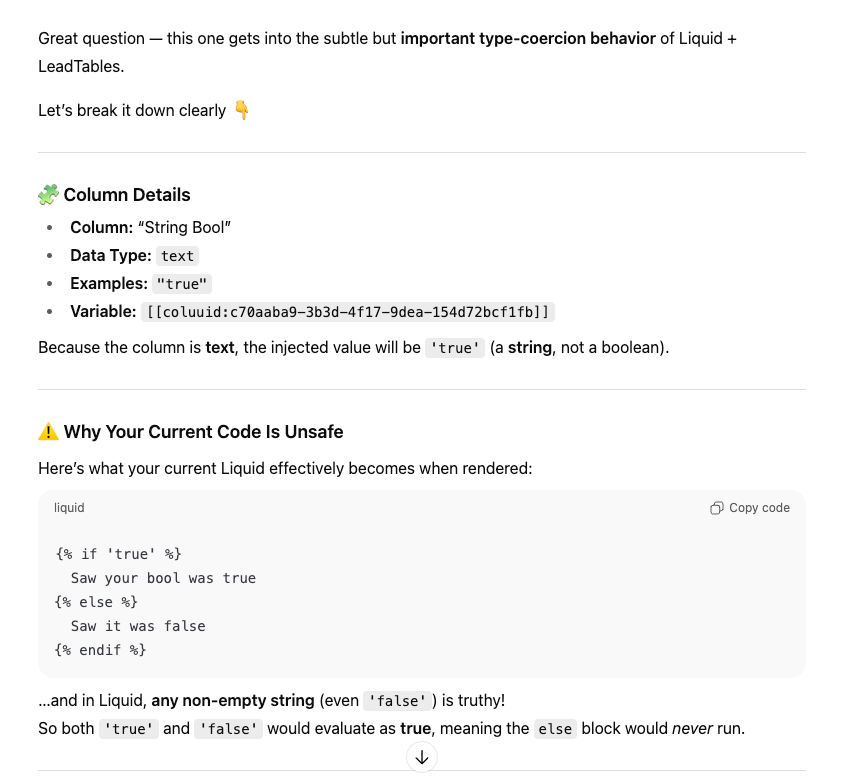
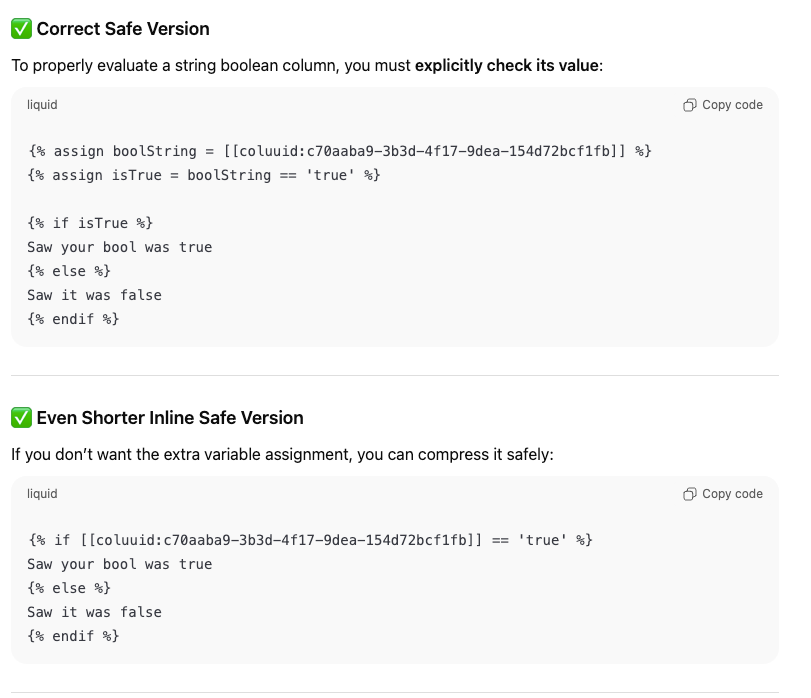
Nifty, eh!? So now let’s get into the nitty-gritty.
Liquid Data Type Workarounds
If you have some data baked into a text field that you need to work with in a different format, here are some hacks I’ve learned over the years:
Text → Number
Usually string ↔ number comparisons are pretty forgiving in liquid.
For example, this evaluates just fine in my test:
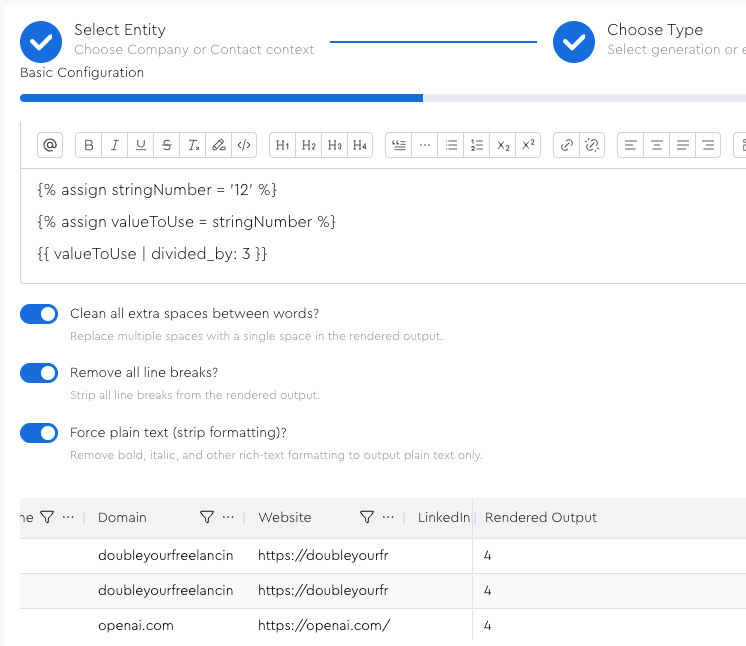
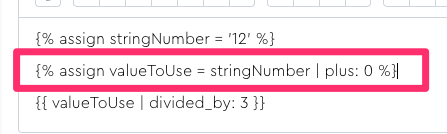
But if you ever want to be sure your “number inside of a text field” is treated like an actual number, you can do a | plus: 0 on the end of it:
Where this usually matters in code languages is with “concatenation,” which is a fancy word for “putting two things together.” But as I say, liquid seems to be pretty forgiving. For example:
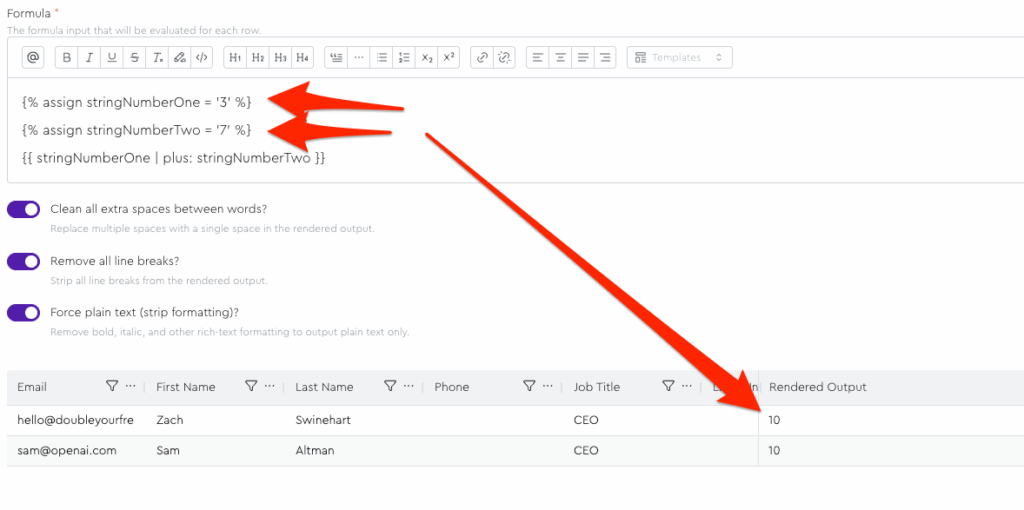
In this case, it evaluated to 10, like we’d want.
Whereas if you were to do that in javascript without casting to numbers first, it would evaluate to “37” (because it thinks they are two strings to join, vs. two numbers to add):
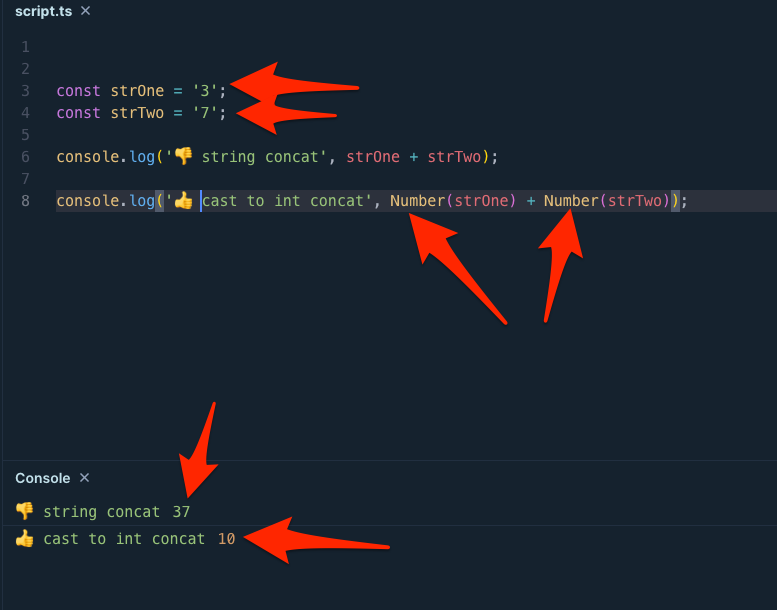
But it’s worth noting that I think a certain amount of “type coercion paranoia” is smart, even when it renders fine in the preview — I developed these techniques after getting burned, after all — so if it were me, I’d probably always do the | plus: 0 hack if I have a number in a text field and I’m trying to add it to another variable or compare it to another variable.
Text → Boolean
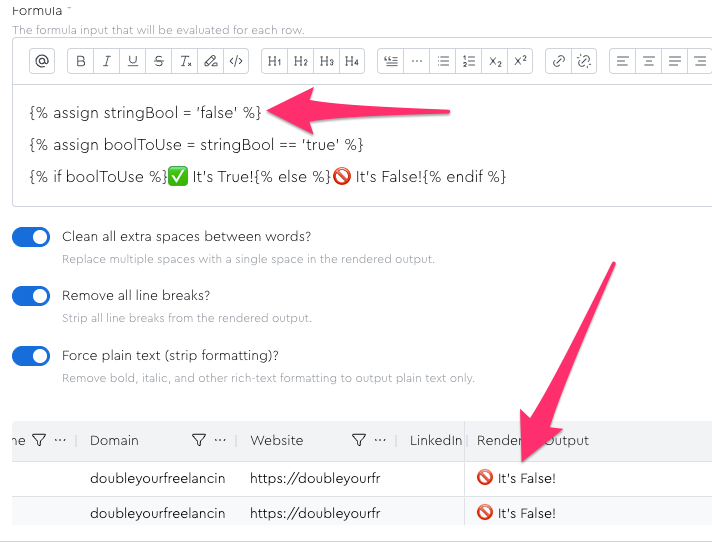
One type of type coercion that DOES matter is booleans (true/false). Notice how in the example below, a string set to "false" still evaluates as true in the if statement:

This is because when you say “if stringvalue” it’s basically going to just check that the string is set. To anything.
So what we need to do is coerce that string into a bool before doing our comparison.
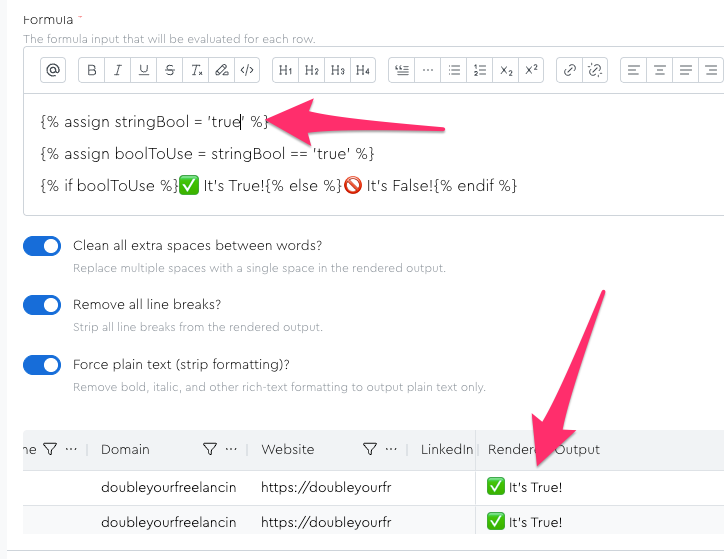
Fortunately, this is easy! If you do your evaluations around stringBool == 'true' instead of just stringBool that will sort you out.
Here’s an example:
{% assign stringBool = 'false' %}

{% assign boolToUse = stringBool == 'true' %}

{% if boolToUse %}✅ It's True!{% else %}🚫 It's False!{% endif %}
Fun Fact! You Can Cast Arbitrary Stuff To Boolean This Way Too
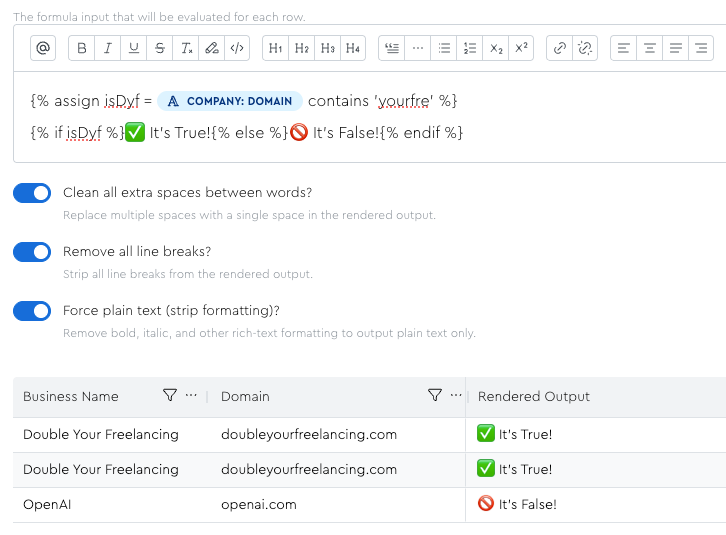
You can also do similar logic for getting arbitrary lead data outputting to a boolean field:
Text To Date
Another important liquid type coercion is dates. If you compare an “actual date” to a “string that looks like a date,” you will sometimes get weird results:
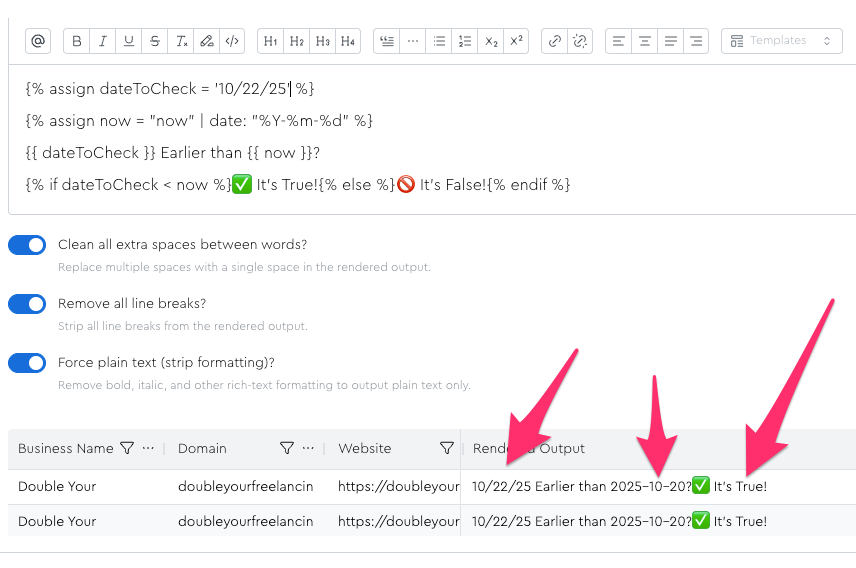
A lot of the time, this is because you’re actually comparing “string lengths”, i.e. the number of characters in a string. Or other times, it adds up all the numbers in a string.
To test this out, try the following…
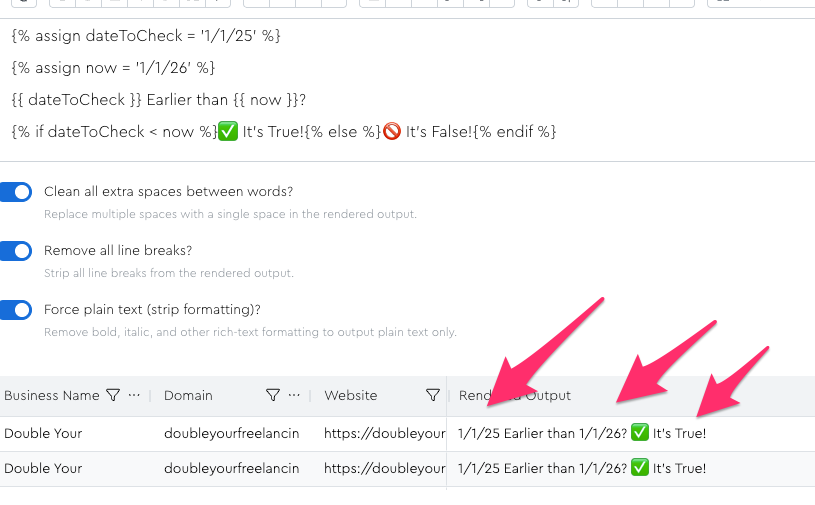
First type in this:
{% assign dateToCheck = '1/1/25' %}

{% assign now = '1/1/26' %}

{{ dateToCheck }} Earlier than {{ now }}?

{% if dateToCheck < now %}✅ It's True!{% else %}🚫 It's False!{% endif %}
Seems like it’s working, right?
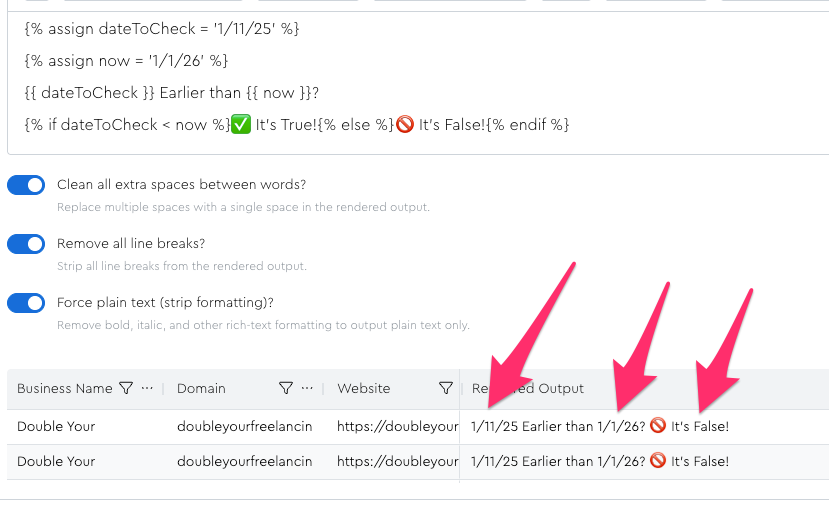
But not so fast, change your dateToCheck from 1/1/25 to 1/11/25. Now that first string is longer and you’ll see “false” as a result:
To get around this, you need to use liquid’s date utilities to cast those strings to dates. In each field, append | date: '%Y-%m-%d' and you’ll see that it’s working correctly:
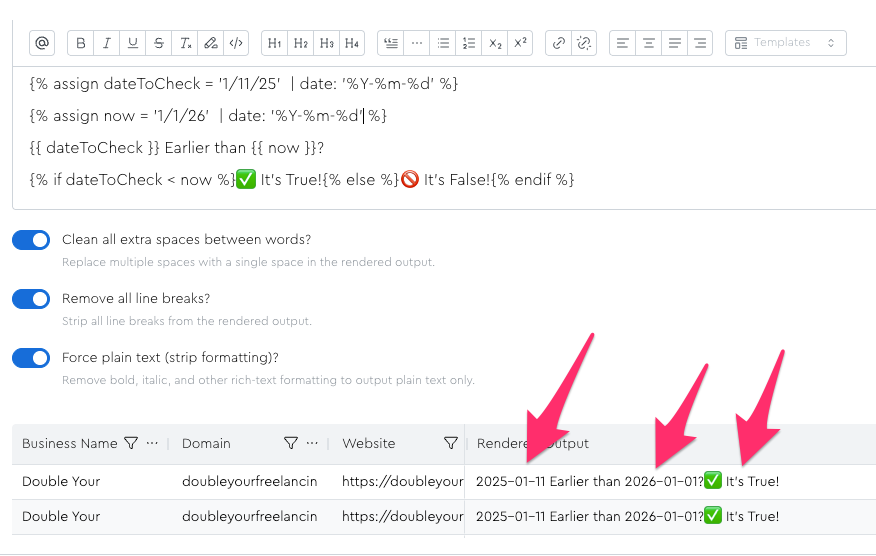
As I mentioned, this is easy when you use an actual LeadTables date field, because I handle all of this automatically for you:
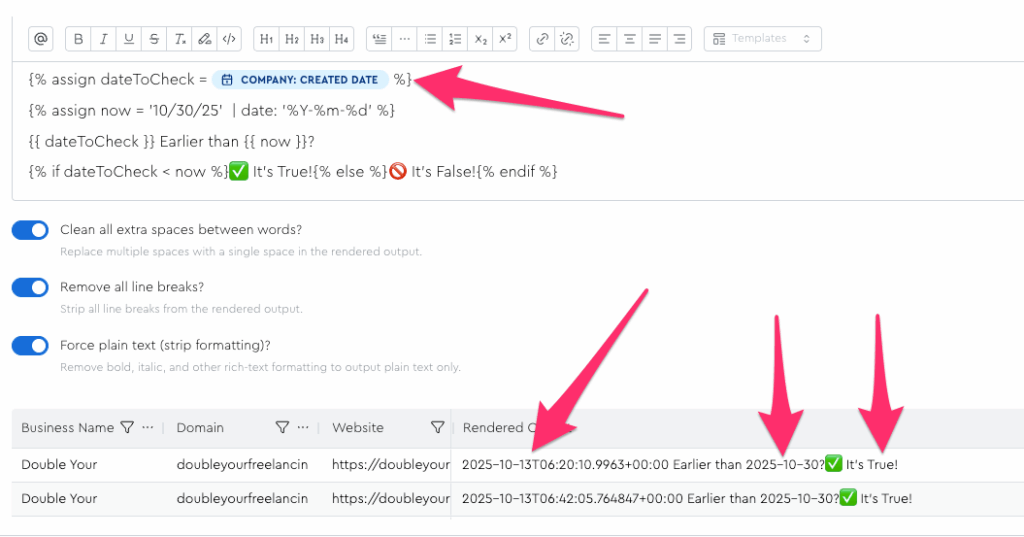

And as I also mentioned earlier, LiquidGPT should be able to nail this kind of thing.