The “Columns” Tool Panel
The Columns Tool Panel is super freakin’ nifty.
It’s probably one of my favorite UI helpers I’ve built into LeadTables (other than the Saved Views, which we’ll talk about later)
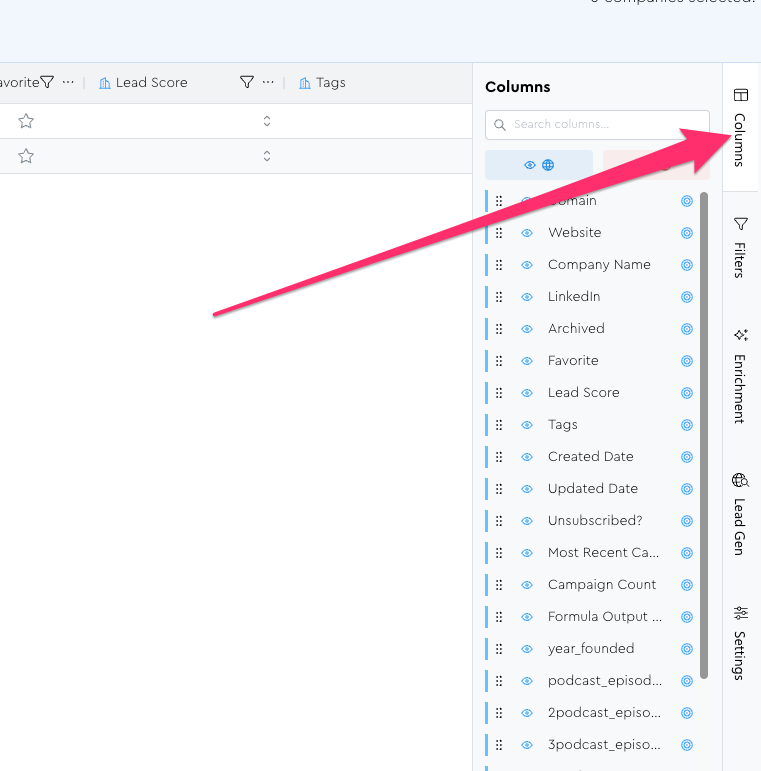
To open it, just click the “Columns” Tool Panel on the right:
How It Works
The Tool Panel is comprised of…
- The column search box
- Bulk actions
- The columns list
You’ll also notice things are color-coded.
- Contact columns are purple
- Company columns are blue
- Campaign columns should probably be red or something even if they technically aren’t right this moment at the time of writing 😅
Every column in the list has a few parts…
- The drag handle (that little dot grid on the left) — for reordering columns. You’ll notice that if you drag something here, the grid state matches, and if you drag something on the grid, the order in here updates.
- The eyeball — to show/hide
- The target-lookin’ thing on the right — to quickly locate a column
As always, keep in mind that the UI here is likely to change as I develop the tool further; i.e. I might one day add pinning, “re-order to top/bottom” etc.
The Bulk Actions
When you don’t have anything in the search box, you have two bulk actions available
- Show all columns
- Hide all columns
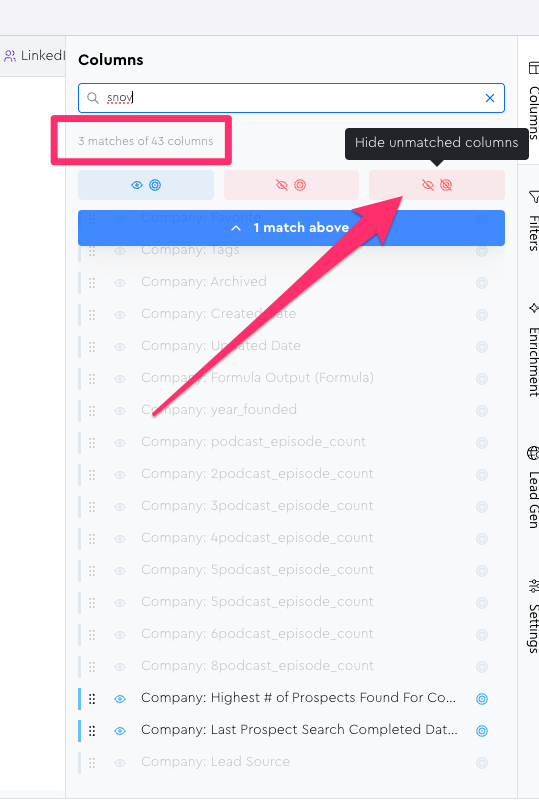
Where shit gets reeeeaalllllllyyy cooooll though is when you type something in to the search box: a special magic third option comes up, which is to “Hide unmatched columns.”
This is really useful when rolling out a new Data Module’s enrichment because you can often just type that Data Module’s name to show all of its child columns but hide everything else. (Then manually add back domain/email after and pin left)