How The LeadTables Column Data Types Work
In the previous lesson, we uploaded our sample spreadsheet and set a couple columns to custom mappings, and left off on the Finalization step looking like this:
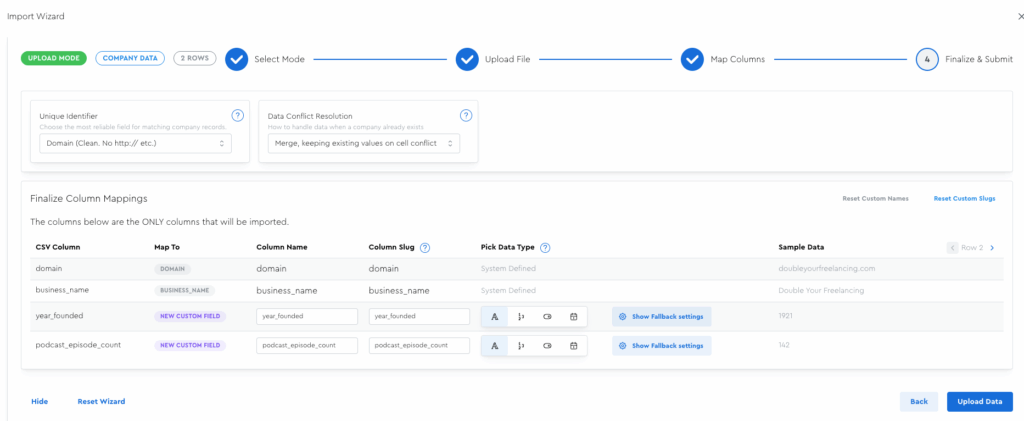
Next up is for us to set the column names & data types.
How Column Names/Slugs Work
The “column name” is what you’ll see in your LeadTable page — it’s the just-for-you friendly name. e.g. Is Solopreneur?
The column slug is the lowercase, underscore-separated, no-special-characters version of the name, e.g. is_solopreneur (notice I removed the question mark, spaces, and made it all lowercase)
Slugs are useful for when you export your lists, e.g. for importing into a sending platform like Instantly or Smartlead, because the “friendly names” can mess up mapping and variable injection on those platforms.
How Column Data Types Work
Data type handling is one of the coolest and most unique aspects of LeadTables.
If you choose a column as a certain type, LeadTables will try to interpret the data you put into it as that data type, a.k.a. “coerce it into that data type.”
(”Type coercion” is dev lingo for “converting a value from one type to another.”)
Here’s an example of where this is nifty…
Builtwith.com list exports have certain numeric fields, such as “page rank” that usually include numbers, but sometimes don’t.
(In Builtwith’s case, they say “Outside Top 100m” if the page rank is really low)
Or perhaps you upload a date column that sometimes holds an actual date value, but other times holds “—” or “N/A”.
Most SaaS platforms will outright fail when you try to upload data that requires type coercion like this.
They’ll either fail to upload entirely and throw an error that it couldn’t parse the data…
…Or they’ll force you to upload all your data as text, which means you’d lose out on “greater than/less than” style filtering on numbers, or “before/after” style filtering on dates.
But not LeadTables, no no no.
With LeadTables, you set your target data type, we’ll try our best to coerce it, and you can also set a “fallback value” that we’ll set values to if we can’t coerce them.
Before we talk about fallback values, let’s talk about the data types and what they’re for.
All The LeadTables Column Data Types
LeadTables offers the following column data types:
Text Data Type
- A good catch-all for misc data that doesn’t cleanly fit into the other data types.
- Filtering is limited to things like “contains,” “not contains,” “blank,” etc.
- Sorting is alphabetical, which means if you mark a number column as text, and you have the values “10,” “50,” and “100,” they’d be sorted like 10→100→50. (Vs. 10→50→100 like you’d want.) This is why it’s important to map columns holding numbers (including currency) to the “Number” type.
Number Data Type
- This should be your go-to for any kind of number, be it currency, decimals, or whole numbers.
- Filtering allows for number-centric things like “less than,” “greater than,” etc.
- Sorting is based on the actual numeric value, which means if you have the values “10,” “50,” and “100,” they’d be sorted like 10→50→100, as expected.
Boolean Data Type
- “Boolean” is dev lingo for “true/false,” “yes/no” style stuff.
- Filtering is limited to “true,” “false,” “empty” and “not empty” (”False” would be “explicitly set to false,” vs “empty,” which is “hasn’t been set yet”)
- With fallback values, these boolean columns can also be useful as a way of marking whether a value equals something specific that’s not a typical true/false value type, e.g. you could do “Mark true if their name is Zach, otherwise mark false” but you typically won’t do this.
Date Data Type
- This should be your go-to for any date/datetime data.
- Sorting and filtering are as you’d expect from a datetime field.
How Fallback Values Work
Even though type coercion is nifty, it isn’t always possible.
For example, with Builtwith’s “Outside top 100m” thing, there’s no way to coerce that into a numeric value, because it’s not one.
This is where fallback values are nifty — when setting up the column’s data type, you can choose what these un-parseable values should fall back to. Maybe 0? Maybe 99999999? The choice is yours!
This is powerful for Sorting & Filtering.
Let’s look at an example of why…
In Builtwith’s page rank case, a page rank of “1” is the “best” score.
So if someone’s “outside the top 100m,” what do you think we should set our fallback to?
👉 If you said something like, “100000001” (one hundred million and one), or “999999999” you’d be right!
A fallback value approach like this means all of those low-scoring leads will show up at the bottom of your list when sorting by page rank, (as opposed to at the top if they were treated as 0s) which is useful for ICP filtering.
Same deal for boolean (true/false) fields, dates, etc. — you can choose what value LeadTables should default to if it can’t parse the source.
Note: if your spreadsheet simply contains an empty value in a cell (vs. an unparseable one) it won’t fall back to the default — it’ll just stay empty.
Fallbacks are ONLY used when your uploaded spreadsheet contains bad, unparseable data for a field.
Fallback Value Magic With Booleans
When you set the fallback config for a boolean, you decide whether unparseable rows should get set as “true” or as “false.”
You can also set custom “matching values” if you have weird source data.
So for example, if your source sheet contains “yep” and “nope” (for some reason, lol) instead of obvious ones like “true,” “false,” “yes,” “no,” etc., you could custom-specify that “yep” means “true,” and everything else will fall back to false.
OR specify that “nope” means “false,” and everything else will fall back to “true.”
This ability to go “false-matched” or “true-matched” unlocks some interesting functionality.
Here’s an example to illustrate…
Let’s say you’re uploading a spreadsheet with a column called “favorite_animal” that sometimes says “dogs,” sometimes says “cats,” etc.
If for some reason you wanted to coerce cat-likingness to a Boolean, you could map to a bool column called “Likes Cats?” with a custom true-match value of “cats,” and then any other value (”dogs,” “llamas,” etc.) would fall back to “false.”
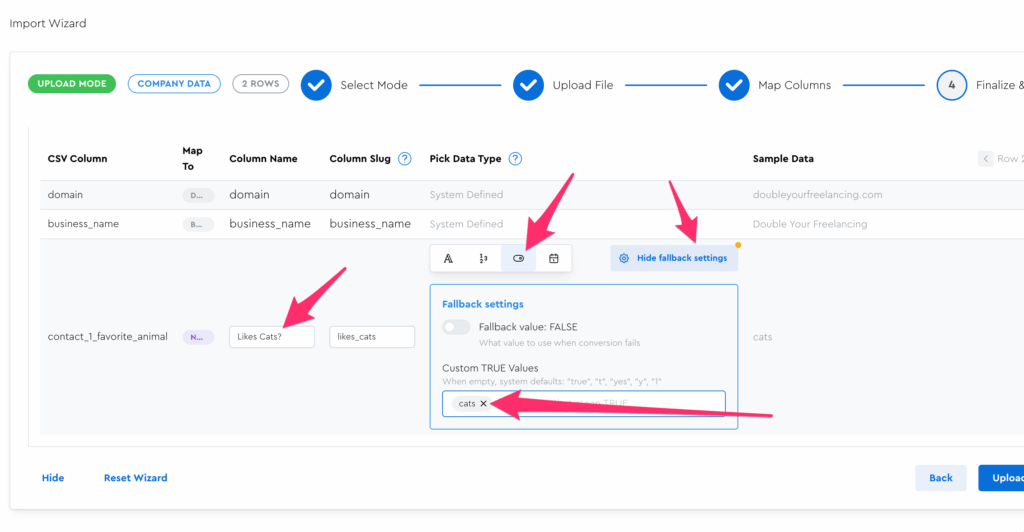
The config above results in this table output:
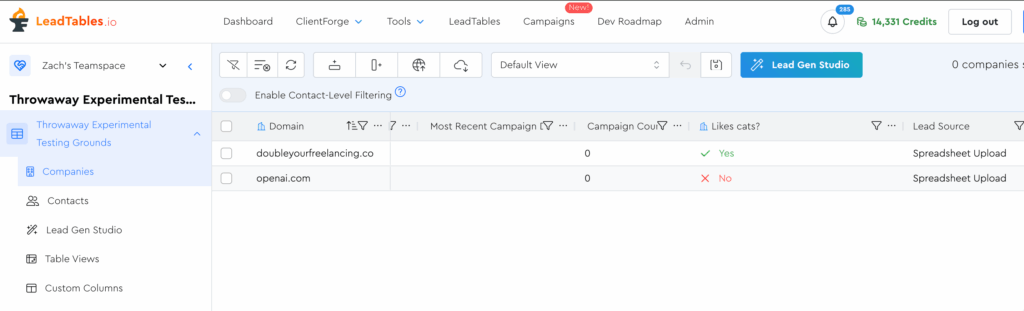
But as I say, you wouldn’t normally do this — because why-would-you — but it’s useful to know how. 🙂
In the next lesson we’ll cover how to add enrichment data to these leads.
For now, you can map the “year_founded” and “podcast_episode_count” fields from your upload to number types and complete your upload.
Once you finish up in the wizard, you’ll be taken back to your LeadTable view.
If you scroll to the right in your LeadTable, you should see these columns. You can also right-click the domain column and pin it to the left to help yourself see how the fields line up to domains. (Click the refresh button if needed)